The Safest Way to Install Apollo Group TV on Any Device Without Errors (2025 Guide)
1. Introduction: Why Proper Installation Matters
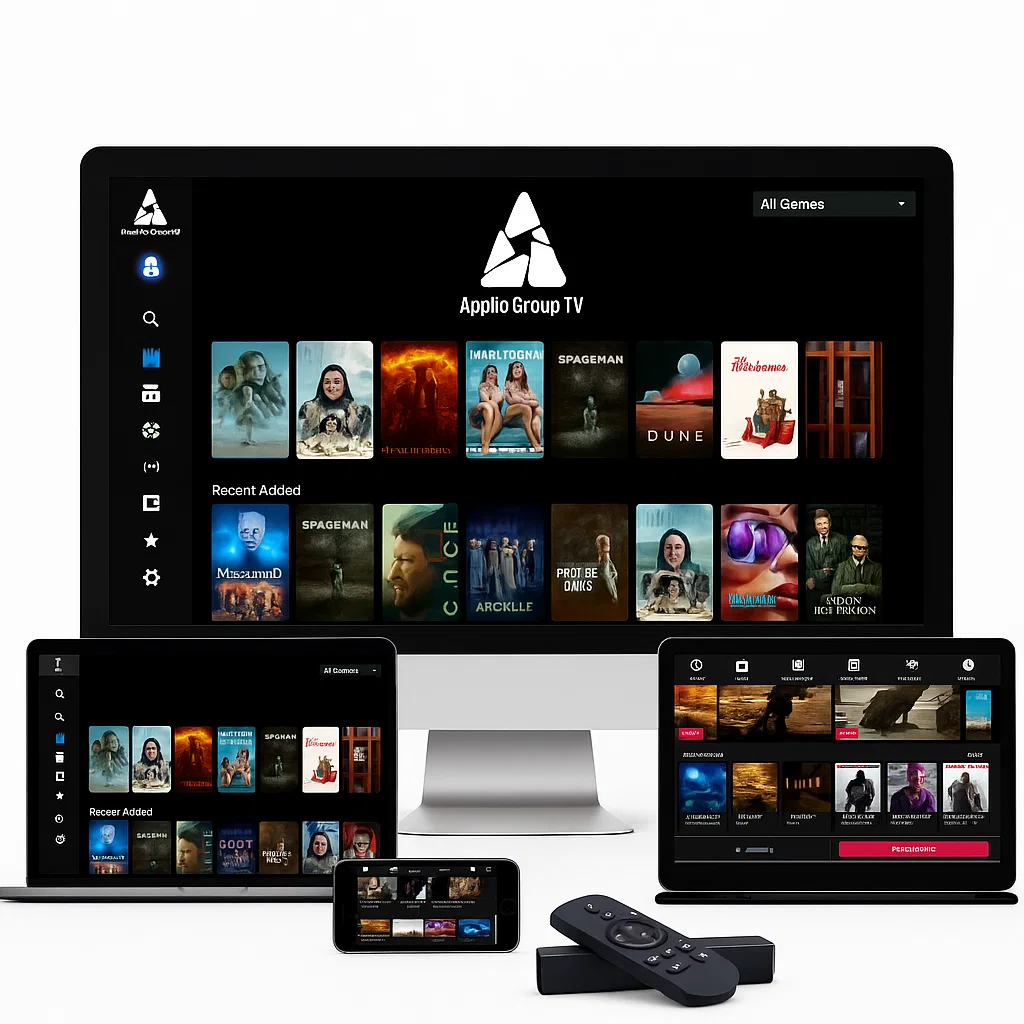
Apollo Group TV is one of the most trusted IPTV services in 2025, offering thousands of channels, movies, and live events. However, improper installation can lead to errors, buffering, or failed login issues.
This guide provides the safest and most effective method to install Apollo Group TV on any device while ensuring you avoid common errors.
✅ Already have a subscription? Check plans here:
👉 Apollo Group TV Pricing
2. Apollo Group TV Installation Overview
Before diving into device-specific steps, let’s understand what installation involves:
- Downloading the Apollo Group TV App
- Enabling device permissions (if needed)
- Installing the app correctly
- Logging in securely
- Configuring settings for optimal streaming
For the official app download, visit:
👉 Apollo Group TV App
External reference: IPTV basics – 🔗 Wikipedia
3. How to Install Apollo Group TV on Firestick
Firestick is the most popular device for streaming Apollo. Follow these safest steps:
Step 1: Enable Unknown Sources
- Open Settings → My Fire TV → Developer Options
- Turn ON:
- ADB Debugging
- Apps from Unknown Sources
Step 2: Install Downloader App
- Go to Firestick Search → Downloader
- Install and allow permissions
Step 3: Download & Install Apollo APK
- Open Downloader → enter the official URL
- Click Download → Install
- Open the app and log in
💡 Pro Tip: Bookmark the Apollo Home Page for updates and support.
4. Apollo Group TV Installation on Android TV / Box
Step 1: Allow Unknown Sources
- Settings → Security & Restrictions → Unknown Sources → Enable
Step 2: Download APK
- Open Chrome or any browser
- Download APK from official source: Apollo App
Step 3: Install & Open
- Use a File Manager → Install APK
- Open app → Login
- Check channels → Visit Channels List
External reference: 🔗 Streaming Media – Wikipedia
5. Installation on iPhone / iPad
iOS requires IPTV-compatible apps like Smarters or GSE Player:
- Download IPTV player from App Store
- Enter your Apollo M3U link or portal
- Log in → Configure resolution
- Test channels
💡 Pro Tip: Use Safari for smooth setup and always keep your app updated.
6. Installation on Windows & Mac
Many users prefer PC streaming via emulators:
- Install Bluestacks or Nox Player
- Download Apollo APK → Install in emulator
- Open → Log in → Enjoy streaming
Tip: For Windows or Mac, ensure your firewall or antivirus allows Apollo traffic.
7. Installation on Smart TVs (Samsung / LG)
Smart TVs don’t allow direct APKs. Instead, use IPTV apps:
- SS IPTV (Samsung)
- Smart IPTV (SIPTV) (LG)
Steps:
- Install IPTV app → Load Apollo M3U or portal link
- Configure channels
- Test stream quality
8. Common Installation Errors and How to Fix Them
8.1 App Not Installing
- Clear cache of device
- Reboot device
- Ensure storage space > 500MB
8.2 APK Won’t Open
- Enable Unknown Sources
- Use latest APK from official source
- Restart device
8.3 Invalid Login
- Check credentials → Reset password if needed: Contact Support
- Confirm device limit not exceeded
8.4 Buffering After Installation
- Check internet speed ≥ 25 Mbps
- Switch server in settings
- Use wired connection for better stability
9. Post-Installation Optimization
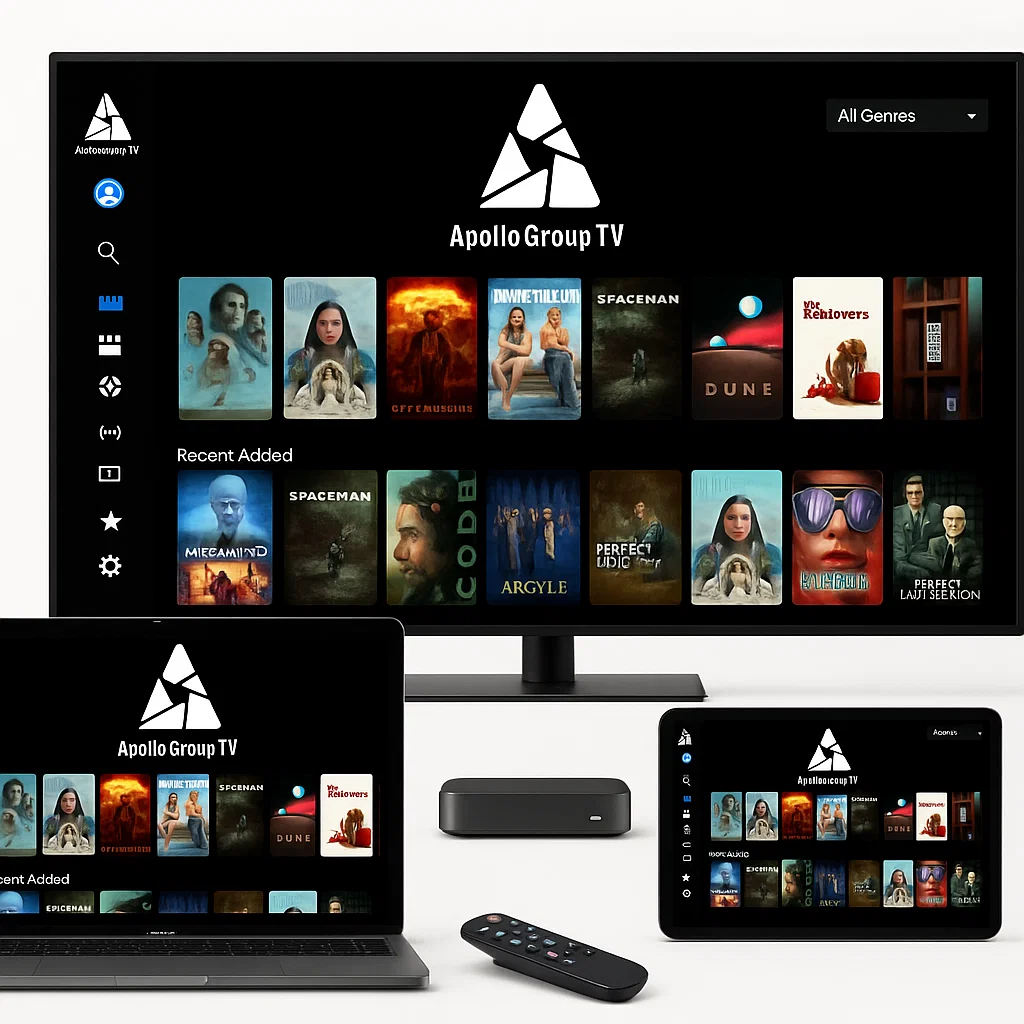
After installing Apollo, optimize for zero buffering and smooth playback:
Device Settings
- Enable Hardware Decoder
- Adjust Buffer Size → Medium
- Enable Fast Zapping
- Use alternative player if issues occur
Network Settings
- Use 5GHz WiFi or wired Ethernet
- Close bandwidth-heavy apps
- Restart router every 48 hours
External reference: 🔗 Video Compression – Wikipedia
10. Safety & Security Tips
- Use strong, unique passwords
- Avoid public WiFi login
- Update app and device regularly
- Use reliable VPN if ISP blocks streaming
Internal link reminder: Home page 👉 Apollo Group TV
11. Frequently Asked Questions (FAQ)
Q1: Can I install Apollo on multiple devices?
A: Yes, but device limits apply. Upgrade plan if needed: Pricing
Q2: How do I fix “App Not Installing” errors?
A: Enable Unknown Sources, free storage, download latest APK.
Q3: Is Apollo Group TV safe to use?
A: Yes, it uses secure login and encrypted streams.
Q4: What is the best device for Apollo?
A: Firestick or Android TV, for fast updates and smooth playback.
Q5: Where can I find the full channel list?
A: Visit Channels List.
12. Conclusion
Installing Apollo Group TV safely ensures a buffer-free, smooth, and reliable streaming experience. By following this guide:
- You avoid common installation errors
- Protect your account and device
- Optimize speed and streaming quality
- Ensure your Apollo subscription works on all devices