Apollo Group TV Android TV Setup: Complete Installation Guide for 2025

Direct Answer: How Do You Set Up Apollo Group TV on Android TV?
Setting up Apollo Group TV on Android TV involves enabling installation from unknown sources in your device settings, downloading the official Apollo Group TV APK file, installing the application, and logging in with your subscription credentials. The entire process takes 5-10 minutes and requires no technical expertise. Once installed, you’ll have access to thousands of live channels and on-demand content directly through your Android TV interface with full remote control functionality and seamless navigation.
Table of Contents
- What is Apollo Group TV?
- Why Choose Android TV for Apollo Group TV Setup?
- Pre-Installation Requirements
- Step-by-Step Apollo Group TV Android TV Setup
- Post-Installation Configuration
- Optimizing Apollo Group TV Performance on Android TV
- Navigating the Apollo Group TV Interface
- Customizing Your Viewing Experience
- Common Installation Mistakes to Avoid
- Troubleshooting Apollo Group TV Android TV Issues
- Apollo Group TV vs Other IPTV Apps on Android TV
- Security and Privacy Considerations
- Maintaining Your Apollo Group TV Installation
- Advanced Tips for Power Users
- Frequently Asked Questions
- Final Thoughts
1. What is Apollo Group TV?
Apollo Group TV is a comprehensive IPTV (Internet Protocol Television) service that delivers thousands of live television channels, movies, and on-demand content through internet streaming. Unlike traditional cable or satellite services, Apollo Group TV uses your internet connection to stream content directly to compatible devices.
The service provides access to over 20,000 channels spanning international networks, sports programming, entertainment, news, and premium movie channels. Content includes both live broadcasts and video-on-demand libraries with recent releases and classic titles.
Apollo Group TV operates through a dedicated application that organizes content into easily navigable categories. The electronic program guide (EPG) displays scheduling information, allowing you to plan viewing and set reminders for upcoming programs.
Key Features of Apollo Group TV
The service includes several standout features that differentiate it from competing IPTV providers:
Extensive Channel Library: Access to global content from North America, Europe, Asia, Latin America, and the Middle East ensures something for every viewer regardless of language preference or content interests.
HD and 4K Streaming: Many channels broadcast in high-definition or Ultra HD quality, providing superior picture clarity compared to standard definition streams common with budget IPTV services.
Multi-Device Support: Single subscriptions typically allow streaming on multiple devices simultaneously, accommodating families with different viewing preferences.
Catch-Up TV: Many channels include catch-up functionality allowing you to watch programs aired within the previous 72 hours, eliminating concerns about missing live broadcasts.
Regular Updates: The service maintains active development with frequent app updates that add features, improve stability, and expand content offerings.
2. Why Choose Android TV for Apollo Group TV Setup?
Android TV represents one of the optimal platforms for Apollo Group TV installation and usage. Several factors make Android TV particularly well-suited for IPTV streaming.
Native Compatibility
Android TV runs a modified version of the Android operating system specifically optimized for television displays. This means Apollo Group TV’s Android application installs and runs natively without requiring emulation or workarounds necessary on other platforms.
The application takes full advantage of Android TV’s capabilities including remote control integration, voice search functionality, and home screen widget support.
Superior Performance
Modern Android TV devices feature powerful processors and adequate RAM to handle demanding video streams without buffering or stuttering. Dedicated streaming boxes like NVIDIA Shield TV or high-end Sony Android TVs deliver exceptional performance even with 4K content.
Hardware video decoding support ensures efficient playback that doesn’t overheat devices or drain power unnecessarily. This dedicated hardware acceleration provides smoother streaming compared to software-only decoding on less capable devices.
User-Friendly Interface
Android TV’s intuitive interface makes navigation straightforward even for non-technical users. The standard Android TV launcher organizes apps logically and provides quick access to recently used applications.
Remote control functionality is specifically designed for “10-foot interfaces”—large screen displays viewed from across the room. Button layouts prioritize the most commonly used functions for comfortable one-handed operation.
Google Integration
Built-in Google Assistant support enables voice commands for searching content, controlling playback, and launching applications. Simply press the microphone button and speak your request rather than typing with cumbersome on-screen keyboards.
Chromecast functionality allows casting content from smartphones or tablets directly to your Android TV, providing additional viewing flexibility beyond the Apollo Group TV application itself.
Extensive App Ecosystem
Beyond Apollo Group TV, Android TV provides access to thousands of applications through the Google Play Store. This versatility lets you supplement IPTV with legitimate streaming services, games, utilities, and other entertainment options within a unified platform.
3. Pre-Installation Requirements
Before beginning Apollo Group TV Android TV setup, ensure you meet all necessary requirements to avoid installation problems and ensure optimal performance.
Active Subscription
You need an active Apollo Group TV subscription before installation. The service doesn’t offer free trials in most cases, requiring payment before accessing content.
Purchase subscriptions through Apollo Group TV’s official website or authorized resellers. Receive confirmation emails containing your username and password credentials necessary during the login process.
Subscription tiers vary by concurrent stream allowances and feature access. Verify your selected plan meets household needs before proceeding with installation.
Compatible Android TV Device
Apollo Group TV requires Android TV devices running Android 5.0 (Lollipop) or newer. Virtually all Android TV devices manufactured after 2015 meet this requirement.
Compatible devices include:
Streaming Boxes: NVIDIA Shield TV, Xiaomi Mi Box, Mecool boxes, Formuler devices Streaming Sticks: Xiaomi Mi TV Stick, various Android TV dongles Smart TVs: Sony Bravia, TCL, Hisense, Philips, Sharp models with Android TV Projectors: Select smart projectors with built-in Android TV functionality
Verify your specific device model supports Android TV rather than generic Android (which requires different installation procedures).
Stable Internet Connection
Minimum internet speeds of 25 Mbps support HD streaming reliably. 50+ Mbps connections provide better performance with less buffering, particularly for 4K content or multiple simultaneous streams.
Wired Ethernet connections deliver more consistent performance than Wi-Fi. If wireless connection is necessary, use 5GHz Wi-Fi bands rather than crowded 2.4GHz frequencies for better speeds and lower latency.
Test your connection speed before installation using speed test websites or apps. Inconsistent speeds below minimums indicate you should upgrade your internet package before subscribing to avoid constant buffering frustration.
Adequate Storage Space
The Apollo Group TV application itself requires minimal storage—typically 50-100 MB. However, you need additional free space for cached video segments and temporary files generated during streaming.
Maintain at least 1-2 GB free storage on your Android TV device to ensure smooth operation. Devices with limited internal storage may require external USB storage expansion or regular cache clearing.
Updated Device Firmware
Before installing Apollo Group TV, update your Android TV device to the latest available firmware version. Updates include security patches, bug fixes, and codec improvements that enhance streaming performance.
Check for updates through Settings > Device Preferences > About > System Update (exact menu paths vary by manufacturer). Install any available updates and restart your device before proceeding with Apollo Group TV installation.
4. Step-by-Step Apollo Group TV Android TV Setup
This comprehensive guide walks you through every step of the Apollo Group TV Android TV setup process with detailed instructions and visual guidance.
Step 1: Enable Installation from Unknown Sources
Android TV restricts app installation to the Google Play Store by default for security reasons. Since Apollo Group TV isn’t available through official stores, you must enable sideloading.
Process:
- From your Android TV home screen, navigate to Settings using your remote control
- Scroll down and select Device Preferences (or Security & Restrictions on some devices)
- Find and select Security & Restrictions
- Locate the Unknown Sources option
- You’ll see a list of applications that could potentially install APK files
- Find Downloader, File Manager, or your preferred file browsing app in the list
- Toggle the switch to ON for the application you’ll use to install Apollo Group TV
- Confirm the warning message by selecting OK
This setting allows your chosen file manager application to install APK files downloaded from the internet. You’re not completely disabling security—just authorizing specific apps to perform installations.
Step 2: Download Apollo Group TV APK
You need to obtain the official Apollo Group TV installation file. Several methods exist depending on your preference and available tools.
Using Downloader App
- Go to the Google Play Store on your Android TV
- Search for Downloader by AFTVnews
- Install the free application and open it
- Navigate to the URL field on the Downloader home screen
- Enter the official Apollo Group TV APK download URL (provided by your service provider)
- Select Go to begin downloading
- Wait for the download to complete (typically 30-60 seconds depending on connection speed)
Using Web Browser
- Open the pre-installed web browser on your Android TV (Chrome or other)
- Navigate to the official Apollo Group TV website
- Find the download section or APK download link
- Select the Android version download option
- Save the file when prompted
- The APK saves to your Downloads folder
Transfer via USB
- Download the Apollo Group TV APK on your computer from the official website
- Copy the APK file to a USB flash drive
- Connect the USB drive to your Android TV device
- Open a file manager app on your Android TV
- Navigate to the USB storage location
- Locate the Apollo Group TV APK file
Always download from official sources provided by Apollo Group TV. Third-party download sites may distribute modified versions containing malware or unwanted software.
Step 3: Install Apollo Group TV Application
Once you’ve downloaded the APK file, proceed with installation:
- If using Downloader, the app automatically prompts for installation after download completes
- If using another method, open your file manager and navigate to the APK location
- Select the Apollo Group TV APK file
- Review the app permissions display showing what access the application requests
- Select Install to begin the installation process
- Wait for installation to complete (typically 10-30 seconds)
- Select Done when installation finishes (or Open to launch immediately)
The application is now installed on your Android TV and appears in your apps list alongside other installed applications.
Step 4: Launch Apollo Group TV
Access your newly installed application:
- Return to the Android TV home screen by pressing the Home button on your remote
- Navigate to the Apps section
- Scroll through your installed applications to find Apollo Group TV
- Select the Apollo Group TV icon to launch the application
- The first launch may take slightly longer as the app initializes and creates necessary directories
Some users prefer moving Apollo Group TV to their home screen favorites for quicker access. Long-press the app icon and select “Add to Favorites” or drag it to the top row of your home screen.
Step 5: Complete Initial Configuration
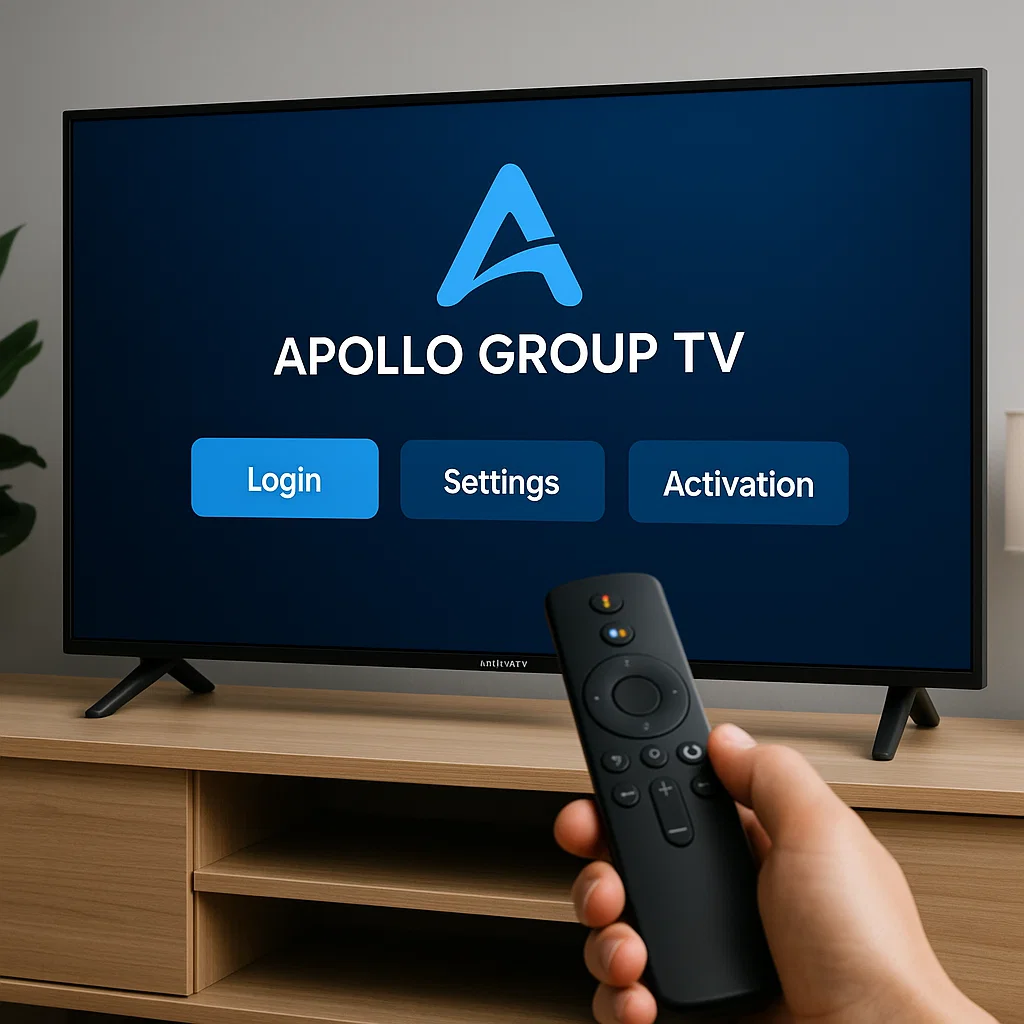
When Apollo Group TV launches for the first time, you’ll encounter the login screen:
- Select the Username field
- Enter your Apollo Group TV username using the on-screen keyboard (use your remote’s directional pad or voice input for easier typing)
- Navigate to the Password field
- Enter your password carefully, paying attention to case sensitivity
- Select the Login button to authenticate
- Wait while the application verifies your credentials with Apollo Group TV servers
Successful login loads the main interface displaying available channels and content categories. Failed login attempts show error messages—verify your credentials accuracy and ensure your subscription remains active.
Step 6: Initial Settings Configuration
After successful login, configure essential settings:
- Access the Apollo Group TV settings menu (usually via a gear icon or menu button)
- Navigate to Video Settings
- Select your preferred default quality (Auto, 720p, 1080p, or 4K depending on your internet speed and display)
- Configure Buffering Settings if available—increase buffer size if you experience frequent interruptions
- Set Subtitle Preferences including language, size, and styling
- Configure Parental Controls if needed by setting a PIN code and selecting rating restrictions
- Review Audio Settings to choose default audio language and format preferences
- Save all settings and exit to the main menu
Your Apollo Group TV Android TV setup is now complete and ready for streaming.
5. Post-Installation Configuration
Optimize your Apollo Group TV experience through additional configuration beyond basic installation.
Creating Favorite Channel Lists
Apollo Group TV includes thousands of channels. Creating personalized favorites lists provides quick access to frequently watched content:
- Browse to any channel you watch regularly
- Long-press the select/OK button on your remote
- Choose Add to Favorites from the context menu
- Repeat for all frequently watched channels
- Access your favorites list from the main menu for instant navigation
Organize favorites into custom categories like “Sports,” “News,” or “Movies” if the application supports multiple favorites folders.
Setting Up Parental Controls
Protect children from inappropriate content through Apollo Group TV’s parental control features:
- Navigate to Settings > Parental Controls
- Enable parental controls and create a 4-digit PIN code
- Select content rating restrictions (PG, PG-13, R, TV-MA, etc.)
- Choose specific channels to block regardless of ratings
- Set viewing time restrictions if available (limiting access to specific hours)
- Enable PIN requirement for purchasing or renting paid content
Remember your PIN—recovery processes vary by service and may require contacting customer support.
Configuring EPG Settings
Electronic Program Guide configuration ensures accurate scheduling information:
- Access Settings > EPG Configuration
- Select your time zone to display correct program times
- Choose EPG display format (grid view, list view, etc.)
- Set the number of days to display in advance (typically 3-7 days)
- Enable automatic EPG updates if available
- Configure reminder settings for upcoming programs
Properly configured EPG makes planning viewing sessions much easier and prevents missing favorite programs.
Audio and Subtitle Preferences
Configure default audio and subtitle settings matching your preferences:
- Navigate to Settings > Audio/Subtitle Preferences
- Select preferred audio language (the app prioritizes this language when multiple audio tracks exist)
- Choose default subtitle language
- Adjust subtitle size for comfortable reading from your viewing distance
- Select subtitle color and background opacity for optimal visibility
- Configure audio format (stereo, 5.1 surround, etc.) matching your sound system capabilities
These defaults apply automatically, though you can override them on a per-program basis during playback.
6. Optimizing Apollo Group TV Performance on Android TV
Maximize streaming quality and minimize buffering through systematic performance optimization.
Network Optimization
Use Wired Connection: Connect your Android TV to your router via Ethernet cable whenever physically possible. Wired connections eliminate Wi-Fi interference and provide more consistent speeds.
Optimize Wi-Fi Settings: If wireless connection is necessary:
- Position your router centrally with minimal physical obstructions
- Use 5GHz Wi-Fi bands instead of 2.4GHz for faster speeds
- Change Wi-Fi channels to avoid congestion from neighboring networks
- Consider mesh Wi-Fi systems for larger homes with weak signal areas
Enable QoS: Configure Quality of Service settings on your router to prioritize streaming traffic from your Android TV’s IP address over less time-sensitive activities like file downloads.
Device Performance Optimization
Close Background Apps: Android TV allows multiple apps to run simultaneously. Close unused applications to free resources:
- Long-press the Home button on your remote
- View recently used apps
- Swipe away apps you’re not using
- This frees RAM and processing power for Apollo Group TV
Clear Cache Regularly: Accumulated cache files slow performance over time:
- Navigate to Settings > Apps
- Select Apollo Group TV from your app list
- Choose Clear Cache (not Clear Data which removes settings)
- Restart the app for improved performance
Disable Animations: Reduce visual effects to improve responsiveness:
- Go to Settings > Device Preferences > About
- Tap “Build Number” seven times to enable Developer Options
- Navigate to Settings > Device Preferences > Developer Options
- Reduce or disable Window Animation Scale, Transition Animation Scale, and Animator Duration Scale
Video Quality Settings
Match Quality to Bandwidth: Don’t force 4K streaming if your internet can’t support it consistently. Auto-quality settings let the app adapt to current conditions, preventing constant buffering.
Adjust Buffer Size: Larger buffers reduce interruptions but increase start times. Find the balance that works for your connection:
- Fast, stable connections: Use smaller buffers (5-10 seconds)
- Slower, variable connections: Increase buffer size (15-30 seconds)
Storage Management
Monitor Available Space: Apollo Group TV requires free space for temporary video segments:
- Check Settings > Device Preferences > Storage
- Maintain at least 20% free space
- Uninstall unused apps or clear app caches if storage is low
- Consider external USB storage expansion for devices with limited internal memory
7. Navigating the Apollo Group TV Interface
Understanding the Apollo Group TV interface ensures efficient content discovery and enjoyable viewing experiences.
Home Screen Layout
The Apollo Group TV home screen typically displays:
Featured Content: Top banner showcasing popular movies, major sports events, or promoted programming Recently Watched: Quick access to channels and programs you’ve viewed recently Categories: Organized sections for Live TV, Movies, Series, Sports, and other content types Search Function: Magnifying glass icon providing keyword search across all content Settings Menu: Gear icon accessing configuration options
Live TV Navigation
Accessing live television channels:
- Select Live TV from the main menu
- Browse categories (Sports, News, Entertainment, International, etc.)
- Scroll through channel lists organized by category
- Select any channel to begin streaming immediately
- Use the EPG button to view programming schedules
- Channel up/down buttons on your remote switch between consecutive channels
Video on Demand Navigation
Exploring movies and series libraries:
- Select Movies or Series from the main menu
- Browse by categories (Action, Comedy, Drama, etc.)
- Use filters for genre, year, rating, or language
- Select any title to view details including synopsis, cast, and ratings
- Choose Play to start streaming immediately
- Access related recommendations at the bottom of detail pages
Search Functionality
Finding specific content efficiently:
- Select the search icon (magnifying glass) from any screen
- Use the on-screen keyboard or voice input to enter your search term
- Results display across all content types (channels, movies, series)
- Filter results by type if needed
- Select any result to view details or begin playback
Electronic Program Guide
The EPG provides comprehensive scheduling information:
- While watching any live channel, press the EPG button on your remote (or access via menu)
- View grid-style display showing all channels and their scheduled programming
- Navigate through different time slots to plan future viewing
- Select any program to view detailed information
- Set reminders for upcoming programs you don’t want to miss
- Access catch-up content for programs that aired within the past 72 hours
8. Customizing Your Viewing Experience
Personalize Apollo Group TV to match your preferences and viewing habits.
Custom Channel Lists
Create themed channel collections beyond simple favorites:
Sports Collection: Group all sports channels for easy game-day access News Bundle: Compile preferred news networks for efficient information gathering Kids Channels: Separate child-appropriate content for supervised viewing International Content: Organize channels by language or region
Access custom lists from the main menu for streamlined navigation to specific content types.
Interface Customization
Many Apollo Group TV versions allow interface personalization:
Theme Selection: Choose between light and dark themes for comfortable viewing in different lighting conditions Layout Options: Select grid or list views based on personal preference Icon Sizes: Adjust icon sizes for better visibility from your viewing distance Menu Organization: Reorder main menu items to prioritize frequently used sections
Playback Preferences
Configure default playback behaviors:
Auto-Play Next Episode: Enable series binge-watching without manual intervention Skip Intro: Automatically bypass opening credits on series Video Quality Lock: Force specific quality rather than allowing adaptive streaming Audio Track Selection: Default to preferred language when multiple options exist Subtitle Display: Always on, always off, or on for foreign language content only
External Player Integration
Some users prefer external video players offering advanced features:
- Install MX Player, VLC, or other media players from Google Play Store
- Configure Apollo Group TV to use external player:
- Navigate to Settings > Player Settings
- Select “External Player”
- Choose your preferred player application
- Videos will now launch in your selected external player with its unique features and controls
External players often provide better format compatibility, advanced subtitle options, and hardware acceleration support exceeding built-in players.
9. Common Installation Mistakes to Avoid
Learn from others’ errors to prevent frustration during your Apollo Group TV Android TV setup.
Downloading from Unofficial Sources
Mistake: Installing APK files from third-party websites or file-sharing platforms rather than official sources.
Consequence: Modified APKs may contain malware, adware, or tracking software. They may lack proper updates or include deliberately degraded performance pushing users toward paid “premium” versions.
Solution: Only download Apollo Group TV APK from official websites provided in your subscription confirmation email or from links shared through official Apollo Group TV support channels.
Ignoring Unknown Sources Warning
Mistake: Enabling “Unknown Sources” globally rather than for specific applications, or leaving it enabled after installation completes.
Consequence: This creates security vulnerabilities allowing potentially malicious apps easier installation paths.
Solution: Enable Unknown Sources only for the specific app you’re using to install Apollo Group TV (like Downloader or File Manager). Consider disabling the setting after installation completes for enhanced security.
Skipping Device Updates
Mistake: Installing Apollo Group TV on outdated Android TV firmware without checking for available system updates first.
Consequence: Older firmware may lack codec support for modern video formats, contain security vulnerabilities, or miss compatibility fixes for newer app versions.
Solution: Always check for and install Android TV system updates before installing Apollo Group TV. This ensures optimal compatibility and performance.
Insufficient Storage Space
Mistake: Installing the app when device storage is nearly full.
Consequence: Apps require temporary space for caching video segments. Insufficient storage causes constant buffering, app crashes, or inability to play content entirely.
Solution: Verify at least 2GB free space before installation. Uninstall unused apps or clear caches from existing apps if storage is limited.
Wrong Credentials
Mistake: Entering incorrect username/password, often due to typos or confusion between different service credentials.
Consequence: Login failures prevent app usage entirely. Multiple failed attempts may temporarily lock accounts as security measures.
Solution: Carefully copy credentials from your subscription confirmation email. Use copy-paste when possible to avoid typing errors. Verify subscription status through Apollo Group TV’s website before troubleshooting login issues.
Network Problems
Mistake: Attempting setup and first use during internet outages or periods of severely degraded connection quality.
Consequence: Initial setup requires downloading channel lists and configuration files. Poor connections cause setup failures or incomplete installations.
Solution: Verify strong internet connectivity before beginning installation. Test connection speeds and ensure stability before proceeding with Apollo Group TV Android TV setup.
Not Configuring Settings
Mistake: Skipping post-installation configuration and using default settings not optimized for your specific situation.
Consequence: Suboptimal performance including unnecessary buffering, wrong video quality selection, or missing helpful features like parental controls.
Solution: Spend 5-10 minutes after installation reviewing and adjusting settings to match your internet speed, display capabilities, and viewing preferences.
10. Troubleshooting Apollo Group TV Android TV Issues
Common problems and their solutions for smooth Apollo Group TV operation.
App Won’t Install
Symptoms: Installation fails with error messages or silently refuses to install.
Solutions:
- Verify Unknown Sources is enabled for your file manager app
- Ensure sufficient storage space exists (2GB+ free)
- Download APK again from official sources (file may have corrupted during initial download)
- Update Android TV firmware to latest version
- Restart device and attempt installation again
- Check that your device isn’t too old (must support Android 5.0+)
Login Failed Errors
Symptoms: Username/password rejection despite correct credentials.
Solutions:
- Verify subscription is currently active (check payment confirmation and expiration date)
- Ensure no typos in username or password (copy-paste from confirmation email)
- Check for leading/trailing spaces accidentally included
- Verify internet connection is active and stable
- Try logging in through Apollo Group TV website to confirm credentials work
- Contact Apollo Group TV support if credentials definitely correct but login consistently fails
Buffering and Playback Issues
Symptoms: Constant pausing, stuttering, or quality degradation during streaming.
Solutions:
- Test internet speed (need 25+ Mbps for HD, 50+ for 4K)
- Switch to wired Ethernet connection if using Wi-Fi
- Lower video quality settings to match available bandwidth
- Close background apps consuming resources
- Clear Apollo Group TV app cache
- Increase buffer size in app settings
- Try different servers if app offers server selection
- Restart router and Android TV device
- Check for network congestion from other household devices
No Sound or Audio Sync Problems
Symptoms: Video plays but no audio, or audio doesn’t match video timing.
Solutions:
- Check volume levels on both TV and Android TV device
- Verify TV isn’t muted
- Try different audio tracks if available
- Disable audio pass-through in Apollo Group TV settings
- Check HDMI connection integrity
- Adjust audio delay settings in app or TV settings
- Restart the current stream
- Update Apollo Group TV app to latest version
Channels Not Loading
Symptoms: Channel list appears but selecting channels shows errors or black screens.
Solutions:
- Verify internet connection is active
- Try different channels to determine if issue is widespread or specific
- Clear app cache and restart
- Check if subscription expired or requires renewal
- Update channel lists through app settings (if option exists)
- Switch to alternative servers
- Reinstall Apollo Group TV completely as last resort
EPG Not Showing or Incorrect
Symptoms: Program guide missing, showing old information, or displaying wrong times.
Solutions:
- Verify correct time zone configured in app settings
- Force EPG update through settings menu
- Ensure device system time is accurate
- Clear app cache and restart
- Check internet connection during EPG update process
- Wait 24 hours as EPG sometimes updates gradually
App Crashes or Freezes
Symptoms: Apollo Group TV closes unexpectedly or becomes unresponsive.
Solutions:
- Clear app cache through Android TV settings
- Ensure adequate free storage space
- Close other running apps
- Restart Android TV device completely
- Update app to latest version
- Uninstall and reinstall if problems persist
- Check for Android TV firmware updates
- Reduce video quality to decrease processing demands
11. Apollo Group TV vs Other IPTV Apps on Android TV
Understanding how Apollo Group TV compares against alternatives helps evaluate your choice.
Apollo Group TV vs IPTV Smarters Pro
Interface: Apollo Group TV offers more polished, user-friendly interface specifically designed for the service. IPTV Smarters Pro is a generic player requiring manual playlist configuration.
Setup Complexity: Apollo Group TV provides simpler setup with direct login. IPTV Smarters requires entering M3U URLs or Xtream Codes separately.
Features: Both support EPG, catch-up TV, and multiple stream formats. Apollo Group TV includes service-specific optimizations while IPTV Smarters offers more customization flexibility.
Best For: Apollo Group TV suits users wanting streamlined, service-specific experience. IPTV Smarters benefits power users managing multiple IPTV subscriptions through one interface.
Apollo Group TV vs TiviMate
User Experience: TiviMate offers extremely polished interface with extensive customization. Apollo Group TV provides simpler but less flexible interface.
Channel Management: TiviMate excels at organizing multiple playlists with sophisticated filtering. Apollo Group TV focuses on its own service without multi-provider support.
EPG Functionality: Both offer excellent EPG support. TiviMate provides more advanced EPG customization and recording features (premium version).
Cost: Apollo Group TV is service-specific (included with subscription). TiviMate is free with premium features available via separate subscription.
Best For: TiviMate suits users wanting ultimate control and customization. Apollo Group TV better serves users preferring simplicity and integrated experience.
Apollo Group TV vs Perfect Player
Ease of Use: Apollo Group TV offers superior user-friendliness. Perfect Player requires more technical knowledge for initial configuration.
Performance: Both perform well on Android TV. Perfect Player may offer slight performance advantages on lower-end hardware.
Features: Apollo Group TV includes more modern features and smoother integration. Perfect Player provides extensive configuration options for advanced users.
Updates: Apollo Group TV receives service-specific updates regularly. Perfect Player updates less frequently but offers stable, time-tested functionality.
Best For: Perfect Player benefits technical users wanting granular control. Apollo Group TV suits mainstream users seeking straightforward streaming.
12. Security and Privacy Considerations
Protect yourself while using Apollo Group TV through proper security practices.
VPN Usage Recommendations
Virtual Private Networks encrypt your traffic and mask your IP address:
Why Use VPN:
- Prevents ISP monitoring of streaming activity
- Stops targeted throttling of IPTV traffic
- Adds privacy layer protecting viewing habits
- May provide access to geo-restricted content
Recommended VPN Practices:
- Choose reputable VPN providers with no-logs policies (ExpressVPN, NordVPN, Surfshark)
- Install VPN directly on Android TV for complete device protection
- Select VPN servers geographically close to your location for optimal speeds
- Test connection speeds with VPN active to ensure adequate bandwidth remains
Account Security
Protect your Apollo Group TV credentials:
Strong Passwords: Use unique, complex passwords combining letters, numbers, and symbols. Never reuse passwords from other services.
Credential Privacy: Never share login information publicly. Limit sharing to immediate family on the same internet connection.
Login Monitoring: Regularly verify no unauthorized access occurs through unusual viewing history or concurrent stream warnings.
Two-Factor Authentication: Enable if Apollo Group TV offers this security feature for additional account protection.
Payment Security
Use Secure Payment Methods: Pay through reputable payment processors like PayPal or major credit cards offering fraud protection. Avoid direct bank transfers or cryptocurrency if concerned about recourse options.
Monitor Statements: Regularly review payment confirmations and bank statements for unauthorized charges.
Virtual Card Numbers: Consider using virtual credit card numbers that limit exposure if payment data is compromised.
App Permissions Review
Examine what permissions Apollo Group TV requests:
Legitimate Permissions:
- Internet access (required for streaming)
- Storage access (for caching)
- Network state access (for connection monitoring)
Questionable Permissions:
- Contact access (unnecessary for IPTV)
- SMS reading (no valid reason)
- Phone call access (unrelated to streaming)
Deny permissions unrelated to core streaming functionality.
13. Maintaining Your Apollo Group TV Installation
Regular maintenance ensures continued optimal performance.
Update Routine
Check for Updates Monthly:
- Launch Apollo Group TV
- Navigate to Settings > About/Version
- Check current version number
- Visit official website or support channels for latest version information
- Download and install updates when available
Updates include bug fixes, performance improvements, new features, and security patches.
Cache Clearing Schedule
Clear app cache every 2-4 weeks:
- Navigate to Settings > Apps > Apollo Group TV
- Select Clear Cache
- Restart the application
- This prevents accumulated temporary files from degrading performance
Storage Monitoring
Check device storage monthly:
- Go to Settings > Device Preferences > Storage
- Verify at least 20% space remains free
- Uninstall unused apps if storage is low
- Clear caches from multiple apps simultaneously if needed
Network Testing
Regularly test connection quality:
- Run speed tests weekly during typical viewing times
- Document results to identify degrading patterns
- Contact ISP if speeds consistently fall below package specifications
- Adjust video quality settings if bandwidth decreases
Subscription Management
Renewal Reminders: Note subscription expiration dates to avoid service interruptions.
Payment Method Updates: Keep payment information current to prevent failed automatic renewals.
Plan Reviews: Periodically assess whether your current plan meets evolving household needs. Upgrade or downgrade as appropriate.
14. Advanced Tips for Power Users
Maximize Apollo Group TV capabilities through advanced techniques.
External Player Integration
Configure specialized players for enhanced functionality:
MX Player Benefits:
- Hardware acceleration for smoother 4K playback
- Advanced subtitle customization
- Gesture controls for easier navigation
- Background playback capability
VLC Player Advantages:
- Superior format compatibility
- Advanced audio controls including equalizer
- Network streaming optimizations
- Open-source reliability
Configuration Steps:
- Install preferred player from Google Play Store
- In Apollo Group TV settings, select External Player option
- Choose installed player from list
- Videos now launch in external player with advanced features
Custom DNS Configuration
Improve streaming performance through optimized DNS:
- Navigate to Settings > Network & Internet
- Select your active connection
- Choose IP Settings > Static
- Enter reliable DNS servers:
- Google DNS: 8.8.8.8 and 8.8.4.4
- Cloudflare DNS: 1.1.1.1 an
1.0.0.1 5. Save settings and reconnect
Faster DNS resolution reduces channel loading times and improves overall responsiveness.
Router Optimization
Advanced router settings enhance streaming quality:
Quality of Service (QoS): Prioritize Apollo Group TV traffic by assigning your Android TV’s MAC address highest priority.
Port Forwarding: Configure specific ports if recommended by Apollo Group TV support for improved connectivity.
Channel Selection: Use Wi-Fi analyzer apps to identify least congested channels and manually configure router to use them.
Macro/Shortcut Creation
Android TV supports button remapping apps allowing custom shortcuts:
Possible Automations:
- Single button launch of Apollo Group TV
- Quick access to favorite channels
- One-button VPN toggle
- Preset video quality selections
Research button remapper apps in the Play Store compatible with your Android TV device.
15. Frequently Asked Questions
How long does Apollo Group TV Android TV setup take?
Complete Apollo Group TV Android TV setup typically takes 5-10 minutes from start to finish. This includes enabling unknown sources (1 minute), downloading the APK (1-2 minutes), installation (1 minute), and initial configuration with login (2-5 minutes). First-time users unfamiliar with Android TV may need 15-20 minutes following step-by-step instructions carefully.
Do I need root access for Apollo Group TV on Android TV?
No, root access is completely unnecessary for Apollo Group TV installation and operation. The service functions perfectly on standard, unrooted Android TV devices. Rooting your device actually creates security vulnerabilities without providing any benefits for IPTV streaming.
Can I use one Apollo Group TV subscription on multiple Android TV devices?
This depends on your specific subscription tier. Standard plans typically allow 2-3 concurrent streams, meaning you can watch on multiple devices simultaneously up to that limit. However, all devices should ideally connect from the same IP address (your home internet). Excessive simultaneous streams from different locations may trigger security flags and account restrictions.
Will Apollo Group TV work without internet connection?
No, Apollo Group TV requires active internet connectivity for all functionality. The service streams content in real-time over your internet connection. There’s no offline viewing mode or download capability for watching without internet access. Your connection must meet minimum speed requirements (25+ Mbps) for reliable HD streaming.
How do I update Apollo Group TV on Android TV?
Apollo Group TV doesn’t update automatically through Google Play Store since it’s not available there. Check for updates manually by visiting the official website or support channels monthly. Download the latest APK and install it directly over your existing installation—your settings and favorites typically transfer automatically. Some versions include built-in update notifications alerting you when new versions are available.
Can I record content from Apollo Group TV?
Recording capabilities depend on your specific app version and subscription features. Some implementations include cloud DVR functionality or local recording options. However, many IPTV services don’t offer recording due to licensing restrictions. Check your specific service terms and app features. External recording through screen capture apps may be possible but often violates terms of service.
Why does my Apollo Group TV keep buffering on Android TV?
Buffering results from several potential causes: insufficient internet speed (need 25+ Mbps for HD), network congestion from other devices, Wi-Fi interference or weak signal, server-side issues at Apollo Group TV, insufficient device processing power, or corrupted app cache. Systematically test each variable—check internet speeds, switch to wired connection, close background apps, clear cache, and lower video quality settings to identify the specific cause.
Is VPN necessary for Apollo Group TV on Android TV?
VPNs aren’t technically required but are strongly recommended for two reasons: privacy protection and preventing ISP throttling. Internet providers sometimes deliberately slow streaming traffic to discourage cord-cutting. VPNs encrypt your traffic preventing this targeted throttling. They also add privacy by masking your viewing activity from ISP monitoring. Choose quality VPN services with minimal performance overhead to maintain streaming speeds.
What should I do if Apollo Group TV stops working suddenly?
First, verify your internet connection is active and meeting speed requirements. Check if your subscription expired or requires payment renewal. Clear the app cache through Android TV settings and restart both the app and your device. Verify no Android TV system updates are pending installation. Check Apollo Group TV’s official channels for service announcements about outages. If problems persist, try reinstalling the application completely. Contact support if issues continue after all troubleshooting steps.
Can I use Apollo Group TV outside my home country?
This depends on several factors including Apollo Group TV’s terms of service, your specific subscription type, and content licensing restrictions. Some content may be geo-blocked requiring VPN access from your home country’s IP address. If traveling temporarily, VPN connections to your home country typically allow continued access. Extended use from foreign locations may violate terms of service. Review your subscription agreement or contact support before international travel.
16. Final Thoughts
Apollo Group TV Android TV setup provides straightforward access to extensive international content at competitive pricing. The Android TV platform offers optimal compatibility, performance, and user experience for IPTV streaming compared to many alternatives.
Successful installation requires minimal technical knowledge following the step-by-step process outlined in this guide. The entire Apollo Group TV Android TV setup from enabling unknown sources through final configuration takes under 15 minutes for most users.
Post-installation optimization through proper settings configuration, network improvements, and regular maintenance ensures continued high-quality streaming. Taking time to explore interface features, customize preferences, and create favorite channel lists enhances daily usability significantly.
Common issues rarely prove difficult to resolve using systematic troubleshooting approaches. Most streaming problems trace to internet bandwidth limitations or simple configuration oversights rather than fundamental application issues.
Security and privacy considerations warrant attention. VPN usage, strong passwords, and careful permission management protect your data and viewing privacy while preventing potential service disruptions from ISP throttling.
Regular maintenance including cache clearing, update installation, and storage monitoring prevents performance degradation over time. These simple practices take minimal time yet substantially extend trouble-free operation.
Apollo Group TV competes favorably against alternative IPTV services and applications through balanced features, reasonable pricing, and reliable performance. While specialized IPTV players like TiviMate offer more customization, Apollo Group TV’s integrated approach provides superior convenience for most users.
Understanding both capabilities and limitations helps set realistic expectations. Not all advertised channels broadcast reliably, content quality varies across sources, and occasional service disruptions affect any IPTV provider. Maintaining backup entertainment options (free streaming services, antenna television) ensures viewing continuity during problems.
The platform continues evolving with regular updates adding features and expanding content libraries. Staying informed about developments through official channels helps you leverage new capabilities as they become available.
For viewers prioritizing content variety, cost efficiency, and international programming access, Apollo Group TV on Android TV delivers compelling value. The combination of extensive channel selection, reasonable subscription costs, and Android TV’s superior user interface creates satisfying viewing experiences for households willing to accept occasional technical considerations inherent to IPTV technology.
Success with Apollo Group TV Android TV setup depends largely on realistic expectations, proper initial configuration, and basic troubleshooting competence. This comprehensive guide equips you with everything necessary to install, optimize, and maintain your IPTV solution for maximum enjoyment and minimal frustration.