Apollo Group TV App: Your Ultimate Guide to Seamless IPTV Streaming in 2025
Introduction: Revolutionizing Your Streaming Experience
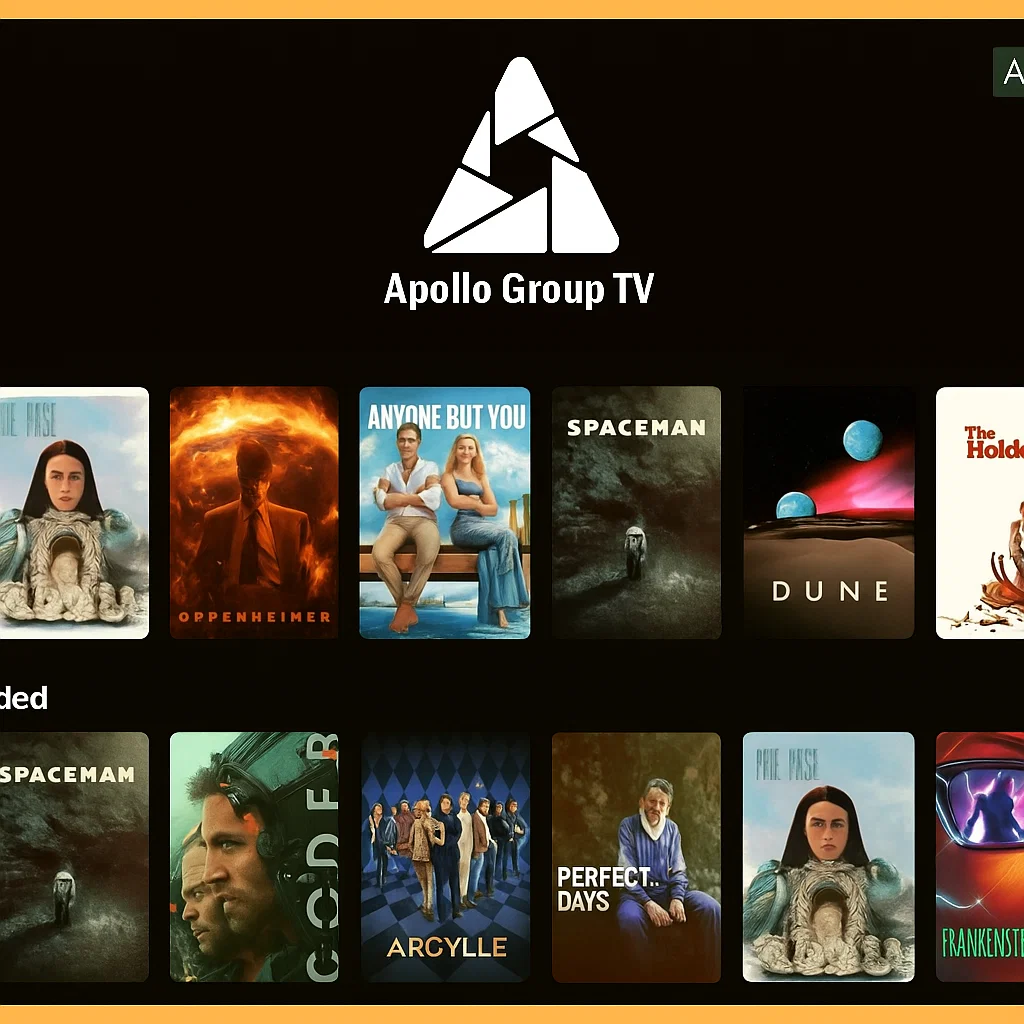
Are you tired of juggling multiple streaming subscriptions while still missing out on your favorite live channels? The Apollo Group TV App has emerged as a game-changing solution for viewers seeking comprehensive entertainment access through Internet Protocol Television (IPTV) services.
In an era where cord-cutting has become the norm, finding a reliable streaming platform that delivers both live TV and on-demand content can feel overwhelming. The Apollo Group TV App stands out by offering thousands of channels, movies, and series through a user-friendly interface that works across multiple devices.
This comprehensive guide will walk you through everything you need to know about the Apollo Group TV App – from initial download and installation to advanced features and troubleshooting. Whether you’re a first-time user or looking to maximize your streaming experience, you’ll find actionable insights to enhance your viewing journey.
By the end of this article, you’ll understand how to access Apollo Group TV login portals, navigate the app’s features, optimize streaming quality, and resolve common issues. Let’s dive into the world of premium IPTV streaming.
What is Apollo Group TV?
Apollo Group TV is a premium IPTV service that provides subscribers access to thousands of live television channels, movies, TV series, and sports programming through internet streaming. Unlike traditional cable or satellite services, Apollo Group TV delivers content directly through your internet connection, making it accessible on virtually any device with screen capabilities.
Key Features and Benefits
The Apollo Group TV App offers an extensive content library spanning multiple categories including entertainment, sports, news, international channels, and premium movie collections. Users can access content from various countries, with particular emphasis on American, Canadian, and UK programming that resonates with North American audiences.
One of the standout features is the service’s multi-device compatibility. Whether you prefer watching on your smartphone during commutes, casting to your smart TV for family viewing, or using a FireStick for convenient access, the Apollo Group TV App adapts seamlessly to your preferred viewing platform.
The streaming quality is another major advantage, with options ranging from standard definition to 4K Ultra HD, depending on your internet speed and device capabilities. The app includes an electronic program guide (EPG) that displays scheduling information, making it easy to plan your viewing and catch live events.
Why US Audiences Choose Apollo Group TV
For American viewers, the Apollo Group TV App has become increasingly popular due to its comprehensive sports coverage, including NFL, NBA, MLB, NHL, and international soccer leagues. The service also provides access to premium cable channels that would typically require expensive subscriptions through traditional providers.
The cost-effectiveness compared to cable bundles, combined with the flexibility to watch anywhere, makes Apollo Group TV an attractive option for budget-conscious streamers who refuse to compromise on content variety. The absence of long-term contracts and the ability to cancel anytime add to its appeal in the US market.
Apollo Group TV App Download: Installation Guide for All Devices
Getting started with the Apollo Group TV App begins with downloading and installing it on your preferred device. The installation process varies slightly depending on your platform, but the app maintains consistent functionality across all supported devices.
Android Devices and Tablets
For Android users, downloading the Apollo Group TV App typically involves obtaining the APK file directly, as the app may not be available through the Google Play Store due to content licensing policies. Visit the official Apollo Group TV website or the link provided by your service provider to download the latest APK version.
Before installation, navigate to your Android device’s Settings > Security > Unknown Sources and enable installation from unknown sources. Once downloaded, locate the APK file in your Downloads folder and tap to begin installation. Follow the on-screen prompts, and within minutes, you’ll have the Apollo Group TV App ready on your device.
After installation, launch the app and proceed to the Apollo Group TV login screen where you’ll enter the credentials provided upon subscription purchase.
iOS Devices (iPhone and iPad)
The Apollo Group TV App installation on iOS devices differs from Android due to Apple’s stricter app distribution policies. Most users access the service through alternative methods such as web-based players or third-party app installers like Testflight or AltStore.
Some users opt for accessing Apollo Group TV through compatible third-party IPTV players available in the Apple App Store, such as GSE Smart IPTV or IPTV Smarters Pro, by loading their M3U playlist URL or Xtream Codes API credentials provided by Apollo Group TV.
Amazon FireStick and Fire TV
The FireStick represents one of the most popular platforms for the Apollo Group TV App among US streamers. To install, navigate to Settings > My Fire TV > Developer Options and enable both “Apps from Unknown Sources” and “ADB Debugging.”
Return to the home screen and use the search function to find the “Downloader” app (install if not already present). Open Downloader, enter the Apollo Group TV App download URL provided by your service, and let the file download. Once complete, the installation will begin automatically. After installation, you’ll find the Apollo Group TV App in your apps section.
Smart TVs (Samsung, LG, Android TV)
For Android-based smart TVs, the installation process mirrors the FireStick method using either the built-in browser or a downloading utility. Samsung and LG smart TVs running proprietary operating systems may require using the built-in browser to access the Apollo Group TV web portal or connecting an external streaming device.
Many users with non-Android smart TVs find that using a FireStick, Roku, or similar streaming stick provides the optimal Apollo Group TV App experience with better interface responsiveness.
Windows and Mac Computers
Desktop users can access the Apollo Group TV App through compatible IPTV player applications or Android emulators like BlueStacks. Alternatively, the Apollo Group TV login web portal offers browser-based streaming that works on any computer with a modern web browser and stable internet connection.
Apollo Group TV Login: Accessing Your Account
Once you’ve installed the Apollo Group TV App on your device, accessing your content requires logging in with the credentials provided during your subscription purchase. The Apollo Group TV login process is straightforward but varies slightly depending on your access method.
Web Portal Login Process
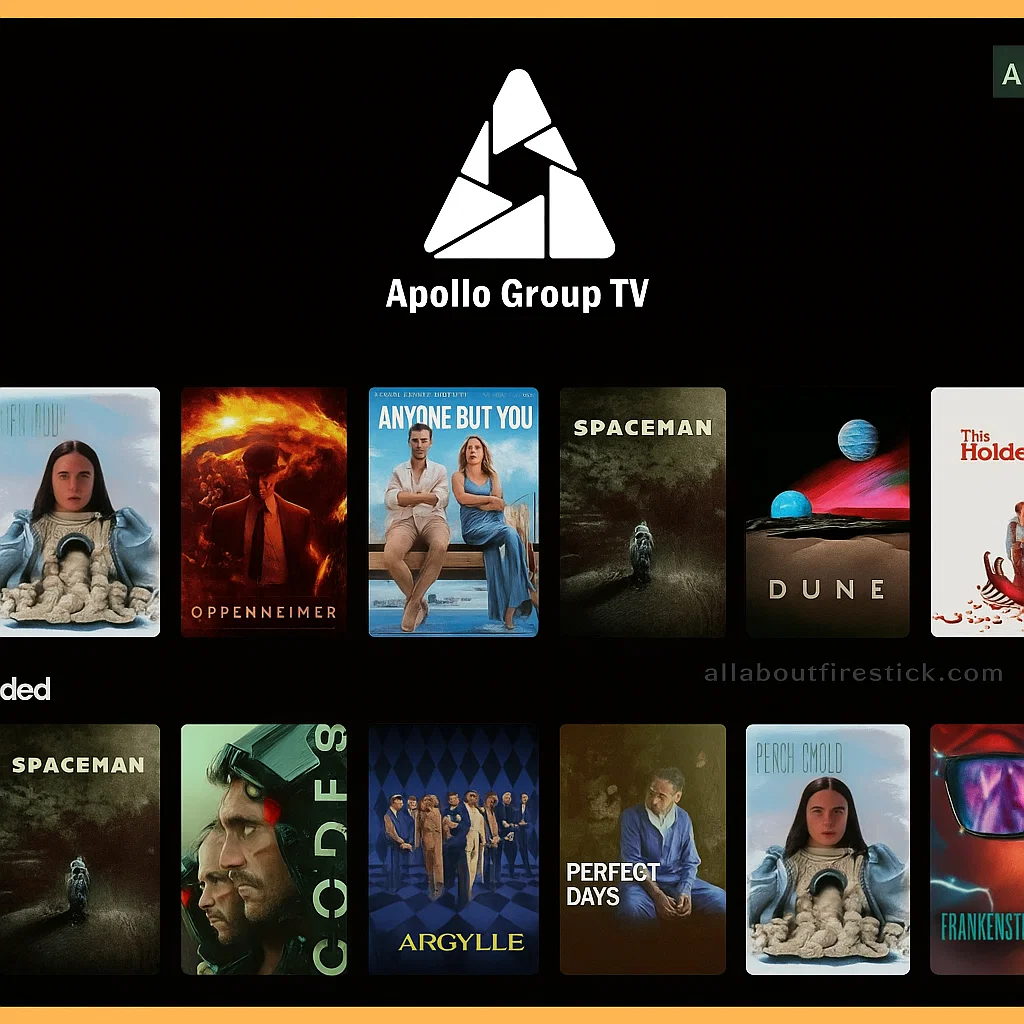
To access Apollo Group TV login through the web portal, open your preferred browser and navigate to the official Apollo Group TV website. Look for the “Login” or “Member Access” button, typically located in the top-right corner of the homepage.
Click the login button, which will redirect you to the Apollo Group TV login page. Enter your username or email address in the first field, followed by your password in the second field. Ensure your credentials are entered exactly as provided, paying attention to capitalization and special characters.
After entering your information, click the “Sign In” or “Login” button. If your credentials are correct, you’ll be directed to your account dashboard where you can manage devices, view subscription details, and access streaming links for the Apollo Group TV App.
Mobile App Login Steps
When launching the Apollo Group TV App on your mobile device for the first time, you’ll be greeted with the login screen. The app typically requires either username/password credentials or an activation code, depending on your subscription type.
For username/password login, simply enter your credentials in the respective fields and tap “Login.” Some versions of the Apollo Group TV App use Xtream Codes API, which requires entering your username, password, and server URL (all provided by your service).
If your subscription uses an activation code system, you’ll see a unique code displayed on your TV or device screen. Visit the activation URL shown, enter the code on the website using another device, and your Apollo Group TV App will automatically authenticate.
Smart TV and Streaming Device Login
For FireStick, Android TV boxes, and smart TV installations, the Apollo Group TV login process typically occurs when you first open the app. You’ll be presented with fields for entering your credentials or the option to scan a QR code for quick authentication.
The QR code method, when available, simplifies login on devices where typing is cumbersome. Simply use your smartphone to scan the code displayed on your TV screen, which automatically transfers your authentication details to the Apollo Group TV App on the TV device.
Maintaining Your Login Session
The Apollo Group TV App typically keeps you logged in across sessions, eliminating the need for repeated authentication. However, if you encounter login expiration or need to switch accounts, the app provides easy logout options in the settings menu.
Navigating Apollo Group TV App Features
After completing your Apollo Group TV login, you’ll discover a feature-rich interface designed to maximize your streaming experience. Understanding these features helps you get the most value from your subscription.
User Dashboard and Interface
The Apollo Group TV App dashboard presents content in organized categories including Live TV, Movies, Series, Sports, and Catch-Up TV. The intuitive layout allows quick navigation between sections, with search functionality that helps you find specific content instantly.
Your dashboard also displays recently watched content, favorites you’ve bookmarked, and personalized recommendations based on your viewing history. The clean interface minimizes clutter while ensuring all essential features remain easily accessible.
Electronic Program Guide (EPG)
The integrated EPG within the Apollo Group TV App shows comprehensive scheduling information for live channels. This feature lets you see what’s currently playing, upcoming programs, and past shows available through catch-up functionality.
You can typically view EPG information for several days in advance, making it easy to plan your viewing schedule. The guide also allows direct channel switching by selecting programs, streamlining your navigation experience.
Content Library Organization
The Movies and Series sections of the Apollo Group TV App contain thousands of titles organized by genre, release year, popularity, and IMDb rating. This organization helps you discover new content that matches your preferences.
Premium channels and pay-per-view events often receive special highlighting within the app, ensuring you don’t miss major sporting events or new content releases. The search function accepts both partial titles and actor names for comprehensive content discovery.
Streaming Quality Settings
The Apollo Group TV App includes quality adjustment features that let you optimize streaming based on your internet connection. Options typically range from 480p (standard definition) through 720p and 1080p (high definition) to 4K when available.
For users with limited bandwidth or data caps, selecting lower quality settings helps prevent buffering and reduces data consumption. Conversely, those with robust internet connections can enjoy maximum quality for an immersive viewing experience.
Multi-Device Management
Most Apollo Group TV subscriptions allow simultaneous streaming on multiple devices. Within the app settings or web portal, you can view all devices connected to your account and manage which devices have active access.
This feature proves particularly useful for families sharing a subscription, allowing parents to monitor device usage and revoke access from devices no longer in use. Some subscription tiers limit simultaneous streams, so understanding your plan’s restrictions prevents service interruptions.
Parental Controls
The Apollo Group TV App typically includes parental control features that let you restrict access to adult content or specific channels. These controls often require a PIN code to access restricted content, providing peace of mind for families with children.
Troubleshooting Apollo Group TV Login Issues
Even with a user-friendly platform like the Apollo Group TV App, users occasionally encounter login difficulties or streaming issues. Understanding common problems and their solutions ensures minimal disruption to your entertainment.
Invalid Credentials Errors
If you receive an “invalid username or password” message during Apollo Group TV login attempts, first verify that you’re entering your credentials exactly as provided. Check for accidental spaces, incorrect capitalization, or using email instead of username (or vice versa).
If you’re certain your credentials are correct but still can’t access your Apollo Group TV App, your subscription may have expired. Check your email for renewal notices or contact your service provider to verify your account status.
Account Activation Issues
New subscribers sometimes experience delays between purchase and account activation. The Apollo Group TV login credentials are typically delivered via email within minutes to a few hours of purchase. Check your spam folder if you haven’t received your information.
If significant time has passed without receiving credentials, contact your reseller or service provider with your purchase confirmation. They can verify your order and issue or resend your Apollo Group TV App login information.
Password Reset Procedures
If you’ve forgotten your Apollo Group TV login password, look for a “Forgot Password” link on the login page. Click this link and enter your registered email address to receive password reset instructions.
Some Apollo Group TV services manage password resets through the reseller rather than an automated system. In these cases, you’ll need to contact customer support directly to request a password reset for your Apollo Group TV App account.
Connection and Server Errors
“Connection failed” or “server unavailable” messages when attempting Apollo Group TV login often indicate temporary server issues or internet connectivity problems on your end. First, verify your device has a stable internet connection by testing other apps or websites.
If your internet works properly but the Apollo Group TV App shows server errors, wait 15-30 minutes and try again. IPTV services occasionally perform maintenance that temporarily affects access. Persistent issues should be reported to technical support.
App Crashes and Performance Issues
If the Apollo Group TV App crashes during login or freezes on the loading screen, try clearing the app’s cache and data (on Android) or reinstalling the application. This resolves issues caused by corrupted temporary files.
Outdated app versions can also cause login problems. Check if a newer version of the Apollo Group TV App is available and update accordingly. Your service provider typically announces updates through email or their official channels.
Device Limit Exceeded Messages
Receiving a “maximum devices connected” error during Apollo Group TV login indicates you’ve reached your subscription’s simultaneous stream limit. Log out from unused devices or disconnect old devices through your account management portal.
If you believe you’re receiving this error incorrectly, contact support to reset your device connections. This can be necessary if the system hasn’t properly logged out previous sessions.
Geographic Restrictions
Some Apollo Group TV App content may be geo-restricted based on licensing agreements. If you’re traveling or using a VPN, you might encounter login issues or limited content availability. Temporarily disabling VPN services sometimes resolves these access problems.
Security Best Practices for Apollo Group TV App Users
Protecting your Apollo Group TV login credentials and ensuring account security should be a priority for all subscribers. Following security best practices helps prevent unauthorized access and protects your personal information.
Creating Strong Passwords
If you have the option to change your Apollo Group TV login password, create a strong, unique password that combines uppercase and lowercase letters, numbers, and special characters. Avoid using easily guessable information like birthdays or common words.
Never reuse passwords across multiple services. If one service experiences a data breach, unique passwords prevent attackers from accessing your other accounts, including your Apollo Group TV App subscription.
Account Sharing Considerations
While sharing your Apollo Group TV login with trusted family members is common, be cautious about distributing credentials widely. Each additional person with access increases the risk of accidental credential exposure or account misuse.
Consider your subscription’s device limits before sharing. Exceeding these limits can result in service interruptions for everyone using the account. Additionally, some terms of service prohibit commercial sharing of residential subscriptions.
Recognizing Phishing Attempts
Be vigilant about emails or messages claiming to be from Apollo Group TV requesting your login credentials. Legitimate services never ask for passwords via email. Always access your Apollo Group TV App account by typing the official URL directly rather than clicking links in emails.
Phishing websites may mimic the Apollo Group TV login page to steal credentials. Verify you’re on the official website by checking the URL carefully before entering any information.
Regular Password Updates
Periodically changing your Apollo Group TV login password adds an extra layer of security, especially if you’ve shared credentials in the past or suspect unauthorized access. Contact your service provider if your subscription doesn’t include self-service password management.
Using Secure Networks
Avoid entering your Apollo Group TV login credentials on public Wi-Fi networks, which can be vulnerable to interception. If you must access your account on public networks, consider using a reputable VPN service to encrypt your connection.
When using the Apollo Group TV App at home, ensure your Wi-Fi network uses WPA2 or WPA3 encryption with a strong password to prevent unauthorized network access.
Monitoring Account Activity
Regularly review which devices are connected to your Apollo Group TV App account. If you notice unfamiliar devices, immediately change your password and disconnect unauthorized devices through your account management portal.
Apollo Group TV App: Platform-Specific Tips
Optimizing your experience with the Apollo Group TV App often depends on understanding platform-specific features and limitations. Here are targeted tips for getting the best performance on different devices.
Android Optimization
For Android devices running the Apollo Group TV App, clearing cache regularly helps maintain smooth performance. Navigate to Settings > Apps > Apollo Group TV > Storage > Clear Cache to remove temporary files without losing your login information.
Enable hardware acceleration in your Android device’s developer options to improve video playback quality. This setting offloads video processing to your device’s GPU, resulting in smoother streaming and reduced battery consumption.
FireStick Performance Enhancement
FireStick users can optimize the Apollo Group TV App by clearing background apps regularly. Press and hold the Home button, select Apps, and close applications you’re not actively using to free up memory for better streaming performance.
Consider adjusting your FireStick’s display settings to match your TV’s capabilities. Forcing 4K output on a 1080p TV can actually reduce quality and performance. Navigate to Settings > Display & Sounds > Display to configure appropriate resolution settings.
Smart TV Considerations
When using the Apollo Group TV App on smart TVs, ensure your TV’s firmware is updated to the latest version. Manufacturers regularly release updates that improve app compatibility and streaming performance.
If your smart TV’s Apollo Group TV App feels sluggish, connecting an external streaming device like a FireStick often provides superior performance due to more powerful processors and regular software updates.
iOS Alternatives and Workarounds
Since the Apollo Group TV App may not be directly available for iOS, using compatible IPTV players from the App Store provides a solution. Apps like IPTV Smarters Pro, GSE Smart IPTV, or TiviMate accept the M3U URL or Xtream Codes credentials from your Apollo Group TV subscription.
These alternative players often provide additional features like advanced EPG customization, recording capabilities, and enhanced parental controls while maintaining full access to your Apollo Group TV content.
Comparing Apollo Group TV App to Other IPTV Services
Understanding how the Apollo Group TV App stacks up against competitors helps you determine if it’s the right choice for your streaming needs or if alternatives might better serve your requirements.
Content Library Comparison
The Apollo Group TV App typically offers a content library comparable to or exceeding many mainstream IPTV providers, with particular strength in North American channels and sports coverage. The exact channel count varies by subscription tier, but users generally find comprehensive options across all content categories.
Compared to individual streaming services like Netflix or Hulu, Apollo Group TV provides significantly more live TV channels but may have less robust on-demand content organization and recommendation algorithms.
Price Competitiveness
Apollo Group TV subscription costs typically fall in the mid-range of IPTV pricing, offering good value when considering the channel quantity and multi-device support. When compared to traditional cable packages costing $80-150 monthly, the Apollo Group TV App presents substantial savings.
However, it’s important to note that IPTV services operate in a different legal and operational framework than licensed streaming services, which affects long-term reliability and content availability.
User Interface and Experience
The Apollo Group TV App interface receives mixed reviews, with many users praising its straightforward navigation while others note it lacks the polish of major streaming platforms. The app prioritizes functionality over aesthetics, which appeals to users who value content access over visual design.
The learning curve for the Apollo Group TV App is relatively short, with most users becoming comfortable with navigation within their first viewing session.
Frequently Asked Questions About Apollo Group TV App
Is the Apollo Group TV App legal to use?
The legality of IPTV services like Apollo Group TV depends on content licensing. Users should research their local laws and the service’s licensing status. As an end-user, focus on subscribing through reputable providers and avoid services making unrealistic claims about content access.
How much does Apollo Group TV cost?
Apollo Group TV pricing varies by subscription length and features, typically ranging from $10-25 monthly or $80-200 annually. Prices differ between resellers, so comparing options before subscribing can yield savings. Most providers offer multiple simultaneous streams and device connections.
Can I use Apollo Group TV App on multiple devices simultaneously?
Most Apollo Group TV subscriptions support 1-5 simultaneous streams depending on your plan tier. You can install the Apollo Group TV App on unlimited devices, but concurrent streaming is limited by your subscription level. Check your specific plan details for exact limitations.
What internet speed do I need for Apollo Group TV App?
For standard definition streaming, 5-10 Mbps is sufficient. High definition content requires 15-25 Mbps, while 4K streaming needs 35-50 Mbps. Ensure your internet connection exceeds these minimums to account for network overhead and other devices sharing your bandwidth.
Does Apollo Group TV App work with VPNs?
Yes, the Apollo Group TV App typically functions properly with VPN connections. In fact, many users prefer using VPNs for privacy protection. However, VPNs can reduce streaming speeds due to encryption overhead, so choose high-performance VPN services for best results.
What should I do if channels aren’t loading?
If channels fail to load in the Apollo Group TV App, first check your internet connection. Test your speed and stability, then try restarting the app. If problems persist, verify your subscription status hasn’t expired and try using a different server option if available in the app settings.
Can I record shows with Apollo Group TV App?
Recording functionality varies by Apollo Group TV App version and device. Some implementations include built-in recording features, while others require third-party IPTV players that support recording. Check your specific app version or contact your provider for recording capability information.
How often is the Apollo Group TV App updated?
Update frequency depends on your service provider and development team. Major updates typically occur several times yearly, adding features and improving stability. You’ll usually receive update notifications through the app or via email from your reseller.
Is customer support available for Apollo Group TV?
Support availability varies by reseller. Most reputable Apollo Group TV providers offer email support, with response times ranging from hours to 24-48 hours. Some premium resellers provide live chat or ticket systems for faster assistance with technical issues or account questions.
Can I get a refund if Apollo Group TV doesn’t work for me?
Refund policies vary by reseller. Many providers offer 24-48 hour testing periods or satisfaction guarantees, while others have no-refund policies due to the nature of digital subscriptions. Always clarify refund terms before purchasing your Apollo Group TV subscription.
Conclusion: Maximizing Your Apollo Group TV App Experience
The Apollo Group TV App represents a comprehensive solution for viewers seeking extensive content access across multiple devices. By understanding the installation process, login procedures, feature set, and troubleshooting techniques outlined in this guide, you’re equipped to maximize your streaming experience.
Remember that successful use of the Apollo Group TV App depends on maintaining a stable internet connection, keeping your credentials secure, and staying informed about updates and best practices. Take advantage of the multi-device support to create a seamless viewing experience whether you’re at home or on the go.
As IPTV technology continues evolving, services like Apollo Group TV adapt to provide better streaming quality, expanded content libraries, and improved user interfaces. Staying connected with your service provider’s announcements ensures you benefit from new features and optimizations as they become available.
Whether you’re a sports enthusiast, movie buff, or simply seeking cost-effective access to live television, the Apollo Group TV App offers tools and content to meet diverse entertainment needs. Apply the insights from this guide to troubleshoot issues independently, optimize your setup, and enjoy reliable streaming.
Ready to start your Apollo Group TV journey? Download the app, complete your login, and discover thousands of channels waiting at your fingertips. Your entertainment revolution begins now.