Apollo Group TV Login: Your Complete Guide to Seamless Streaming in 2025
Introduction
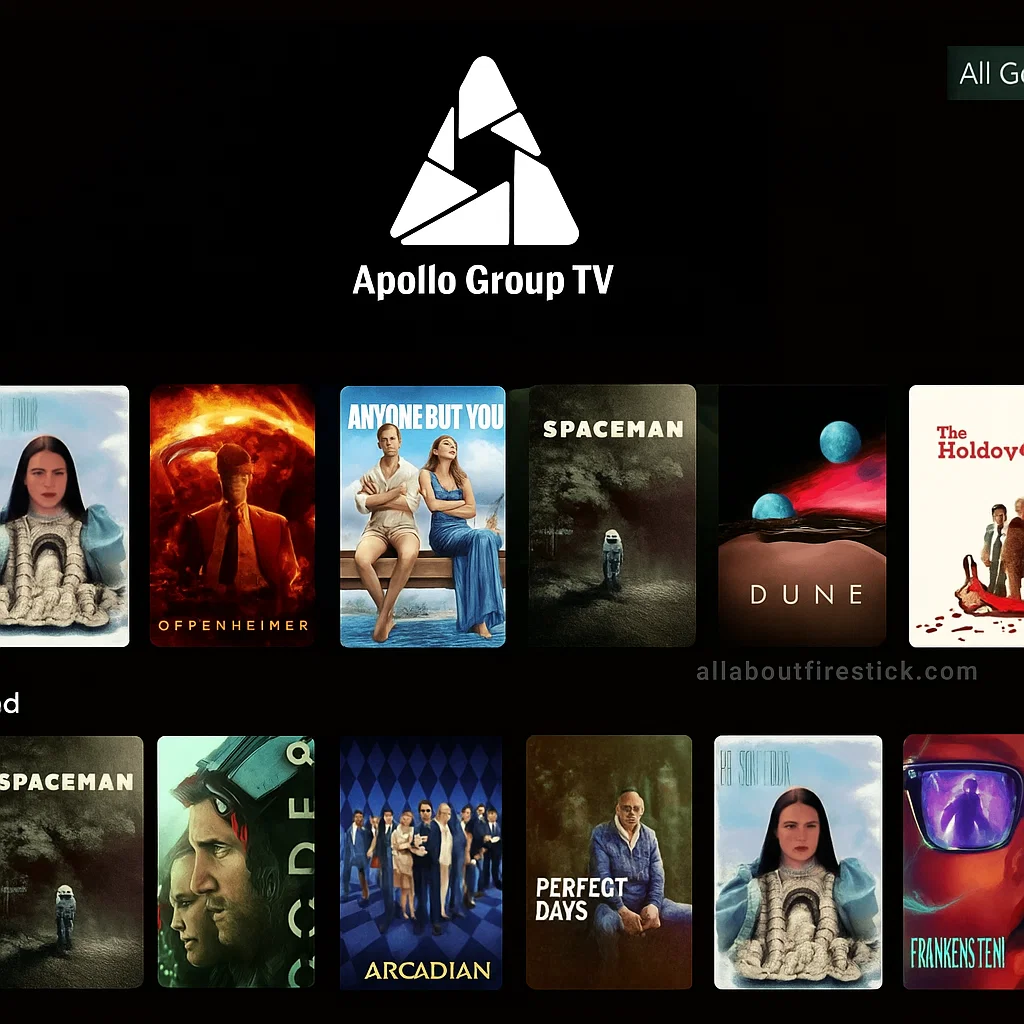
Streaming entertainment has never been more fragmented. Between juggling multiple subscriptions, managing different login credentials, and dealing with content restrictions, finding the right streaming solution can feel overwhelming. This is where Apollo Group TV stands out as a game-changing alternative that consolidates everything you need into one powerful platform.
Apollo Group TV offers access to over 22,000 live channels and 90,000+ on-demand titles through a single subscription. Whether you’re a sports enthusiast who never wants to miss a game, a movie buff seeking the latest blockbusters, or a family looking for diverse entertainment options, mastering the Apollo Group TV login process is your gateway to unlimited streaming possibilities.
In this comprehensive guide, you’ll discover everything about accessing your Apollo Group TV account, from the initial login steps to advanced troubleshooting techniques. We’ll walk you through downloading the Apollo Group TV app across multiple devices, securing your account, and maximizing your streaming experience. Let’s dive into the world of hassle-free entertainment.
What is Apollo Group TV?
Apollo Group TV is a premium IPTV (Internet Protocol Television) streaming service that delivers live television channels, movies, and series directly over the internet. Unlike traditional cable services that require physical infrastructure, Apollo Group TV leverages internet connectivity to provide flexible, on-demand entertainment accessible from virtually any device.
Key Features and Benefits
The service distinguishes itself through several compelling features. First, the sheer content volume is impressive—subscribers gain instant access to 22,000+ live channels spanning sports, news, entertainment, international programming, and specialty content. The on-demand library includes over 90,000 movies and TV shows, eliminating the need for multiple streaming subscriptions.
Streaming quality represents another major advantage. Apollo Group TV supports HD and 4K resolution across most content, ensuring crystal-clear picture quality that rivals traditional cable. The platform employs anti-freeze technology and optimized servers to maintain stable performance, even during peak viewing hours.
Device compatibility is exceptionally broad. The Apollo Group TV app works seamlessly across Smart TVs, Android devices, iOS products, Amazon Fire TV Stick, Roku, Apple TV, Chromecast, and even gaming consoles. This multi-platform support means you can start watching on your phone during your commute and seamlessly continue on your home television.
Why Apollo Group TV is Popular Among US Audiences
American viewers increasingly gravitate toward Apollo Group TV for several reasons. Cost-effectiveness ranks high—subscription plans start as low as $8.33 per month for long-term commitments, representing significant savings compared to traditional cable packages that often exceed $100 monthly.
The service eliminates common cable frustrations like lengthy contracts, installation appointments, and equipment rental fees. Activation happens instantly upon subscription, and you can cancel anytime without penalties. This flexibility resonates strongly with consumers tired of being locked into restrictive agreements.
Content diversity also drives popularity. Apollo Group TV provides comprehensive sports coverage including NFL, NBA, MLB, NHL, UFC, and international competitions. Movie enthusiasts appreciate the extensive VOD library featuring both classic films and recent releases. Families benefit from dedicated children’s programming alongside premium entertainment options for adults.
Apollo Group TV Login: Step-by-Step Guide
Successfully accessing your Apollo Group TV account requires understanding the login process across different platforms. The credentials you receive upon subscription—typically a username or email and password—serve as your key to unlocking the entire content library. Let’s explore how to complete the Apollo Group TV login on various devices.
Web Portal Login
The web-based portal offers the most straightforward login method, ideal for account management and initial setup. Start by opening your preferred browser and navigating to the official Apollo Group TV login page. You’ll encounter a clean interface with clearly marked credential fields.
Enter your username or registered email address in the top field. Pay careful attention to spelling and capitalization, as the system differentiates between uppercase and lowercase characters. Next, input your password in the second field. If you’re using a personal device, you may opt to check the “Remember Me” box for convenient future access.
Click the login button to proceed. Upon successful authentication, you’ll reach your personalized dashboard displaying featured content, your watchlist, and quick access to live channels. The web portal excels for managing subscription details, updating payment information, and adjusting account settings.
If you encounter issues during web portal login, first verify your internet connection stability. Clear your browser cache and cookies, as outdated stored data sometimes interferes with authentication. Ensure you’re accessing the legitimate Apollo Group TV domain to avoid phishing sites that mimic the official interface.
Mobile App Login (iOS and Android)
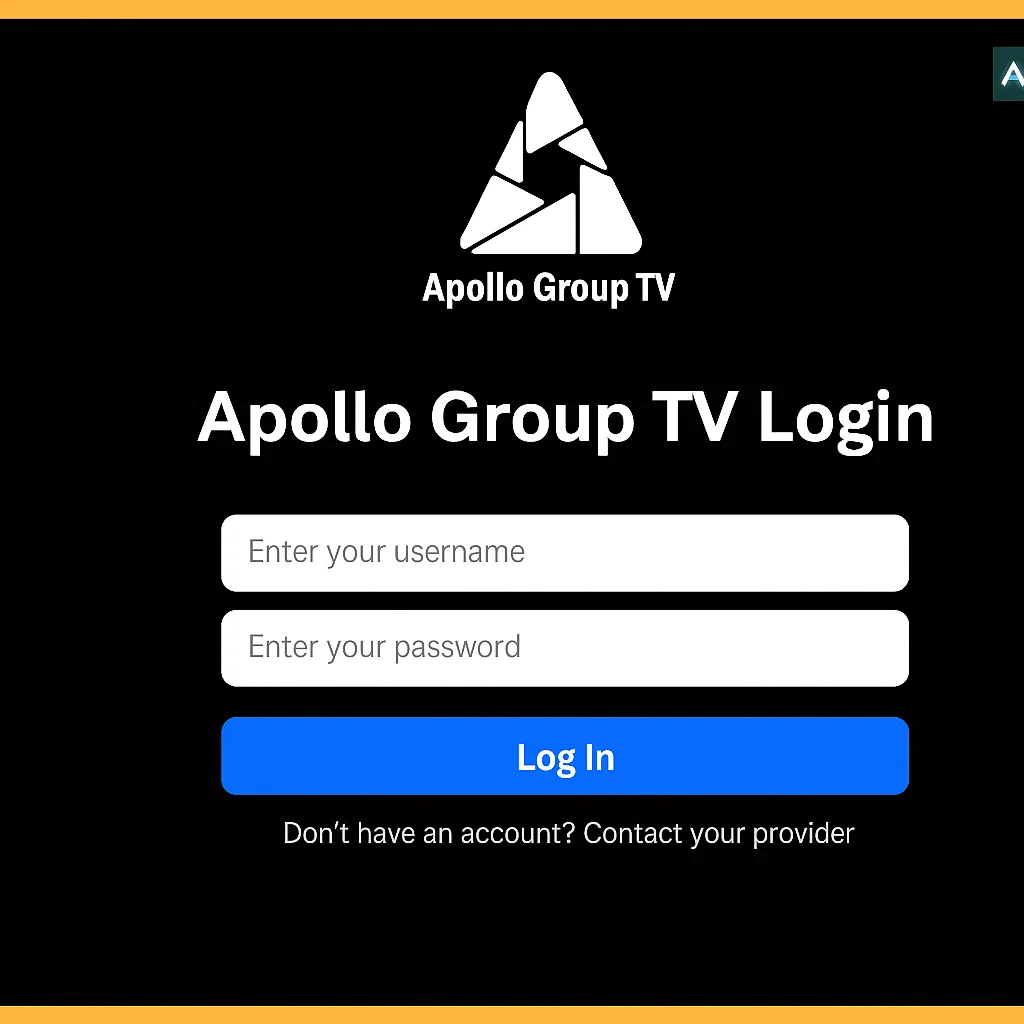
Mobile devices offer unparalleled convenience for on-the-go streaming. The Apollo Group TV app login process on smartphones and tablets follows a similar pattern but optimized for touchscreen interaction.
For Android users, begin by downloading the Apollo Group TV app from the provided APK link (the app isn’t available through Google Play Store due to platform restrictions). Enable “Install Unknown Apps” in your device settings to permit the installation. Once downloaded, open the APK file and follow the installation prompts.
iOS users can access Apollo Group TV through compatible IPTV player apps available in the App Store, such as IPTV Smarters Pro. Download your preferred player, then launch the application. When prompted to add a service, select the option for Xtream Codes API login.
Input your credentials exactly as provided in your subscription confirmation email. This typically includes your username, password, and a server URL. The server URL is crucial—it tells the app where to fetch your content streams. After entering all required information, tap the login or “Add Account” button.
The app will authenticate your credentials and populate available content. You’ll see categorized sections for live TV, movies, series, and potentially catch-up TV depending on your subscription tier. Navigation menus appear along the bottom or side, making it easy to switch between content types.
Smart TV Login Methods
Smart TVs represent the ideal platform for enjoying Apollo Group TV’s visual quality. However, login procedures vary based on your television’s operating system.
For Android TV and Google TV devices, the process mirrors mobile installation. Navigate to your TV’s browser or use the Downloader app to fetch the Apollo Group TV APK. Install the application, then launch it from your apps menu. Use your remote control to input credentials in the on-screen keyboard. Navigation requires patience with TV remotes, so take your time entering information accurately.
Amazon Fire TV Stick users have a slightly different pathway. First, enable installation from unknown sources by going to Settings > My Fire TV > Developer Options and toggling “Apps from Unknown Sources” to On. Next, download the Downloader app from the Amazon App Store. Open Downloader and enter the Apollo Group TV download code (299336) or the direct URL provided by your service.
The Downloader app retrieves the Apollo Group TV APK automatically. Once downloaded, select Install and follow the on-screen prompts. After installation, you can delete the APK file to free storage space—it’s no longer needed. Navigate to your apps section, find the Apollo Group TV icon, and launch it.
The Apollo Group TV login screen appears with fields for your email or username and password. Input your credentials using the remote control. Some users find typing with a TV remote cumbersome—consider pairing a wireless keyboard or using the Fire TV smartphone app as a remote alternative for easier text entry.
Apple TV users typically access Apollo Group TV through compatible IPTV player applications available in the App Store, following similar credential input procedures. Roku users may need alternative IPTV players that support Xtream Codes API, as direct Apollo Group TV apps aren’t always available through official channels.
After successful login on any Smart TV platform, spend a moment familiarizing yourself with the interface. Locate the settings menu, explore content categories, and test playback quality. Most streaming issues stem from network connectivity rather than app problems, so ensure your TV maintains a stable connection to your router.
Downloading the Apollo Group TV App
Obtaining the Apollo Group TV app represents your first step toward unlimited entertainment. Unlike mainstream apps available through standard app stores, Apollo Group TV requires sideloading—a legitimate process for installing applications from sources outside official marketplaces.
Available Platforms
Apollo Group TV demonstrates impressive compatibility across numerous platforms. Android devices—including phones, tablets, and TV boxes—support direct APK installation. iOS users access the service through third-party IPTV player apps that integrate with Apollo Group TV’s streaming infrastructure.
Amazon Fire TV devices (Fire Stick, Fire TV Stick 4K, Fire TV Stick 4K Max, and Fire TV Cube) rank among the most popular platforms for Apollo Group TV. Their affordability and user-friendly interface make them ideal streaming companions. The Fire Stick 4K Max receives particular recommendation for its enhanced processing power and faster performance.
Smart TVs running Android TV, Google TV, or compatible operating systems support direct app installation. Roku devices access Apollo Group TV through third-party IPTV players rather than a dedicated native app. Apple TV users similarly rely on compatible players available in the tvOS App Store.
Desktop users aren’t left out—Windows and macOS computers can run Apollo Group TV through Android emulators like BlueStacks or by using web-based IPTV players that support Xtream Codes API. This versatility ensures you can stream Apollo Group TV regardless of your preferred device ecosystem.
Installation Guide for Android Devices
Installing the Apollo Group TV app on Android phones, tablets, or TV boxes follows a straightforward process. Begin by opening your device’s browser and navigating to the official Apollo Group TV download link provided in your subscription confirmation email.
Before proceeding with the download, you must enable installation from unknown sources. Navigate to Settings > Security > Unknown Sources and toggle the option to On. Some newer Android versions require app-specific permissions—in these cases, go to Settings > Apps > Special Access > Install Unknown Apps, find your browser, and grant installation permission.
With permissions configured, return to your browser and click the download link for the Apollo Group TV APK. The file downloads to your device, typically saving in the Downloads folder. Once complete, open your file manager app, navigate to Downloads, and tap the Apollo Group TV APK file.
The Android installation wizard launches automatically. Review the requested permissions and tap Install. The installation completes within seconds to minutes depending on your device speed. Once finished, tap Open to launch Apollo Group TV immediately, or press Done if you prefer launching later from your app drawer.
Installation Guide for Amazon Fire Stick
Fire Stick installation requires an additional step since the Amazon App Store doesn’t carry Apollo Group TV directly. Start by enabling developer options and unknown source installations. Using your Fire Stick remote, navigate to Settings > My Fire TV > Developer Options.
Toggle “ADB Debugging” to On (optional but sometimes helpful for troubleshooting). More importantly, toggle “Apps from Unknown Sources” to On. Amazon displays a warning about potential risks—this is standard and safe to proceed with when downloading from legitimate sources like the official Apollo Group TV site.
Next, return to the Fire Stick home screen and search for “Downloader” in the search function. Select the Downloader app by AFTVnews from the search results and install it—this app is freely available through the Amazon App Store and serves as your tool for retrieving the Apollo Group TV APK.
Launch the Downloader app. If this is your first time using it, you may need to grant file access permissions. Once open, you’ll see a URL input field. Enter the Apollo Group TV download code 299336 or the full URL apollogroup.tv as directed by your service provider. Press the Go button.
Downloader fetches the Apollo Group TV APK file from the specified source. This typically takes 15-30 seconds depending on your internet speed. Once downloaded, Downloader automatically prompts you to install. Click Install and wait for the installation process to complete.
After successful installation, a dialog offers to delete the APK file. Select Delete—the file consumes storage space you no longer need since the app is now installed. Press Done to exit the installer. To easily access Apollo Group TV in the future, navigate to Settings > Applications > Manage Installed Applications, find Apollo Group TV, and move it to your favorites or front of the app list.
System Requirements
Understanding system requirements helps ensure optimal Apollo Group TV performance. For Android devices, version 5.0 (Lollipop) or higher is typically required, though Android 7.0+ is recommended for best compatibility. At least 2GB of RAM ensures smooth operation, particularly for HD and 4K streaming.
Storage requirements are modest—the Apollo Group TV app itself occupies approximately 50-80MB. However, allocate at least 1GB of free storage space for app operations, cache, and potential updates. Regularly clearing cache prevents performance degradation over time.
Internet connectivity represents the most critical system requirement. A stable broadband connection with minimum speeds of 10 Mbps supports HD streaming reliably. For 4K content, 25 Mbps or higher is recommended. Wired ethernet connections outperform Wi-Fi for stability, though strong Wi-Fi signals (5GHz networks particularly) usually suffice.
Fire Stick users should note that older models (first and second generation) may struggle with high-definition streams. The Fire Stick 4K, 4K Max, or Fire TV Cube deliver the best Apollo Group TV experience with their enhanced processors and memory. These devices handle simultaneous apps and intensive streaming tasks without buffering or lag.
Troubleshooting Apollo Group TV Login Issues
Even with straightforward login procedures, users occasionally encounter authentication obstacles. Understanding common problems and their solutions saves time and frustration, keeping you connected to your entertainment.
Common Problems and Solutions
Invalid credentials represent the most frequent login issue. Users often mistype usernames, forget passwords, or confuse similar-looking characters (like zero and the letter O, or one and lowercase L). Double-check every character in your username and password, paying special attention to capitalization since Apollo Group TV credentials are case-sensitive.
If you’re certain your credentials are correct but still can’t log in, verify that you’re accessing the legitimate Apollo Group TV portal or app. Phishing attempts sometimes create look-alike sites designed to steal login information. Always use links provided in your official subscription confirmation email or bookmarked from verified sources.
Server connectivity issues occasionally prevent successful authentication. Apollo Group TV may perform scheduled maintenance or experience temporary server load during peak hours. Wait 15-30 minutes and attempt logging in again. Check the official Apollo Group TV social media channels or support pages for announcements about service disruptions.
Account suspension or expiration causes login failures when subscriptions lapse. Verify your subscription status by checking your original purchase confirmation and expiration date. If your subscription expired, renewal through the official website restores access. Payment issues like failed credit card charges can also suspend accounts—contact support to resolve billing problems.
Device-specific compatibility problems affect login success on certain platforms. Outdated app versions may not authenticate properly with current server infrastructure. Ensure you’re running the latest Apollo Group TV app version by checking for updates or reinstalling from the most recent APK.
Password Reset Process
Forgotten passwords need not panic you—Apollo Group TV provides recovery mechanisms. On the login page, look for a “Forgot Password” or “Reset Password” link, typically positioned below the credential input fields. Click this link to initiate the recovery process.
You’ll be prompted to enter your registered email address. Provide the email associated with your Apollo Group TV account and submit the request. Check your inbox within 5-10 minutes for a password reset email from Apollo Group TV support. Remember to check spam or promotions folders if the email doesn’t appear in your primary inbox.
The reset email contains a secure link or temporary code for creating a new password. Click the link or follow the provided instructions. You’ll be directed to a page where you can enter and confirm your new password. Choose a strong password combining uppercase letters, lowercase letters, numbers, and symbols for enhanced security.
After successfully resetting your password, return to the Apollo Group TV login page and authenticate using your new credentials. If you don’t receive the reset email after 15 minutes, verify that you entered the correct email address and check all email folders thoroughly before requesting another reset.
Account Verification Issues
New subscribers sometimes face verification hurdles during initial login. Apollo Group TV may require email verification before granting full access. Check your inbox for a verification email sent immediately after subscription purchase. Click the verification link to confirm your email address and activate your account fully.
Multi-device login restrictions protect account security but can confuse users. Apollo Group TV subscriptions typically allow streaming on one to five devices simultaneously, depending on your plan tier. Attempting to exceed your device limit triggers authentication errors. If you receive “maximum devices” warnings, log out from unused devices before accessing from your current device.
Geographic restrictions rarely affect Apollo Group TV, but some regional considerations apply. The service functions globally, though certain content may vary by location due to licensing agreements. VPN usage is optional but sometimes recommended for privacy or accessing geo-restricted content. If you encounter unexplained login problems while using a VPN, try disconnecting temporarily to isolate whether the VPN causes the issue.
Contact Support Information
When self-troubleshooting fails, Apollo Group TV’s customer support team stands ready to assist. Most Apollo Group TV providers offer 24/7 support through multiple channels. Look for a support ticket system accessible through the official website—this allows you to document your issue in detail and receive written responses.
Live chat support provides real-time assistance for urgent problems. Many Apollo Group TV resellers include live chat functionality on their websites during business hours. Email support addresses less time-sensitive concerns, with typical response times ranging from a few hours to one business day.
When contacting support, provide comprehensive information to expedite resolution. Include your username (never your password), subscription order number, detailed problem description, affected device type and model, and any error messages or screenshots. This context helps support staff diagnose issues quickly without multiple back-and-forth exchanges.
Social media channels increasingly serve as support avenues. Official Apollo Group TV Facebook groups, Discord servers, or Telegram channels often feature active communities where fellow users and support representatives address common questions. These communities also share tips, troubleshooting guides, and updates about service changes.
Features After Login
Successfully completing the Apollo Group TV login opens the door to a rich entertainment ecosystem. Understanding the interface and available features maximizes your streaming investment, transforming casual viewing into a personalized entertainment experience.
User Dashboard Overview
Your Apollo Group TV dashboard serves as mission control for all streaming activities. Upon login, you’re greeted with a homepage showcasing featured content, trending titles, and personalized recommendations based on viewing history. The interface design prioritizes intuitive navigation, ensuring even first-time users can find content effortlessly.
Main navigation menus typically appear along the left side or top of the screen, depending on your device. Key sections include Live TV (organized by category like sports, news, entertainment), Movies (the VOD library sorted by genre, release date, or popularity), TV Series (episodic content with season organization), and Catch-Up TV (replay recently aired broadcasts).
A search function occupies a prominent position, allowing you to quickly locate specific channels, movies, actors, or sports teams. Voice search functionality on compatible devices (like Fire Stick with Alexa) further streamlines content discovery—simply speak your request instead of typing.
Account settings access sits within a dedicated menu, often represented by a gear icon or your profile avatar. Here you manage subscription details, update payment information, adjust parental controls, configure streaming quality preferences, and view your watch history.
Content Library
The Apollo Group TV content library impressively spans multiple entertainment categories. Live television channels dominate, with over 22,000 options covering every imaginable interest. Sports channels include major networks broadcasting NFL, NBA, MLB, NHL, UFC, soccer leagues, NASCAR, college sports, and international competitions.
News outlets from local affiliates to national networks keep you informed across the political spectrum. Entertainment channels range from premium movie networks to lifestyle programming, reality TV, and specialty interests. International channels serve diverse linguistic communities with content in Spanish, Arabic, Portuguese, Hindi, and dozens of other languages.
The on-demand movie library houses 90,000+ titles spanning classics to recent releases. Content spans all genres—action, comedy, drama, horror, romance, documentaries, and family films. New movies regularly refresh the catalog, though release timing varies. Most blockbusters appear within weeks to months of theatrical release, while some premium titles require longer windows.
TV series collections mirror major streaming platforms, offering complete seasons of popular shows. Binge-watchers appreciate uninterrupted access to entire series rather than weekly episode releases. From sitcoms to dramas, animated series to reality competitions, the variety satisfies diverse tastes.
Streaming Quality Options
Apollo Group TV prioritizes visual and audio excellence through flexible quality settings. The service supports standard definition (SD), high definition (HD 720p and 1080p), and ultra-high definition (4K) streaming where content availability permits.
Automatic quality adjustment adapts stream resolution based on your internet connection speed. During moments of bandwidth fluctuation, the player intelligently downscales resolution to prevent buffering, then returns to higher quality when connection stabilizes. This ensures uninterrupted viewing rather than frustrating pauses.
Manual quality control puts you in the driver’s seat. Access stream settings during playback to select your preferred resolution. Choose lower quality settings to conserve data on metered internet connections or mobile networks. Select maximum quality when bandwidth isn’t a concern to enjoy crystal-clear visuals and immersive audio.
Bitrate options complement resolution settings, fine-tuning the data transmission rate. Higher bitrates deliver superior picture quality but demand more bandwidth. Lower bitrates reduce data consumption at slight quality expense—helpful when multiple household devices share the same internet connection.
Device Management
Multi-device support ranks among Apollo Group TV’s most valuable features, allowing household members to stream simultaneously on different screens. Your subscription tier determines concurrent stream limits—typically one to five simultaneous connections depending on your plan.
The device management section displays all gadgets currently associated with your account. Review this list periodically to identify any unauthorized access. If unfamiliar devices appear, immediately change your password and contact support to investigate potential account compromise.
Adding new devices follows the same login process described earlier—simply authenticate on the additional device using your existing credentials. Apollo Group TV recognizes the device and adds it to your authorized list automatically. No complicated pairing or registration steps required.
Removing devices becomes necessary when upgrading equipment or eliminating access for former household members. Navigate to device management settings, select the device for removal, and confirm deletion. This frees up a concurrent stream slot and enhances account security by revoking access from that particular gadget.
Cloud DVR functionality on certain Apollo Group TV plans adds recording capabilities. Schedule recordings for favorite shows, sports events, or movies to watch later at your convenience. Recorded content saves to cloud storage (capacity varies by plan—typically 250-1000 hours), accessible from any authorized device. Your recordings never expire unless you manually delete them.
Security & Account Safety
Protecting your Apollo Group TV account safeguards your personal information, payment details, and uninterrupted entertainment access. Implementing security best practices prevents unauthorized usage and potential account compromise.
Best Practices
Strong, unique passwords form your first line of defense. Avoid obvious choices like “password123” or easily guessed personal information (birthdays, names, addresses). Instead, construct complex passwords combining uppercase letters, lowercase letters, numbers, and special symbols—aim for at least 12 characters. Password managers like LastPass, 1Password, or Bitwarden generate and securely store robust passwords, eliminating the need to memorize them.
Never reuse passwords across multiple services. If one account suffers a data breach, hackers test those credentials against other popular platforms. Unique passwords contain breaches to single services, protecting your broader digital life. Since Apollo Group TV passwords unlock premium content and potentially stored payment information, treat them with the same security rigor as banking credentials.
Enable two-factor authentication if Apollo Group TV offers this feature (availability varies by provider). Two-factor authentication requires a second verification step beyond password entry—typically a code sent to your phone or generated by an authenticator app. This additional layer dramatically reduces unauthorized access risk, even if someone obtains your password.
Regularly update your password every three to six months. Proactive password rotation limits exposure windows if undetected breaches occur. Set calendar reminders for password change dates, making security maintenance a routine habit rather than an afterthought.
Password Tips
Memorable yet secure passwords balance practicality with protection. Consider the passphrase method—string together four or five random words creating an unusual phrase, like “CorrectHorseBatteryStaple” (don’t use this exact example since it’s publicly known). Passphrases offer length-based security while remaining easier to recall than random character strings.
Avoid keyboard patterns like “qwerty” or sequential numbers like “123456”—these rank among the first attempts in automated hacking attacks. Similarly, common substitutions like replacing “o” with “0” or “a” with “@” provide minimal additional security since hackers anticipate these swaps.
Store passwords securely. Writing them on sticky notes attached to monitors invites trouble. Physical password notebooks kept in locked drawers offer old-school security, though password managers provide superior convenience and encryption. Never store passwords in plain text files on your computer or phone—these become goldmines if devices are lost, stolen, or infected with malware.
Be cautious about password recovery options. Security questions like “mother’s maiden name” or “first pet’s name” can often be researched through social media. Provide false answers to security questions, treating them as additional passwords. For example, if asked for your first car, answer “PurpleElephant42” instead of your actual vehicle. Record these fake answers in your password manager alongside actual passwords.
Account Sharing Warnings
Account sharing poses significant security and service risks. While it’s tempting to share your Apollo Group TV credentials with friends or extended family to split subscription costs, this practice violates most terms of service and creates vulnerabilities.
Each additional person with account access exponentially increases compromise risk. Your friend may have excellent security habits, but their roommate, their family members, or anyone they share credentials with may not. Stolen credentials get traded on dark web marketplaces, potentially exposing your account to fraudulent use.
Concurrent stream limits restrict how many devices can watch simultaneously. Sharing credentials with too many people leads to frustrating “maximum streams reached” errors that interrupt viewing. When everyone wants to watch prime-time sports or weekend movies, someone ends up locked out.
Payment and legal liability considerations matter too. If shared account users access content through unauthorized means or engage in prohibited activities, you as the account holder potentially bear responsibility. Subscription agreements typically designate account owners as liable parties for all usage under their credentials.
If household streaming needs exceed your current concurrent stream allowance, upgrading to a higher-tier Apollo Group TV plan presents a legitimate solution. Plans offering four or five simultaneous streams accommodate typical families comfortably. This approach maintains security while meeting everyone’s entertainment needs through proper channels.
Frequently Asked Questions
What login credentials do I receive with my Apollo Group TV subscription?
Upon completing your Apollo Group TV subscription purchase, you receive an email containing your username (sometimes your email address serves as username), password, and server URL. These credentials provide access to the streaming service across all compatible devices. Store this email securely as it contains everything needed for setup and future logins.
Can I change my Apollo Group TV password after initial login?
Password modification options vary by Apollo Group TV provider. Many resellers allow password changes through account settings after logging into the web portal. Navigate to your account or security settings section and look for “Change Password” options. If this feature isn’t available, contact your provider’s support team to request a password update. Regularly changing passwords enhances account security.
How many devices can I log into simultaneously?
Concurrent streaming limits depend on your subscription plan tier. Basic plans typically allow one to two simultaneous streams, while premium options support three to five concurrent connections. Attempting to exceed your limit triggers error messages and interrupts playback. Review your plan details in the subscription confirmation email or account dashboard. Upgrade to higher tiers if your household requires additional simultaneous streams.
What should I do if I forgot my Apollo Group TV password?
Initiate the password recovery process through the “Forgot Password” link on the login page. Enter your registered email address to receive reset instructions. Check your inbox (including spam folders) within 10 minutes for the recovery email containing a reset link or temporary code. Follow the provided instructions to create a new password. If the email doesn’t arrive, verify you entered the correct email address and contact support for assistance.
Why am I getting “invalid credentials” error messages?
Invalid credential errors typically stem from typos in username or password entry. Apollo Group TV authentication is case-sensitive—verify that capitalization matches your original credentials exactly. Ensure you haven’t confused similar characters like zero/letter O or one/lowercase L. Copy-pasting credentials from your confirmation email eliminates typing errors. If problems persist despite verified correct credentials, your subscription may have expired or been suspended due to payment issues.
Can I use Apollo Group TV login credentials on multiple device types?
Yes, your single set of Apollo Group TV credentials works across all compatible platforms—smartphones, tablets, Smart TVs, Fire Stick, computers, and more. Log in with the same username and password regardless of device type. The service recognizes your account and provides consistent access to your content library and settings across all platforms, limited only by concurrent stream restrictions.
Is VPN use required or recommended with Apollo Group TV?
VPNs are optional for Apollo Group TV usage. Some users employ VPNs to enhance privacy, encrypt internet traffic, or access geo-restricted content. However, Apollo Group TV functions perfectly well without VPN protection. If you choose to use a VPN, select reputable providers with good speeds to avoid streaming performance degradation. Ensure your VPN doesn’t interfere with login authentication or cause connection instability.
How do I log out of Apollo Group TV on shared devices?
Logging out prevents unauthorized access on shared or public devices. Within the Apollo Group TV app, navigate to Settings (typically represented by a gear icon). Look for “Logout,” “Sign Out,” or similar options—exact wording varies by app version. Select this option to terminate your session. The app returns to the login screen, requiring credential entry for future access. Never use “Remember Me” features on shared devices.
What happens if I can’t log in during live sports events?
Login difficulties during major sporting events sometimes occur due to high server traffic as thousands of users access simultaneously. If you encounter problems during peak times, wait 5-10 minutes and retry. Ensure your internet connection is stable—bandwidth congestion contributes to authentication failures. Restart your device and app if issues persist. Contacting support during major events may result in delayed responses due to high ticket volume.
Do login credentials expire or need renewal?
Your login credentials themselves don’t expire, but your subscription does. As long as your Apollo Group TV subscription remains active, the same username and password continue working. When subscriptions expire, login attempts fail with messages indicating account suspension or expiration. Renew your subscription through the provider’s website to restore access using your existing credentials. Payment method updates may be required if credit card details changed.
Conclusion
Mastering the Apollo Group TV login process unlocks a world of entertainment possibilities that traditional cable simply can’t match. From the initial setup to daily usage, this comprehensive guide has equipped you with the knowledge to navigate every aspect of accessing your Apollo Group TV account confidently.
We’ve explored the fundamentals—understanding what Apollo Group TV offers, why it resonates with American audiences, and how it compares to conventional streaming options. The step-by-step login instructions for web portals, mobile apps, and Smart TV platforms ensure you can authenticate successfully regardless of your preferred device. Installation guides for Android, iOS, and Amazon Fire Stick remove technical barriers that sometimes intimidate new subscribers.
Troubleshooting sections address common obstacles like forgotten passwords, account verification challenges, and connectivity problems. Armed with these solutions, you can resolve issues independently rather than experiencing prolonged service interruptions. Security best practices protect your account from unauthorized access while ensuring uninterrupted entertainment access for authorized users.
The feature overview demonstrates Apollo Group TV’s value beyond simple login—discovering the extensive content library, adjusting streaming quality, managing multiple devices, and utilizing Cloud DVR functionality transforms basic streaming into a personalized entertainment hub. Frequently asked questions address lingering concerns, providing quick reference for common scenarios.
Ready to experience seamless streaming? Visit the official Apollo Group TV website to subscribe, receive your login credentials, and start exploring 22,000+ channels and 90,000+ on-demand titles today. Whether you’re watching live sports, binging the latest series, or enjoying family movie night, Apollo Group TV delivers premium content without premium prices or complicated contracts.
Don’t let streaming frustration hold you back. Take control of your entertainment with Apollo Group TV—where one login opens endless possibilities.