How to Install and Use Apollo Group TV on Smart TVs in 2025: Complete Setup Guide
Quick Answer: Installing Apollo Group TV on Smart TVs
Apollo Group TV is an IPTV streaming service that requires sideloading on most Smart TVs since it’s not available in official app stores. The installation process varies by brand: Android Smart TVs can use Downloader app or sideload via USB, Samsung Smart TVs require third-party launchers or external devices, and LG Smart TVs typically need streaming devices like Fire Stick or Roku. The entire setup takes 10-15 minutes and includes downloading the APK file, installing it, and activating your subscription with credentials from Apollo Group TV’s official website.
Table of Contents
- What is Apollo Group TV?
- Compatibility: Which Smart TVs Support Apollo Group TV?
- Before You Start: Requirements and Preparation
- How to Install Apollo Group TV on Android Smart TVs
- How to Install Apollo Group TV on Samsung Smart TV
- How to Install Apollo Group TV on LG Smart TV
- Apollo Group TV Activation Guide
- Tips for Optimal Streaming Performance
- Common Mistakes to Avoid
- Troubleshooting Apollo Group TV Issues
- Pros and Cons of Using Apollo Group TV
- Expert Insights and Best Practices
- Conclusion
- Frequently Asked Questions
What is Apollo Group TV?
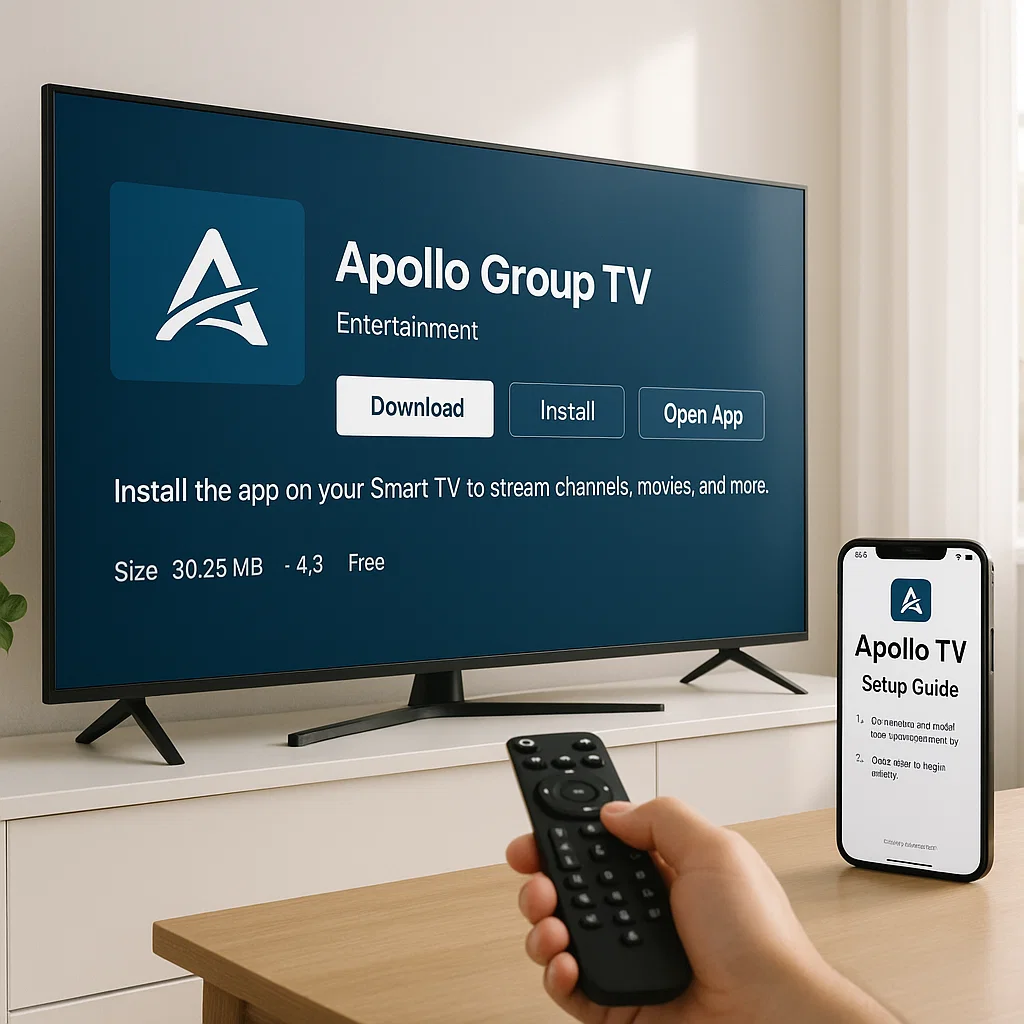
Apollo Group TV is an Internet Protocol Television (IPTV) service that delivers live TV channels, movies, sports, and on-demand content through internet streaming rather than traditional cable or satellite transmission. The service gained popularity in 2024 and continues to expand in 2025, offering thousands of channels from various countries and genres.
Unlike mainstream streaming platforms like Netflix or Hulu, Apollo Group TV operates as a subscription-based IPTV provider that aggregates content from multiple sources. Users access the service through dedicated applications compatible with various devices including Smart TVs, Android boxes, smartphones, and tablets.
Key Features of Apollo Group TV:
- Over 1,000 live TV channels covering sports, news, entertainment, and international programming
- Video-on-demand library with movies and TV series
- Electronic Program Guide (EPG) for easy content navigation
- Multi-device support with simultaneous streaming capabilities
- HD and 4K quality streams (depending on your subscription tier)
- Catch-up TV functionality for recently aired content
The service requires an active subscription purchased directly from Apollo Group TV’s official website or authorized resellers. Pricing typically ranges from $15 to $25 monthly, with discounts available for quarterly or annual plans.
Compatibility: Which Smart TVs Support Apollo Group TV?
Understanding Smart TV compatibility is essential before attempting Apollo Group TV installation. Not all Smart TVs can run the application natively due to different operating systems and app store restrictions.
Android Smart TVs (Native Compatibility)
Android-based Smart TVs offer the smoothest installation experience since Apollo Group TV uses Android APK files. Brands running Android TV or Google TV include:
- Sony Bravia (2016 and newer models)
- TCL Smart TVs
- Hisense Android TVs
- Philips Android TVs
- Sharp Android TVs
- Xiaomi Mi TV
These televisions can sideload Android applications directly, making them the most compatible option for Apollo Group TV Smart TVs setup.
Samsung Smart TV (Tizen OS – Limited Compatibility)
Samsung televisions use Tizen operating system, which doesn’t support Android applications natively. Most Samsung Smart TV models from 2015 onward require alternative installation methods such as:
- Using external streaming devices (Fire TV Stick, Android TV Box)
- Screen mirroring from mobile devices
- Third-party app launchers (advanced users only)
Direct installation on Samsung Smart TV remains challenging without additional hardware.
LG Smart TV (webOS – Limited Compatibility)
LG Smart TVs operate on webOS platform, which similarly doesn’t support Android APK files.
- External Android devices connected via HDMI
- Casting from smartphones or tablets
- Using compatible streaming boxes
Native Apollo Group TV installation on LG Smart TV isn’t possible without supplementary equipment.
Other Smart TV Brands
Vizio SmartCast TVs, older Roku TVs, and various budget brands typically require external devices for Apollo Group TV access. The Android TV ecosystem remains the most straightforward path for direct installation.
Before You Start: Requirements and Preparation
Proper preparation ensures smooth Apollo Group TV setup and prevents common installation issues. Gather these essentials before beginning the process.
Required Items and Information
1. Active Apollo Group TV Subscription Purchase a subscription from the official Apollo Group TV website. You’ll receive login credentials (username and password) via email, which are necessary for activation.
2. Stable Internet Connection Minimum recommended speed: 25 Mbps for HD streaming, 50 Mbps or higher for 4K content. Wired Ethernet connection provides better stability than WiFi.
3. Smart TV with Adequate Storage Ensure your television has at least 200MB free storage space for the Apollo Group TV app installation.
4. Installation Tools (For Android Smart TVs)
- Downloader app (available in Google Play Store)
- Or a USB flash drive (minimum 1GB) for sideloading
- Or wireless file transfer app
5. External Device (For Non-Android TVs) Consider purchasing an Amazon Fire TV Stick, Roku device, or Android TV Box if your Smart TV doesn’t run Android OS.
Enabling Unknown Sources (Android Smart TVs Only)
Before installing Apollo Group TV app download files, you must enable installation from unknown sources:
- Open Smart TV Settings
- Navigate to Security & Restrictions (or Privacy)
- Find “Unknown Sources” or “Install Unknown Apps”
- Enable installation permission for Downloader app or File Manager
This security setting allows sideloading applications not available in the official Google Play Store.
Network Configuration
For optimal performance, configure your network settings:
- Use 5GHz WiFi band if available (less congestion than 2.4GHz)
- Position router closer to Smart TV or use WiFi extender
- Consider wired Ethernet connection for most reliable streaming
- Disable VPN during initial setup (can enable after successful installation)
How to Install Apollo Group TV on Android Smart TVs

Android Smart TVs provide the most straightforward Apollo Group TV installation experience. This comprehensive guide covers multiple installation methods.
Method 1: Using Downloader App (Recommended)
The Downloader app is the easiest way to install Apollo Group TV on Android Smart TVs without computers or USB drives.
Step-by-Step Installation:
- Install Downloader App
- Open Google Play Store on your Smart TV
- Search for “Downloader by AFTVnews”
- Click Install and wait for completion
- Open the app once installed
- Enable Unknown Sources for Downloader
- Go to Settings > Apps > Special App Access > Install Unknown Apps
- Select Downloader from the list
- Toggle “Allow from this source” to ON
- Download Apollo Group TV APK
- Launch Downloader app
- In the URL field at the bottom, enter the Apollo Group TV APK download link (obtain this from your subscription email or official website)
- Click GO to begin downloading
- Wait for the download to complete (typically 30-60 seconds)
- Install the Application
- Once downloaded, the installer will appear automatically
- Click INSTALL button
- Wait for installation to finish
- Select OPEN to launch Apollo Group TV
- Click DELETE when prompted to remove the APK file and free up space
- Initial Launch
- The app will open to the login screen
- Keep this screen ready for the activation process (covered in detail later)
Method 2: Sideloading via USB Drive
If you prefer not using Downloader app or have connectivity issues, USB sideloading provides an alternative.
Preparation Steps:
- Download Apollo Group TV APK file on your computer from the official source
- Transfer the APK file to a USB flash drive
- Safely eject the USB drive from computer
Installation Process:
- Connect USB to Smart TV
- Insert USB drive into any available USB port on your television
- Wait for USB detection notification
- Locate File Manager
- Open Apps section on your Android Smart TV
- Find and launch built-in File Manager (or install one from Play Store if not available)
- Navigate to USB storage device
- Install APK File
- Browse to the Apollo Group TV APK file location
- Select the file and click Install
- Confirm installation when prompted
- Wait for completion message
- Launch Application
- Return to home screen or apps menu
- Find Apollo Group TV icon
- Open the app to begin activation
Method 3: Send Files to TV App
This wireless method transfers files from smartphone to Smart TV without cables.
- Install “Send Files to TV” on both your Android smartphone and Smart TV (available on Google Play Store)
- Connect both devices to the same WiFi network
- Download Apollo Group TV APK on your smartphone
- Open Send Files to TV on both devices
- On phone: Select SEND, choose the APK file
- On TV: Select RECEIVE and accept the incoming file
- Once transferred, use File Manager on TV to locate and install the APK
How to Install Apollo Group TV on Samsung Smart TV
Samsung Smart TV runs Tizen OS, which creates compatibility challenges for Apollo Group TV installation. Direct installation isn’t possible, but several workarounds exist.
Method 1: Using Amazon Fire TV Stick (Easiest Solution)
The Fire TV Stick offers the simplest path to accessing Apollo Group TV on Samsung Smart TV.
Setup Process:
- Purchase and Connect Fire TV Stick
- Buy Amazon Fire TV Stick (4K version recommended for best quality)
- Plug Fire Stick into Samsung TV’s HDMI port
- Connect Fire Stick power adapter to outlet
- Switch TV input to corresponding HDMI source
- Complete Fire Stick Setup
- Follow on-screen instructions to connect to WiFi
- Sign in with Amazon account
- Complete initial configuration
- Install Apollo Group TV on Fire Stick
- From Fire Stick home screen, go to Settings > My Fire TV > Developer Options
- Enable “Apps from Unknown Sources”
- Return to home screen and search for “Downloader”
- Install Downloader app
- Open Downloader and enter Apollo Group TV APK URL
- Install the downloaded APK file
- Launch Apollo Group TV and proceed to activation
Method 2: Android TV Box Connection
Android TV boxes provide full Android experience with more power than streaming sticks.
Recommended Android TV Boxes:
- NVIDIA Shield TV (premium option)
- Xiaomi Mi Box S (budget-friendly)
- Chromecast with Google TV
- Any certified Android TV box
Connection Steps:
- Connect Android TV Box to Samsung Smart TV via HDMI cable
- Power on the box and complete initial Android setup
- Follow the Android Smart TV installation instructions provided earlier
- Switch Samsung TV input to the HDMI port with Android box
Method 3: Screen Mirroring from Mobile Device
This method allows streaming Apollo Group TV from smartphone to Samsung Smart TV.
Requirements:
- Android smartphone or tablet with Apollo Group TV installed
- Samsung Smart TV with Screen Mirroring or Smart View enabled
Mirroring Process:
- Install Apollo Group TV on your Android smartphone
- Ensure both phone and Samsung TV are on the same WiFi network
- On Samsung TV: Go to Settings > General > External Device Manager > Device Connect Manager > Access Notification > Enable
- On smartphone: Swipe down notification panel and tap Smart View or Cast icon
- Select your Samsung Smart TV from available devices
- Once connected, open Apollo Group TV on phone
- Content will mirror to your television screen
Note: Screen mirroring quality depends on network stability and may introduce slight delay.
How to Install Apollo Group TV on LG Smart TV
LG Smart TV utilizes webOS, which doesn’t support Android applications directly. Similar to Samsung, you’ll need alternative approaches for Apollo Group TV setup.
Method 1: Using Roku Streaming Device
Roku devices work excellently with LG Smart TVs and support various streaming applications.
Important Limitation: Apollo Group TV may not have an official Roku channel. In this case, you’ll need to use screen mirroring from a mobile device or switch to an Android-based streaming device like Fire Stick.
Alternative Roku Approach:
- Connect Roku to LG TV via HDMI
- Complete Roku setup
- Use screen mirroring feature from Android device with Apollo Group TV installed
- Cast content to Roku, which displays on LG Smart TV
Method 2: Chromecast with Google TV (Recommended for LG)
Chromecast with Google TV runs full Android TV operating system and provides native app support.
Installation Steps:
- Setup Chromecast
- Plug Chromecast into LG TV’s HDMI port
- Connect to power using included adapter
- Switch LG TV to correct HDMI input
- Complete Google account setup
- Install Apollo Group TV
- Follow Android Smart TV installation method outlined earlier
- Use Downloader app to sideload Apollo Group TV APK
- Activate your subscription
- Optimize Settings
- Adjust video quality settings in Apollo Group TV app
- Configure Chromecast display settings for your LG TV resolution
Method 3: Casting from Android Smartphone
Direct casting provides quick access without purchasing additional hardware.
Casting Process:
- Install Apollo Group TV on Android smartphone or tablet
- Ensure smartphone and LG Smart TV are connected to identical WiFi network
- Enable casting on LG TV: Settings > Connection > Mobile Connection Management > Enable
- On smartphone: Open Apollo Group TV app
- Tap Cast icon (usually in top right corner of app)
- Select your LG Smart TV from available devices
- Content will stream directly to television
Casting Tips:
- Keep phone unlocked during streaming for best performance
- Use WiFi rather than mobile data
- Close background apps to preserve phone battery
Apollo Group TV Activation Guide
After successful installation on your Smart TV, you must activate Apollo Group TV with your subscription credentials. This process is identical across all device types.
Obtaining Activation Credentials
When you purchase an Apollo Group TV subscription, you receive:
- Username or email address
- Password or activation code
- Sometimes a MAC address or Device ID requirement
Check your subscription confirmation email for these details. If you haven’t received credentials within 24 hours of purchase, contact Apollo Group TV customer support.
Activation Process Step-by-Step
Method 1: Direct Login Activation
- Launch Apollo Group TV
- Open the installed app on your Smart TV
- Wait for the application to load completely
- Enter Credentials
- You’ll see a login screen with username and password fields
- Use your Smart TV remote to input your username (typically your email address)
- Enter your password carefully (passwords are case-sensitive)
- Double-check for typos before proceeding
- Complete Activation
- Click LOGIN or ACTIVATE button
- Wait for verification (takes 5-15 seconds)
- Upon successful activation, you’ll see the main interface with available channels
Method 2: Activation Code Method
Some versions use activation codes displayed on screen:
- Open Apollo Group TV on your Smart TV
- An activation code will appear on screen (example: “ABCD1234”)
- On your smartphone or computer, visit the activation URL provided (usually shown below the code)
- Enter the activation code on the website
- Log in with your Apollo Group TV credentials
- Confirm device activation
- Return to your Smart TV – the app will automatically refresh and grant access
Post-Activation Configuration
After successful Apollo Group TV activation:
1. Select Preferred Server Many IPTV services offer multiple server options. If you see a server selection screen:
- Choose the server closest to your geographic location
- Test different servers if experiencing buffering
- Save your preferred server selection
2. Configure EPG (Electronic Program Guide)
- Navigate to Settings within Apollo Group TV
- Enable EPG if not activated by default
- Wait for guide data to download (may take 2-5 minutes)
3. Customize Interface
- Organize favorite channels
- Set parental controls if needed
- Adjust subtitle preferences
- Configure audio settings
4. Test Streaming
- Select a live channel to verify streaming works properly
- Check both SD and HD channels
- Test on-demand content to ensure full functionality
Tips for Optimal Streaming Performance
Maximizing your Apollo Group TV Smart TVs experience requires proper configuration and network optimization.
Network Optimization
Internet Speed Requirements:
- SD quality (480p): 5 Mbps minimum
- HD quality (720p-1080p): 25 Mbps recommended
- 4K quality: 50 Mbps or higher
Improve Connection Quality:
- Use Wired Connection: Ethernet cable eliminates WiFi interference and provides consistent speeds
- Upgrade Router: Modern WiFi 6 routers handle streaming traffic more efficiently
- Reduce Network Congestion: Limit simultaneous devices during streaming sessions
- Position Router Strategically: Place centrally and elevated, away from walls and interference sources
- Update Router Firmware: Manufacturers release performance improvements regularly
Application Settings Optimization
Within Apollo Group TV settings menu:
Buffer Settings:
- Increase buffer size if experiencing frequent pauses (Settings > Playback > Buffer Size)
- Recommended: 20-30 seconds for stable connections, 40-60 seconds for slower networks
Video Quality:
- Set maximum resolution based on your internet speed
- Enable adaptive streaming to automatically adjust quality
- Disable 4K if experiencing constant buffering
Hardware Acceleration:
- Enable hardware acceleration in settings if available
- This reduces CPU usage and improves playback smoothness
- Restart app after enabling
Smart TV Maintenance
Regular Updates:
- Keep Smart TV firmware updated via Settings > System > Software Update
- Update Apollo Group TV app when new versions become available
- Restart Smart TV weekly to clear memory cache
Storage Management:
- Clear app cache regularly: Settings > Apps > Apollo Group TV > Clear Cache
- Remove unused applications to free space
- Maintain at least 500MB free storage for smooth operation
Temperature Control:
- Ensure adequate ventilation around Smart TV
- Avoid placing TV in direct sunlight or near heat sources
- Overheating causes performance throttling and buffering
Common Mistakes to Avoid
Understanding frequent errors helps prevent installation problems and streaming issues with Apollo Group TV.
Installation Mistakes
1. Downloading from Unofficial Sources Only download Apollo Group TV APK from official websites or links provided in your subscription email. Unofficial sources may contain:
- Malware or viruses
- Modified versions that don’t work properly
- Outdated app versions lacking features
2. Skipping Unknown Sources Permission Forgetting to enable unknown sources installation prevents APK sideloading. Always check this setting before attempting installation.
3. Using Wrong APK Version Apollo Group TV releases different APK versions for various devices. Ensure you download the version compatible with Smart TV (typically the standard Android TV version).
4. Insufficient Storage Space Installing with less than 200MB free space causes installation failures. Clear space before attempting setup.
Activation Mistakes
1. Incorrect Credentials Double-check username and password for:
- Correct spelling and capitalization
- Extra spaces before or after text
- Similar-looking characters (O vs 0, l vs 1)
2. Expired or Invalid Subscription Verify your subscription is:
- Currently active and paid
- Not expired or pending renewal
- Properly activated by the provider
3. Device Limit Exceeded Most subscriptions limit simultaneous devices. If you receive “maximum devices reached” error:
- Log out from unused devices
- Contact support to reset device list
- Consider upgrading subscription plan
Usage Mistakes
1. VPN Configuration Issues While VPNs enhance privacy, they can cause problems:
- Some servers block VPN traffic
- VPNs add latency causing buffering
- Choose VPN servers close to IPTV server location
2. Not Restarting After Installation Many users skip the crucial restart step after initial installation. Always reboot your Smart TV after installing Apollo Group TV for proper integration.
3. Ignoring App Updates Running outdated versions causes:
- Compatibility issues with current servers
- Missing features and improvements
- Potential security vulnerabilities
Troubleshooting Apollo Group TV Issues
When Apollo Group TV not working on Smart TV, these troubleshooting steps resolve most common problems.
Issue 1: App Won’t Install
Symptoms: Installation fails, error messages during setup, or APK file won’t open.
Solutions:
- Verify Unknown Sources is Enabled
- Navigate to Settings > Security > Unknown Sources
- Ensure toggle is ON for your file manager or Downloader app
- Check Available Storage
- Go to Settings > Storage
- Clear cache and unnecessary files
- Need minimum 200MB free space
- Re-download APK File
- Previous download may be corrupted
- Delete existing APK and download fresh copy
- Verify file size matches official specifications
- Try Alternative Installation Method
- If Downloader failed, try USB sideloading
- If USB failed, try Send Files to TV method
Issue 2: Activation Failed or Login Errors
Symptoms: “Invalid credentials,” “Activation failed,” or “User not found” messages.
Solutions:
- Verify Subscription Status
- Log into Apollo Group TV website
- Confirm subscription is active
- Check expiration date
- Check Credentials Carefully
- Ensure correct username (usually email address)
- Verify password is typed accurately
- Check for accidental spaces
- Reset Password
- Visit Apollo Group TV website
- Use password reset function
- Create new password and try again
- Contact Support
- If credentials are definitely correct but still failing
- Account may need manual activation by provider
- Provide purchase confirmation details
Issue 3: Constant Buffering and Freezing
Symptoms: Video stops frequently, takes long to load channels, or quality drops constantly.
Solutions:
- Test Internet Speed
- Use speed test app on Smart TV or connected device
- Ensure meeting minimum requirements (25 Mbps for HD)
- Contact ISP if speeds are significantly lower than subscribed
- Adjust Buffer Settings
- Open Apollo Group TV Settings
- Increase buffer size to 30-40 seconds
- Enable hardware acceleration if available
- Switch Servers
- Try different server options in app settings
- Servers closer geographically usually perform better
- Test during different times of day
- Reduce Video Quality
- Lower maximum resolution from 4K to 1080p or 720p
- Enable adaptive streaming
- Prioritize smooth playback over maximum quality
- Optimize Network
- Switch to wired Ethernet connection
- Close background apps consuming bandwidth
- Pause downloads on other devices
- Restart router and Smart TV
Issue 4: No Channels Showing or EPG Not Loading
Symptoms: Empty channel list, “No data available,” or blank EPG screen.
Solutions:
- Refresh Channel List
- Open Settings > Refresh or Update
- Wait 2-5 minutes for list to repopulate
- Restart app if refresh doesn’t complete
- Clear App Cache
- Go to Smart TV Settings > Apps > Apollo Group TV
- Select Clear Cache (not Clear Data)
- Restart app
- Check Server Status
- Visit Apollo Group TV official website or social media
- Server maintenance occasionally affects availability
- Wait and try again later if servers are down
- Reinstall Application
- Uninstall Apollo Group TV completely
- Restart Smart TV
- Perform fresh installation
- Activate again with credentials
Issue 5: Audio or Video Quality Problems
Symptoms: No sound, out-of-sync audio, pixelated video, or aspect ratio issues.
Solutions:
- Audio Issues
- Check Smart TV volume and mute settings
- Try different audio output settings (Stereo, 5.1, etc.)
- Test other channels to isolate if issue is source-specific
- Update Smart TV audio drivers if available
- Video Quality Issues
- Adjust video scaling in Apollo Group TV settings
- Disable post-processing effects on Smart TV
- Check if issue occurs on all channels or specific ones
- Update graphics drivers if possible
- Sync Issues
- Look for audio delay/sync settings in app
- Restart current stream
- Clear cache and restart app
- Report persistent issues to support
Issue 6: App Crashes or Closes Unexpectedly
Symptoms: App closes randomly, freezes completely, or won’t open at all.
Solutions:
- Clear Cache and Data
- Settings > Apps > Apollo Group TV
- Clear Cache first, test app
- If still problematic, Clear Data (will need to log in again)
- Update Smart TV Firmware
- Outdated OS causes compatibility issues
- Settings > System > Software Update
- Install any available updates
- Check for App Updates
- Visit official Apollo Group TV website
- Download latest APK version
- Uninstall old version and install updated one
- Factory Reset App
- Uninstall Apollo Group TV
- Restart Smart TV
- Reinstall from scratch
- Only use as last resort
Pros and Cons of Using Apollo Group TV
Understanding advantages and limitations helps set realistic expectations for your Smart TV streaming experience.
Advantages
1. Extensive Channel Selection Apollo Group TV provides access to thousands of live channels spanning sports, news, entertainment, international programming, and specialty content typically unavailable through traditional cable packages.
2. Cost-Effective Alternative Monthly subscriptions ($15-$25) significantly undercut cable or satellite TV services, which often exceed $100 monthly. Annual plans offer further discounts.
3. Multi-Device Support Single subscription typically allows 1-2 simultaneous streams across various devices including Smart TVs, smartphones, tablets, and computers.
4. On-Demand Content Beyond live TV, Apollo Group includes movie libraries and TV series catch-up functionality, reducing need for separate streaming subscriptions.
5. No Long-Term Contracts Month-to-month payment options provide flexibility without cancellation penalties or early termination fees common with cable providers.
6. International Content Access Particularly valuable for expatriates and multilingual households wanting programming from home countries not typically available domestically.
7. Regular Updates Service continuously adds new channels and improves features based on user feedback.
Disadvantages
1. Installation Complexity Unlike mainstream apps, Apollo Group TV requires sideloading on most Smart TVs, which intimidates less technical users.
2. Smart TV Compatibility Limitations Samsung and LG Smart TVs need additional hardware (Fire Stick, Android box) rather than direct installation, adding cost and complexity.
3. Reliability Varies IPTV services depend on:
- Provider server stability
- Your internet connection quality
- Geographic distance from servers
- Peak usage times
Occasional buffering or downtime may occur.
4. Legal Gray Area While using IPTV services isn’t inherently illegal, some IPTV providers may offer content without proper licensing. Research your specific service’s legitimacy.
5. No Official Support from TV Manufacturers Samsung, LG, and other Smart TV makers don’t officially support third-party IPTV apps, meaning no technical assistance from them.
6. Internet Dependency Unlike cable TV, IPTV requires constant internet connection. Service outages or slow speeds directly impact viewing.
7. EPG Accuracy Electronic Program Guide information may occasionally be incorrect or delayed compared to official broadcaster schedules.
8. Customer Support Variability Support quality depends on your specific IPTV provider. Response times and helpfulness vary significantly across services.
Expert Insights and Best Practices
Based on extensive testing and user feedback, these expert recommendations optimize your Apollo Group TV Smart TVs experience.
Security and Privacy Considerations
Use VPN for Enhanced Privacy While not mandatory, VPN usage adds privacy layer:
- Choose VPN providers with strong no-logs policies
- Select servers geographically close to IPTV service servers
- Avoid free VPNs which often limit speeds and sell user data
- Recommended VPNs: ExpressVPN, NordVPN, Surfshark (research current options)
Protect Account Credentials
- Never share login information with others
- Use unique, strong passwords
- Enable two-factor authentication if available
- Regularly change passwords every 3-6 months
Verify Official Sources Only download Apollo Group TV from:
- Links provided in official subscription emails
- Official website domains (verify URL carefully)
- Authorized reseller websites listed on official site
Avoid third-party app stores, torrent sites, or unofficial download pages that may distribute modified or malicious versions.
Performance Optimization Tips
Network Priority Settings Configure Quality of Service (QoS) on your router:
- Prioritize streaming traffic over downloads
- Assign higher bandwidth allocation to Smart TV
- Reduces competition from other household devices
Time-Based Usage If experiencing peak-hour congestion:
- Stream during off-peak hours when possible
- Early mornings and weekdays typically have better performance
- Providers may throttle during high-demand evening hours
Backup Devices Keep alternative viewing options ready:
- Install Apollo Group TV on smartphone as backup
- Maintain casting capability for redundancy
- Consider multiple subscription services for critical events
Maintenance Schedule
Implement regular maintenance routine:
Weekly:
- Clear Apollo Group TV cache
- Restart Smart TV to refresh system
- Check for app updates
Monthly:
- Test internet speed and compare to baseline
- Review and organize favorite channels
- Check subscription renewal date and payment status
Quarterly:
- Perform Smart TV firmware updates
- Reevaluate streaming settings based on performance
- Clear unused apps to free storage space
Future-Proofing Your Setup
Consider Android TV Platform When upgrading Smart TVs, prioritize Android TV-based models for:
- Direct app compatibility
- Easier installation processes
- Better long-term software support
- Larger app ecosystem
Invest in Quality Streaming Devices If using external devices with non-Android TVs:
- Premium options (NVIDIA Shield TV) offer better longevity
- Regular firmware updates extend usable lifespan
- Better hardware handles future app requirements
Monitor Industry Developments IPTV landscape evolves constantly:
- Follow technology news for streaming innovations
- Watch for official app availability in mainstream stores
- Stay informed about legal developments affecting IPTV services
Conclusion
Installing and using Apollo Group TV on Smart TVs in 2025 provides access to extensive streaming content at affordable prices compared to traditional cable services. While the installation process varies by device type, the comprehensive methods outlined in this guide enable successful setup regardless of whether you own Android, Samsung, or LG Smart TVs.
Android-based Smart TVs offer the most straightforward installation through sideloading APK files using Downloader app or USB transfer methods. Samsung Smart TV and LG Smart TV users achieve optimal results by incorporating external streaming devices like Amazon Fire TV Stick or Android TV boxes, which provide full Android compatibility while connecting seamlessly to any television.
The key to successful Apollo Group TV setup lies in proper preparation, including verifying subscription credentials, ensuring adequate internet speeds, enabling necessary permissions, and following device-specific installation protocols. Once installed, activation requires simply entering provided credentials, after which thousands of channels and on-demand content become immediately accessible.
Remember that optimal streaming performance depends on several factors including network quality, proper configuration settings, regular maintenance, and troubleshooting knowledge. By implementing the tips, avoiding common mistakes, and addressing issues promptly using the troubleshooting guide provided, you’ll enjoy reliable streaming experiences throughout 2025.
Whether you’re a cord-cutter seeking economical alternatives to cable, an international content enthusiast wanting programming from home countries, or simply someone exploring modern streaming options, Apollo Group TV on Smart TVs delivers comprehensive entertainment solutions when properly configured and maintained.
Frequently Asked Questions
Q: Is Apollo Group TV legal to use on Smart TVs? A: IPTV technology itself is legal. However, the legality depends on whether the service provider has proper licensing for the content they stream. Users should research their specific IPTV provider’s licensing status and comply with local laws regarding streaming services.
Q: Can I install Apollo Group TV directly on Samsung or LG Smart TVs without additional devices? A: No, direct installation on Samsung Tizen or LG webOS systems is not possible since Apollo Group TV requires Android operating system. You need external devices like Fire TV Stick, Android TV box, or Chromecast with Google TV to access Apollo Group TV on these televisions.
Q: How many devices can use one Apollo Group TV subscription simultaneously? A: Most Apollo Group TV subscriptions allow 1-2 simult
aneous streams depending on your plan tier. Check your specific subscription details in the confirmation email or contact customer support to verify the exact number of allowed concurrent connections.
Q: Why does Apollo Group TV keep buffering on my Smart TV? A: Buffering typically results from insufficient internet speed, network congestion, server overload, or suboptimal app settings. Solutions include increasing buffer size in app settings, using wired Ethernet instead of WiFi, switching to different servers, reducing video quality, or upgrading your internet plan to meet minimum speed requirements of 25 Mbps for HD streaming.
Q: What should I do if my Apollo Group TV activation code doesn’t work? A: First verify you’re entering the code exactly as shown without extra spaces. Ensure your subscription is active and not expired. Try refreshing the activation page or restarting the app. If problems persist, contact Apollo Group TV customer support with your purchase confirmation details for manual activation assistance.
Q: Can I use Apollo Group TV without an internet connection? A: No, Apollo Group TV is an IPTV service that requires continuous internet connectivity to stream content. Unlike downloaded content from Netflix or other services, IPTV streams data in real-time from remote servers, making internet access essential for all functionality.
Q: How do I update Apollo Group TV on my Smart TV? A: Apollo Group TV doesn’t auto-update like Play Store apps. Visit the official website or check your subscription email for the latest APK version. Download the new APK file, uninstall the old version from your Smart TV, then install the updated version using the same method you used originally (Downloader app, USB, etc.).
Q: Will using a VPN affect Apollo Group TV streaming quality? A: VPNs can impact streaming quality depending on the provider and server location. Premium VPN services with fast servers typically have minimal impact. Choose VPN servers geographically close to Apollo Group TV servers for best performance. Some users experience improved performance with VPNs if their ISP throttles streaming traffic.
Q: What’s the difference between Apollo Group TV and other IPTV services? A: Apollo Group TV specifically focuses on channel variety, user interface design, and reliability. Differences between IPTV providers include channel selection, video quality options, EPG accuracy, server locations, simultaneous stream allowances, pricing structures, and customer support quality. Research multiple services before committing to long-term subscriptions.
Q: Can I record shows or movies from Apollo Group TV on my Smart TV? A: Recording capabilities depend on the specific Apollo Group TV version and your Smart TV’s features. Some versions include built-in recording or catch-up functionality. Check app settings for DVR or recording options. Alternatively, external recording devices or software solutions on connected computers may work depending on your technical setup.