Install Apollo Group TV iPhone & iPad Apps: Complete iOS Setup Guide 2025
Direct Answer: How Do You Install Apollo Group TV iPhone & iPad Apps?
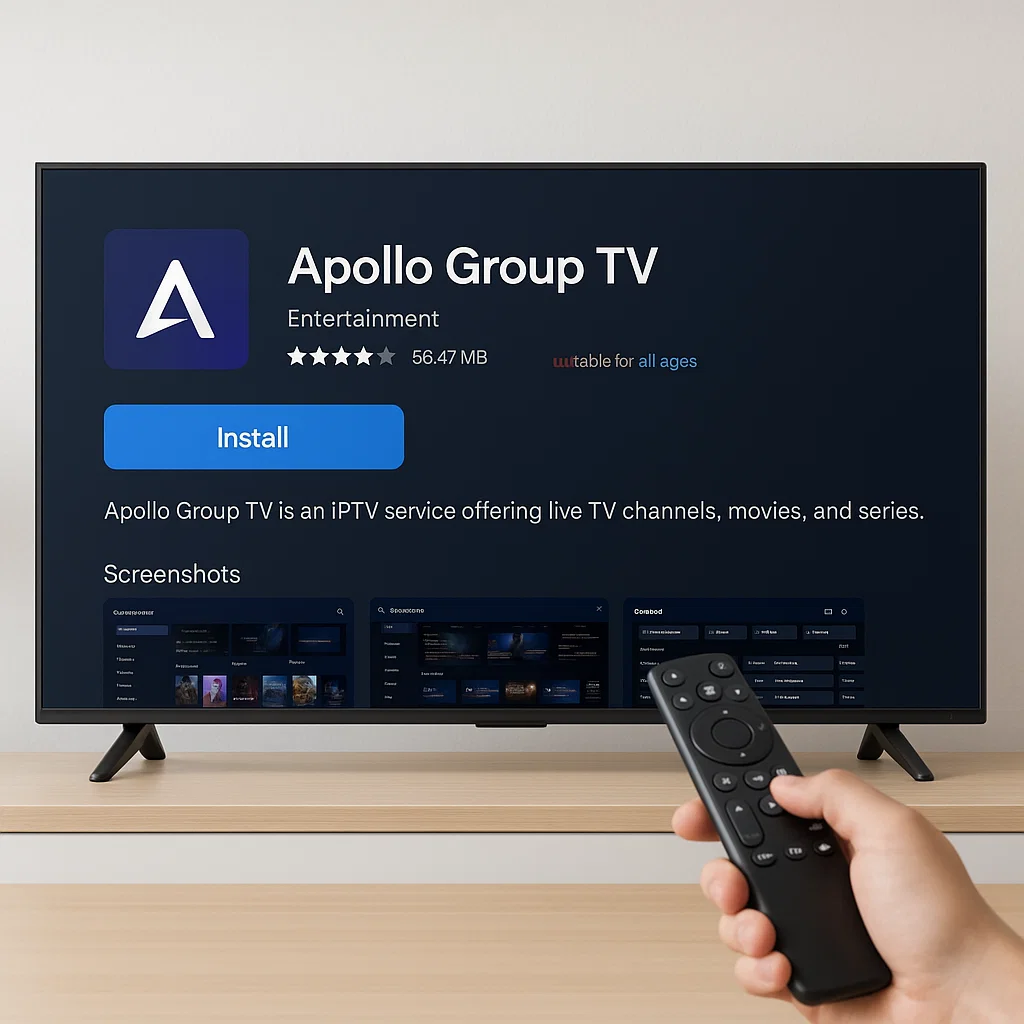
To install Apollo Group TV iPhone & iPad apps, you cannot download the official Apollo Group TV APK directly due to Apple’s iOS restrictions. Instead, you must use compatible IPTV player apps from the Apple App Store such as GSE Smart IPTV, IPTV Smarters Pro, or iPlayTV. After installing one of these players, configure it with your Apollo Group TV M3U playlist URL or Xtream Codes API credentials (username, password, and server URL) provided by Apollo Group TV. The entire setup process takes 5-10 minutes and provides full access to thousands of live channels and on-demand content on your iPhone or iPad.
Table of Contents
- Understanding iOS Restrictions for IPTV Apps
- Why Apollo Group TV Doesn’t Have a Native iOS App
- Best IPTV Player Apps for Apollo Group TV on iOS
- Pre-Installation Requirements
- Install Apollo Group TV iPhone & iPad Apps Using GSE Smart IPTV
- Install Apollo Group TV Using IPTV Smarters Pro
- Install Apollo Group TV Using iPlayTV
- Alternative Method: Web-Based Access
- Configuring Your IPTV Player for Optimal Performance
- Common Installation Mistakes to Avoid
- Troubleshooting iOS Installation Issues
- Casting Apollo Group TV from iPhone/iPad to TV
- Security and Privacy Considerations
- Frequently Asked Questions
- Final Recommendations
1. Understanding iOS Restrictions for IPTV Apps
Apple’s iOS operating system implements strict controls over app installation, creating unique challenges for IPTV services like Apollo Group TV.
Apple’s Closed Ecosystem
Unlike Android devices that allow APK sideloading, iOS restricts all app installations to Apple’s official App Store. This “walled garden” approach prioritizes security and quality control but limits user flexibility.
Apple reviews every app before allowing App Store distribution. This process examines functionality, content, security practices, and compliance with Apple’s guidelines. Apps failing to meet standards or violating policies receive rejection.
Why Third-Party IPTV Apps Face Restrictions
Direct IPTV service apps rarely appear in the App Store due to several factors:
Content Licensing Concerns: Apple scrutinizes apps that stream copyrighted content. Services lacking clear licensing documentation face rejection to avoid potential liability.
Subscription Model Conflicts: Apple requires in-app purchases to use their payment system, from which Apple takes 15-30% commission. Many IPTV providers prefer direct payment relationships avoiding these fees.
Regional Availability Issues: Content licensing varies by country. Apps with geographically restricted content face additional review complexity.
Policy Compliance: Apple’s strict guidelines regarding streaming content, user-generated material, and adult content create obstacles for comprehensive IPTV services.
The IPTV Player Solution
Generic IPTV player apps circumvent these restrictions by functioning as neutral platforms. They don’t provide content directly but accept external playlist URLs from users. This approach shifts content responsibility from the app developer to the user, satisfying Apple’s review requirements.
Popular IPTV players available in the App Store include GSE Smart IPTV, IPTV Smarters Pro, iPlayTV, and others. These apps support standard IPTV protocols including M3U playlists and Xtream Codes API, making them compatible with Apollo Group TV and other IPTV services.
2. Why Apollo Group TV Doesn’t Have a Native iOS App
Understanding why you can’t simply download “Apollo Group TV” from the App Store helps set realistic expectations.
App Store Review Challenges
Apollo Group TV would face intense scrutiny during Apple’s review process. Reviewers would examine:
- Proof of content licensing for all available channels
- Geographic restrictions implementation
- Payment processing compliance
- Content rating accuracy
- Parental control effectiveness
Meeting these requirements demands extensive documentation and legal verification that many IPTV providers cannot or choose not to pursue.
Business Model Considerations
Apple’s 15-30% commission on subscriptions purchased through iOS apps significantly impacts profit margins. For services already operating on competitive pricing, these fees could necessitate price increases making them less competitive.
By directing users to compatible third-party players, Apollo Group TV maintains direct payment relationships and avoids Apple’s commission structure.
Flexibility and Updates
Using external IPTV players provides Apollo Group TV operational flexibility. They can update server configurations, playlist URLs, and content offerings without requiring App Store review approval for each change.
Native apps must submit every update for review—a process taking days or weeks. This delay hampers responsiveness to technical issues or content expansions.
3. Best IPTV Player Apps for Apollo Group TV on iOS
Several quality IPTV players in the App Store work excellently with Apollo Group TV. Each offers unique features suited to different user preferences.
GSE Smart IPTV
Pros:
- Free with no subscription required
- Excellent EPG support
- Chromecast and AirPlay compatibility
- Parental controls
- Multiple playlist management
- Picture-in-picture mode
Cons:
- Interface can feel cluttered initially
- Ads in free version (removable via one-time purchase)
- Occasional stability issues reported
Best For: Users wanting comprehensive free features with option to remove ads permanently.
IPTV Smarters Pro
Pros:
- Clean, intuitive interface
- Strong Xtream Codes API support
- Built-in VPN
- Multi-screen layout options
- Catch-up TV support
- Parental controls
Cons:
- Free version includes ads
- Some advanced features require premium subscription
- Occasional buffering on complex playlists
Best For: Users prioritizing user-friendly interface and Xtream Codes compatibility.
iPlayTV
Pros:
- Beautiful, polished interface
- Native iOS design language
- Excellent performance
- Picture-in-picture support
- iCloud synchronization
- No ads
Cons:
- Paid app ($2.99-4.99)
- Limited advanced features
- Smaller user community
Best For: Users willing to pay for premium, ad-free experience with excellent design.
Other Notable Options
LAZY IPTV: Simple interface, good for beginners Perfect Player: Advanced customization options OttPlayer: Multi-device synchronization features
Choose based on your priorities: free vs. paid, simplicity vs. features, design preferences, and specific functionality needs.
4. Pre-Installation Requirements
Proper preparation ensures smooth installation and optimal Apollo Group TV performance on your iPhone or iPad.
Active Apollo Group TV Subscription
Purchase your subscription through Apollo Group TV’s official website before attempting installation. You’ll receive:
- Username
- Password
- Server URL (for Xtream Codes)
- M3U playlist URL (alternative login method)
Keep this information accessible—you’ll need it during IPTV player configuration.
Compatible iOS Device
Apollo Group TV works on:
- iPhone 6s and newer
- iPad Air 2 and newer
- iPad mini 4 and newer
- All iPad Pro models
Devices must run iOS 12 or later, though iOS 14+ recommended for optimal performance and security.
Stable Internet Connection
Minimum speeds for Apollo Group TV streaming:
- Standard Definition: 5 Mbps
- High Definition (720p): 10 Mbps
- Full HD (1080p): 15-25 Mbps
- 4K content: 35+ Mbps
Test your connection speed using Speedtest or Fast.com apps before installation. Wi-Fi connections perform better than cellular data for sustained streaming.
Sufficient Storage Space
IPTV player apps require minimal storage (50-200 MB), but streaming generates cache files. Maintain at least 2-3 GB free space on your device for smooth operation.
Check available storage: Settings > General > iPhone/iPad Storage.
Updated iOS Version
Update your device to the latest iOS version before installation:
- Go to Settings > General > Software Update
- Download and install available updates
- Restart your device after updating
Updates include security patches, performance improvements, and codec support enhancements benefiting streaming quality.
5. Install Apollo Group TV iPhone & iPad Apps Using GSE Smart IPTV

GSE Smart IPTV represents one of the most popular free options for Apollo Group TV on iOS devices.
Download GSE Smart IPTV
- Open the App Store on your iPhone or iPad
- Tap the Search tab at the bottom
- Type “GSE Smart IPTV” in the search field
- Select GSE SMART IPTV from results (by droidvision)
- Tap GET then Install
- Authenticate with Face ID, Touch ID, or password
- Wait for download and installation to complete
Launch and Set Up GSE Smart IPTV
- Tap Open from the App Store or find the GSE icon on your home screen
- The app opens to the main interface
- Tap the + icon or Add Playlist option
- You’ll see options for adding content
Step 3: Add Apollo Group TV Using M3U URL
If you have an M3U playlist URL:
- Select M3U URL from the add options
- Enter a name: “Apollo Group TV”
- Paste your M3U playlist URL in the URL field
- Tap Add to save
- GSE downloads and processes your playlist (may take 1-2 minutes)
- Channels appear organized by categories
Add Apollo Group TV Using Xtream Codes
If using Xtream Codes credentials:
- Select Xtream Codes API from add options
- Enter your details:
- Name: Apollo Group TV
- Server URL: Provided by Apollo Group TV (e.g., http://example.com:8080)
- Username: Your Apollo Group TV username
- Password: Your Apollo Group TV password
- Tap Add to save
- GSE connects and loads your content
Configure Initial Settings
- Tap the Settings gear icon
- Configure video player preferences:
- Default Quality: Auto (adapts to connection)
- Hardware Acceleration: Enable for better performance
- Buffer Size: Increase if experiencing interruptions
- Set up Parental Controls if needed
- Configure EPG settings for program guide display
- Return to main screen and start watching
6. Install Apollo Group TV Using IPTV Smarters Pro
IPTV Smarters Pro offers an excellent alternative with strong Xtream Codes support.
Install IPTV Smarters Pro
- Open App Store
- Search for “IPTV Smarters Pro”
- Select the app by WHMCS SMARTERS
- Tap GET and install
- Open the app after installation
Initial Setup
- Launch IPTV Smarters Pro
- Accept terms and conditions
- Select Login with Xtream Codes API
- (Alternative: Select Login with M3U URL/Playlist if using that method)
Enter Apollo Group TV Credentials
For Xtream Codes:
- Enter Server URL from Apollo Group TV
- Enter your Username
- Enter your Password
- Tap Add User
- Wait for authentication and content loading
For M3U URL:
- Select M3U URL option
- Enter playlist name: Apollo Group TV
- Paste your M3U URL
- Tap Add User
Navigate the Interface
- Main screen displays categories: Live TV, Movies, Series
- Browse by category or use search function
- Tap any channel or content to begin streaming
- Access EPG by long-pressing channel listings
- Create favorites by tapping the star icon
Optimize Settings
- Tap the Menu icon (three lines)
- Select Settings
- Configure:
- Player Type: Native or External
- Video Quality: Auto or specific resolution
- Parent Lock: Enable with PIN
- Auto Update EPG: Enable for automatic guide updates
- Save changes and return to main screen
7. Install Apollo Group TV Using iPlayTV
iPlayTV provides a premium, paid experience with exceptional design quality.
Purchase and Install
- Open App Store
- Search for “iPlayTV”
- Note the price ($2.99-4.99 typically)
- Tap Purchase
- Authenticate payment
- Tap Install after purchase
- Open the app
Add Your Playlist
- Tap + or Add Playlist
- Choose input method:
- URL for M3U playlists
- Xtream Codes for API credentials
- Enter required information
- Save the configuration
Browse and Stream
- Channels load organized by groups
- Use search to find specific content
- Tap any channel to begin streaming
- Swipe gestures control volume and brightness
- Picture-in-picture allows multitasking while streaming
8. Alternative Method: Web-Based Access
Some Apollo Group TV implementations offer web player access.
Browser-Based Streaming
- Open Safari on your iPhone or iPad
- Navigate to Apollo Group TV’s web player URL (if available)
- Enter your credentials
- Browse and stream directly through the browser
- Add to home screen for quick access:
- Tap Share icon
- Select Add to Home Screen
- Name it Apollo Group TV
This method provides basic functionality without installing additional apps but typically offers fewer features than dedicated IPTV players.
9. Configuring Your IPTV Player for Optimal Performance
Maximize streaming quality through proper configuration.
Video Quality Settings
- Auto Quality: Best for variable connection speeds
- Fixed Quality: Use if you have consistent fast internet
- Set lower quality if experiencing buffering
Buffer Settings
- Default: 5-10 seconds
- Slow Connections: Increase to 15-30 seconds
- Fast Connections: Can reduce to 2-5 seconds for less startup delay
Network Optimization
- Use Wi-Fi instead of cellular when possible
- Connect to 5GHz Wi-Fi band if available
- Position closer to router for stronger signal
- Close background apps consuming bandwidth
Parental Controls
- Enable PIN protection in settings
- Set content rating restrictions
- Hide adult categories if desired
- Create child-friendly favorites lists
EPG Configuration
- Set correct time zone
- Enable automatic EPG updates
- Choose preferred EPG display format
- Adjust EPG refresh interval
10. Common Installation Mistakes to Avoid
Using Wrong Credentials
Most login failures result from entering incorrect information. Common errors:
- Typing username/password incorrectly
- Confusing credentials between different services
- Including extra spaces before or after text
- Using expired or inactive subscriptions
Solution: Copy-paste credentials directly from confirmation emails to avoid typos.
Choosing Incompatible IPTV Players
Not all IPTV apps in the App Store support the playlist formats Apollo Group TV uses.
Solution: Stick with recommended players: GSE Smart IPTV, IPTV Smarters Pro, or iPlayTV.
Attempting APK Installation
iOS cannot install APK files—they’re Android-specific.
Solution: Only use App Store applications. Any website claiming to install Apollo Group TV APK on iPhone is fraudulent.
Ignoring App Permissions
IPTV players require certain permissions to function properly:
- Network access for streaming
- Photos access for custom images
- Notifications for program reminders
Solution: Grant necessary permissions when prompted.
Inadequate Internet Speed
Installing successfully but experiencing constant buffering indicates insufficient bandwidth.
Solution: Test internet speed and upgrade plan if necessary, or reduce video quality settings.
11. Troubleshooting iOS Installation Issues
App Won’t Download from App Store
Solutions:
- Verify sufficient storage space
- Check Apple ID payment information is current
- Sign out and back into App Store
- Restart iPhone/iPad
- Check App Store region matches your location
Playlist Won’t Load
Solutions:
- Verify URL accuracy—no typos or extra characters
- Check subscription status is active
- Test internet connection
- Try alternative login method (M3U vs. Xtream Codes)
- Contact Apollo Group TV support for correct credentials
Constant Buffering During Playback
Solutions:
- Test internet speed—need 10+ Mbps for HD
- Switch to Wi-Fi from cellular
- Lower video quality in app settings
- Increase buffer size
- Close background apps
- Restart router and device
EPG Not Displaying
Solutions:
- Verify time zone settings match your location
- Enable automatic EPG updates
- Manually refresh EPG
- Wait 24 hours as EPG data loads gradually
- Check if Apollo Group TV provides EPG for your subscription tier
App Crashes on Launch
Solutions:
- Force close and reopen app
- Delete and reinstall IPTV player
- Update iOS to latest version
- Free up device storage space
- Try alternative IPTV player app
12. Casting Apollo Group TV from iPhone/iPad to TV
Extend your viewing experience to larger screens.
AirPlay to Apple TV
- Ensure iPhone/iPad and Apple TV connect to same Wi-Fi
- Open Apollo Group TV in your IPTV player
- Start playing desired content
- Tap AirPlay icon (screen with triangle)
- Select your Apple TV
- Content streams to television
Chromecast from iOS
Compatible IPTV players (like GSE Smart IPTV) support Chromecast:
- Connect Chromecast and iPhone/iPad to same network
- Open IPTV player app
- Tap Cast icon
- Select your Chromecast device
- Start streaming
HDMI Adapter Method
For direct connection:
- Purchase Apple Lightning to HDMI adapter
- Connect adapter to iPhone/iPad
- Connect HDMI cable from adapter to TV
- Switch TV input to corresponding HDMI port
- Content mirrors to television screen
13. Security and Privacy Considerations
VPN Usage on iOS
VPNs provide privacy and prevent ISP throttling:
Recommended iOS VPNs:
- ExpressVPN
- NordVPN
- Surfshark
- Private Internet Access
Installation:
- Download VPN app from App Store
- Subscribe to VPN service
- Connect to VPN before opening IPTV player
- Stream with encrypted connection
Account Security
- Use strong, unique passwords
- Never share credentials publicly
- Limit access to trusted family members
- Monitor subscription for unauthorized use
App Permissions
Review and limit permissions:
- Go to Settings > Privacy
- Review what each app can access
- Disable unnecessary permissions
- Keep only essential access enabled
14. Frequently Asked Questions
Can I install Apollo Group TV iPhone & iPad apps directly like Android?
No, iOS doesn’t support APK installation or sideloading like Android. You must use compatible IPTV player apps from the Apple App Store configured with Apollo Group TV credentials. This limitation exists due to Apple’s closed ecosystem prioritizing security and quality control.
Which IPTV player works best for Apollo Group TV on iPhone?
GSE Smart IPTV offers the best free experience with comprehensive features. IPTV Smarters Pro provides excellent Xtream Codes support with intuitive interface. iPlayTV delivers premium ad-free experience for users willing to pay. Choose based on your priorities: free vs. paid, features vs. simplicity, interface preferences.
Do I need to jailbreak my iPhone to use Apollo Group TV?
Absolutely not. Jailbreaking is unnecessary and strongly discouraged. It voids warranties, creates security vulnerabilities, and prevents iOS updates. All necessary functionality works through standard App Store IPTV players without any system modifications.
Can I watch Apollo Group TV on iPad and iPhone simultaneously?
Yes, if your subscription allows multiple concurrent streams. Most Apollo Group TV plans permit 2-5 simultaneous connections. Install compatible IPTV players on both devices, login with the same credentials, and watch different content on each device within your subscription limits.
Will Apollo Group TV drain my iPhone battery quickly?
Video streaming consumes significant power. Expect 3-5 hours of continuous streaming on average iPhone battery. iPad batteries last longer (6-10 hours) due to larger capacity. Reduce brightness, enable Low Power Mode when battery is low, and consider keeping device plugged in for extended viewing sessions.
Can I download content from Apollo Group TV for offline viewing?
Most IPTV services including Apollo Group TV don’t support downloading for offline playback. Content streams in real-time requiring active internet connection. Some IPTV players offer limited recording features, but this depends on specific app capabilities and may violate terms of service.
Is Apollo Group TV legal to use on iPhone and iPad?
The legality depends on Apollo Group TV’s content licensing, which users should verify independently. Using IPTV technology and apps from the App Store is legal. However, streaming copyrighted content without proper licensing may violate laws in certain jurisdictions. Research your local laws and Apollo Group TV’s licensing status before subscribing.
15. Final Recommendations
Installing Apollo Group TV on iPhone and iPad requires understanding iOS restrictions and using compatible workarounds. While you cannot install Apollo Group TV iPhone & iPad apps directly as native applications, quality IPTV players from the App Store provide complete functionality.
GSE Smart IPTV stands out as the top free option with comprehensive features satisfying most users’ needs. The occasional ads represent minimal inconvenience considering the robust capabilities provided at no cost.
IPTV Smarters Pro offers excellent middle-ground balancing user-friendliness with powerful features. The clean interface makes navigation intuitive even for IPTV newcomers.
iPlayTV deserves consideration for users prioritizing premium design and willing to invest a few dollars upfront. The absence of ads and polished interface justify the modest purchase price.
Successful Apollo Group TV usage on iOS demands realistic expectations about platform limitations. You won’t achieve the same deep integration possible on Android TV devices, but portable streaming access on phones and tablets provides unique value.
Proper configuration proves crucial for optimal performance. Take time adjusting video quality, buffer settings, and network preferences matching your specific internet capabilities and device specifications.
Security consciousness matters when using any IPTV service. VPN usage adds privacy protection and prevents potential ISP throttling that degrades streaming quality. Choose reputable VPN providers with proven iOS performance.
The mobile IPTV experience suits different use cases than home theater setups. iPhone and iPad streaming excels for:
- Watching in bed or while traveling
- Keeping up with news or sports during commutes
- Personal viewing without occupying household TV
- Casting to larger screens via AirPlay or Chromecast
For primary home viewing, consider dedicated solutions like Android TV boxes or Fire TV devices offering superior performance and integration compared to mobile streaming.
The IPTV landscape continues evolving with improving apps, expanding content libraries, and advancing streaming technologies. Stay informed about updates to your chosen IPTV player and Apollo Group TV service announcements for best long-term results.