How to Install Apollo Group TV on Firestick: Your Ultimate Streaming Solution
Quick Answer: To install Apollo Group TV on Firestick, you need to enable Developer Options, install the Downloader app from Amazon Appstore, use code 299336 to download the APK file, and then install it. The entire process takes about 10 minutes and requires no technical expertise.
The Streaming Revolution That Changed Everything

Sarah stared at her cable bill in disbelief. $187.43 for channels she never watched. As a single mom working two jobs, every dollar mattered. That evening, while scrolling through her phone, she discovered something that would transform her entertainment experience forever: Apollo Group TV on her Amazon Firestick.
Within fifteen minutes, Sarah had access to thousands of live channels, movies, and shows—all from a simple device plugged into her television. No contracts. No hidden fees. Just pure streaming freedom.
This is the story of how to install Apollo Group TV on Firestick, and why millions of Americans are making the switch.
Understanding Apollo Group TV and Firestick
Before we dive into the installation process, let’s understand what makes this combination so powerful.
What Is Apollo Group TV?
Apollo Group TV is an IPTV (Internet Protocol Television) service that delivers live television channels, movies, and on-demand content through internet streaming. Unlike traditional cable services that require expensive infrastructure and long-term contracts, IPTV services stream content directly to your devices through your existing internet connection.
The service offers over 5,000 HD channels from countries including the United States, United Kingdom, Canada, and Germany. From sports to movies, news to entertainment, the content library is vast and constantly updated.
What Is Amazon Firestick?
The Amazon Fire TV Stick is a digital media player developed by Amazon. This small HDMI dongle transforms any regular television into a smart streaming device. According to Wikipedia, digital media players like Firestick have revolutionized home entertainment by providing affordable access to streaming content.
The Firestick comes in several versions:
- Fire TV Stick Lite (entry-level)
- Fire TV Stick (standard)
- Fire TV Stick 4K (supports Ultra HD)
- Fire TV Stick 4K Max (fastest processor with Wi-Fi 6)
For optimal performance when learning how to install Apollo Group TV on Firestick, the 4K or 4K Max versions are recommended.
Why Choose Apollo Group TV for Your Firestick?
Marcus, a college student from Texas, was spending over $200 monthly on various streaming subscriptions. Netflix, Hulu, Disney+, ESPN+—the costs kept piling up. When he discovered how to install Apollo Group TV on Firestick, his entertainment budget dropped to a fraction of what he was paying before.
Key Benefits:
Cost-Effective Entertainment: Apollo Group TV subscriptions start at $24.99 per month, significantly less than traditional cable packages or multiple streaming services combined.
Massive Content Library: Access to thousands of live TV channels, movies, TV series, and sports events from around the world.
Multi-Device Support: One subscription supports up to five devices simultaneously, perfect for families.
User-Friendly Interface: The dedicated Apollo Group TV app provides an intuitive browsing experience designed specifically for Firestick users.
Regular Updates: Unlike many streaming apps, Apollo Group TV receives consistent updates to improve performance and add features.
What You’ll Need Before Installation
Jennifer, a 62-year-old retiree, was initially intimidated by the technical aspects. “I’m not a computer person,” she told me. But after following this guide on how to install Apollo Group TV on Firestick, she was streaming her favorite channels within minutes.
Essential Requirements:
- Amazon Firestick Device: Any generation works, but 4K or 4K Max recommended
- Stable Internet Connection: Minimum 10 Mbps for HD streaming, 25 Mbps for 4K content
- Apollo Group TV Subscription: Available at apollogrouptv.cc
- Your TV’s Remote Control: For initial setup
- About 15 Minutes: The actual installation time
Optional But Recommended:
VPN Service: Many users choose to use a VPN (Virtual Private Network) when streaming IPTV content. Services like Surfshark or NordVPN add an extra layer of privacy and security to your streaming activities. While not mandatory, a VPN can protect your online activities from your Internet Service Provider.
Step-by-Step Guide: How to Install Apollo Group TV on Firestick
Let me walk you through the exact process that helped thousands of users successfully install Apollo Group TV on their Firestick devices.
Phase 1: Preparing Your Firestick
The first step in learning how to install Apollo Group TV on Firestick involves enabling your device to accept applications from outside the Amazon Appstore.
Enabling Developer Options
- Navigate to Settings: From your Firestick home screen, scroll right and select the gear icon labeled “Settings”
- Access My Fire TV: Look for “My Fire TV” option. If you’re using a television with built-in Fire OS (like Insignia or Toshiba models), you’ll see “Device and Software” instead.
- Find Developer Options: Scroll down the menu until you locate “Developer Options”
- Enable the Hidden Feature: Here’s a little-known trick—if you don’t see Developer Options, hover over “About” and press the OK button (center circle on your remote) seven times rapidly. You’ll see a message: “You are now a developer.”
- Toggle Apps from Unknown Sources: Once Developer Options appears, select it and toggle “Apps from Unknown Sources” to ON. A security warning will appear—select “Turn On” to proceed.
This crucial step allows you to install applications that aren’t available in the official Amazon Appstore, which is necessary when learning how to install Apollo Group TV on Firestick.
Phase 2: Installing the Downloader App
Robert, a truck driver from Ohio, loves how this step makes everything accessible. “It’s like having a magic key,” he explains.
The Downloader app is your gateway to installing Apollo Group TV. This legitimate application is available in the Amazon Appstore and specifically designed for sideloading apps onto Fire TV devices.
Getting Downloader
- Open Search: From your Firestick home screen, select the magnifying glass icon (or “Find” on newer interfaces)
- Search for Downloader: Type “Downloader” using the on-screen keyboard
- Select the Official App: Choose the Downloader app by AFTVnews.com from the search results
- Install: Click “Download” or “Get” to install the application
- Open Downloader: Once installed, click “Open” to launch the app for the first time
- Accept Permissions: The app will request certain permissions—select “Allow” to proceed
The Downloader app is completely safe and has been downloaded millions of times by Firestick users worldwide. It’s the most reliable method for learning how to install Apollo Group TV on Firestick.
Phase 3: Downloading Apollo Group TV APK
This is where the magic happens. Maria, a restaurant owner from California, describes this moment: “I was nervous at first, but seeing the download progress bar gave me confidence I was doing it right.”
Using the Downloader App
- Launch Downloader: Open the Downloader app from your apps list
- Access the Home Tab: You’ll see a simple interface with a URL field
- Enter the Download Code: Click on the URL field to bring up the keyboard. Type 299336 (this is the official Apollo Group TV downloader code) Alternative: You can also enter apollogrouptv.cc directly
- Initiate Download: Select the “Go” button
- Wait for Download: The APK file will begin downloading automatically. This typically takes 30 seconds to 2 minutes depending on your internet speed
- Monitor Progress: You’ll see a progress bar indicating the download status
The downloader code 299336 is specifically configured to fetch the latest version of Apollo Group TV directly from official sources, ensuring you get the most up-to-date and secure version when learning how to install Apollo Group TV on Firestick.
Phase 4: Installing Apollo Group TV
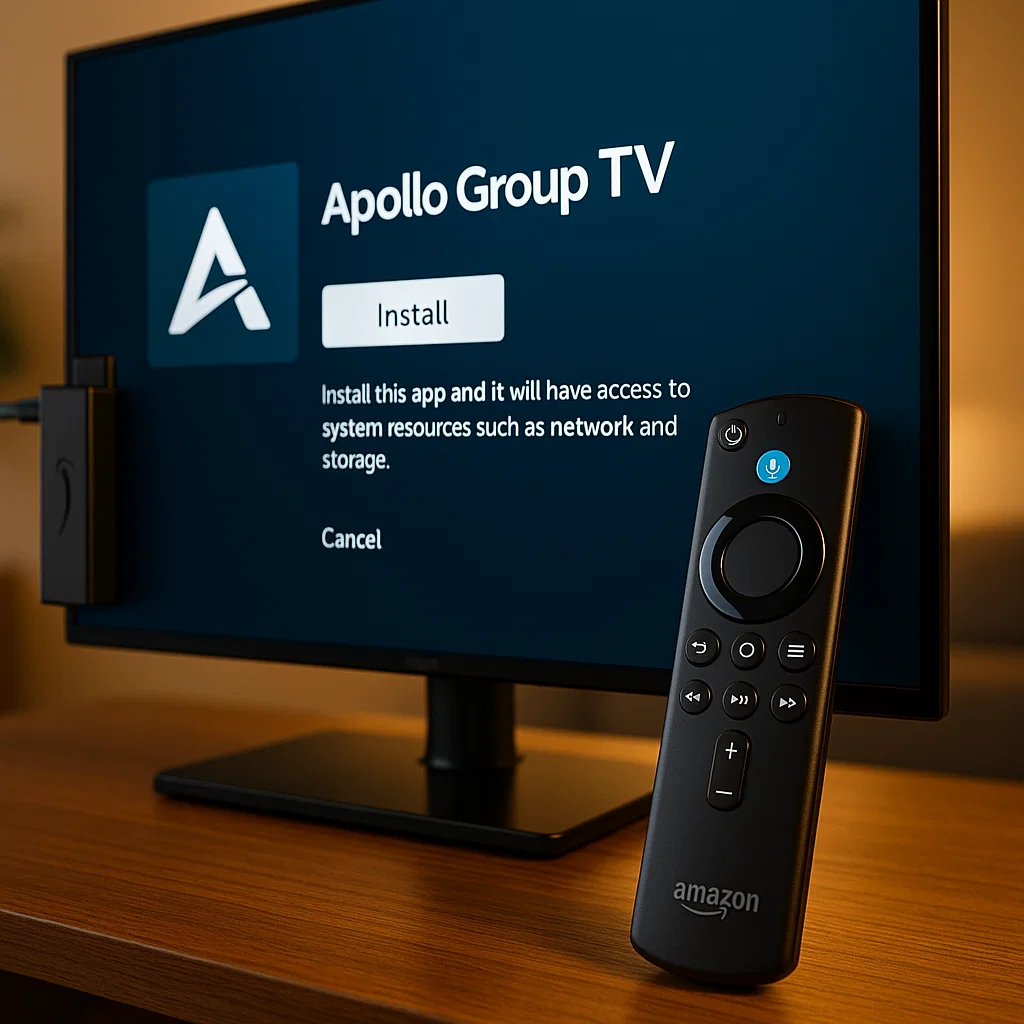
Kevin, an IT professional from New York, appreciates this phase’s simplicity: “Even my grandmother could do this part.”
Installation Process
- Automatic Prompt: Once the download completes, Downloader will automatically prompt you to install
- Click Install: Select the “Install” button that appears
- Wait for Installation: The installation process takes approximately 15-30 seconds
- Installation Complete: You’ll see a message saying “App Installed”
- Select Done: Click the “Done” button
- Delete APK File: Downloader will ask if you want to delete the installation file. Select “Delete” to free up storage space on your Firestick
- Confirm Deletion: Select “Delete” again to confirm
By deleting the APK file after installation, you’re freeing up valuable storage space on your Firestick. The file is no longer needed since the app is now installed on your device.
Phase 5: Launching and Setting Up Apollo Group TV
This is the moment everything comes together. Christine, a teacher from Florida, remembers her excitement: “When the login screen appeared, I knew I had successfully figured out how to install Apollo Group TV on Firestick.”
Initial Setup
- Return to Home Screen: Press the Home button on your Firestick remote
- Navigate to Your Apps: Scroll to “Your Apps & Channels” section
- Find Apollo Group TV: Scroll through your apps to locate the Apollo Group TV icon (you may need to select “See All” first)
- Move to Front (Optional): For easier access, highlight the Apollo Group TV app, press the Menu button (three horizontal lines), and select “Move to Front”
- Launch the App: Select the Apollo Group TV icon to open the application
- Wait for Login Screen: The first launch may take 30-60 seconds as the app initializes
Logging Into Your Account
- Enter Your Credentials: You’ll see a login screen with two fields
- Input Email or Username: Using your remote, enter the email or username provided by Apollo Group TV when you purchased your subscription at apollogrouptv.cc
- Enter Password: Click “Next” and enter your password (remember, it’s case-sensitive)
- Click Login: Select the “Login” button
- Wait for Authentication: The app will verify your credentials
- Access Your Content: Once logged in, you’ll see the main Apollo Group TV interface
Phase 6: Configuring Your Preferences
Daniel, a sports enthusiast from Michigan, loves this customization feature: “I set up my favorites, and now all my sports channels are right at my fingertips.”
Personalizing Your Experience
- Access Settings: Look for the gear icon (⚙️) in the bottom left corner of the app
- Configure Categories: Choose which content categories you want to display (Sports, Movies, News, Entertainment, etc.)
- Save Login: Enable the “Save Login” checkbox to avoid entering credentials every time
- Adjust Playback Settings: Configure video quality, buffer size, and other streaming preferences
- Set Parental Controls: If desired, enable parental controls to restrict certain content
- Organize Favorites: Create a favorites list for quick access to your most-watched channels
The Apollo Group TV app remembers your preferences, making your streaming experience increasingly personalized over time.
Troubleshooting Common Installation Issues
Even when following the exact steps on how to install Apollo Group TV on Firestick, some users encounter minor hiccups. Here’s how to solve the most common problems.
Issue 1: “Installation Blocked” Error
Problem: When trying to install, you see an error message saying installation is blocked.
Solution:
- Return to Settings > My Fire TV > Developer Options
- Ensure “Apps from Unknown Sources” is toggled ON
- Try the installation again
Issue 2: Download Code Not Working
Problem: The code 299336 doesn’t initiate a download.
Solution:
- Check your internet connection
- Clear Downloader app cache: Settings > Applications > Manage Installed Applications > Downloader > Clear Cache
- Try using the alternative URL: apollogrouptv.cc
- Ensure you entered the code correctly with no extra spaces
Issue 3: App Crashes on Launch
Problem: Apollo Group TV closes immediately after opening.
Solution:
- Restart your Firestick: Settings > My Fire TV > Restart
- Ensure your Firestick has sufficient storage space
- Check if you have the latest version by reinstalling
- Verify your subscription is active at apollogrouptv.cc
Issue 4: Login Credentials Not Working
Problem: Your username and password are rejected.
Solution:
- Verify credentials in your Apollo Group TV confirmation email
- Remember that passwords are case-sensitive
- Check if your subscription is currently active
- Contact Apollo Group TV support if credentials continue failing
Issue 5: Buffering or Poor Video Quality
Problem: Constant buffering or low-quality video playback.
Solution:
- Test your internet speed (minimum 10 Mbps recommended)
- Close other apps running on your Firestick
- Move your router closer to your Firestick or use an ethernet adapter
- Lower video quality settings in the Apollo Group TV app
- Restart your Firestick and router
Issue 6: App Not Appearing in Apps List
Problem: After installation, you can’t find Apollo Group TV in your apps.
Solution:
- Check if installation actually completed (look for “App Installed” message)
- Restart your Firestick
- Look in “Your Apps & Channels” section and select “See All”
- If still missing, repeat the installation process
Maximizing Your Apollo Group TV Experience
Once you’ve mastered how to install Apollo Group TV on Firestick, these tips will enhance your streaming experience.
Optimizing Performance
Internet Connection: For the best experience, use a wired ethernet connection. Amazon sells an ethernet adapter specifically designed for Fire TV Stick, which provides more stable connectivity than Wi-Fi.
Clear Cache Regularly: Navigate to Settings > Applications > Manage Installed Applications > Apollo Group TV > Clear Cache. Do this weekly to maintain optimal performance.
Update the App: Check periodically for updates by revisiting the Downloader app and entering the code 299336 again. If a newer version is available, install it over the existing app.
Use a VPN: Many experienced streamers recommend using a VPN service for added privacy. Services like Surfshark or NordVPN have dedicated Firestick apps that are simple to install from the Amazon Appstore.
Content Discovery Tips
Explore Categories: Apollo Group TV organizes content into intuitive categories. Take time to browse Sports, International Channels, Movies, TV Series, and more.
Create Favorites: Mark frequently watched channels as favorites for instant access. Simply hold the select button on any channel and choose “Add to Favorites.”
Search Function: Use the built-in search feature to quickly find specific channels, movies, or shows by name.
EPG (Electronic Program Guide): The app includes a program guide showing what’s currently playing and upcoming content on live channels.
Family-Friendly Setup
Rachel, a mother of three from Georgia, shares her setup strategy: “I created a separate profile for my kids with only appropriate channels visible. It gives me peace of mind.”
Parental Controls: Enable parental controls in settings to restrict adult content.
Profile Management: Set up multiple user profiles if your subscription allows it.
Kids Categories: Filter channels to show only family-friendly content like Disney, Cartoon Network, and educational channels.
Understanding the Legal Landscape
When discussing how to install Apollo Group TV on Firestick, it’s important to address the legal considerations.
The Gray Area of IPTV Services
IPTV technology itself is completely legal. Companies like Hulu Live TV, YouTube TV, and Sling TV are legitimate IPTV services. The legal concerns arise when services stream copyrighted content without proper licensing agreements.
Apollo Group TV operates in what many consider a legal gray area. Installing and using the service is not illegal for consumers, but the service may be streaming content without proper broadcasting rights.
Protecting Yourself
Use a VPN: A Virtual Private Network encrypts your internet traffic and masks your IP address, providing privacy for all your online activities.
Understand Your Risks: While using services like Apollo Group TV, be aware that copyright holders may send notices to Internet Service Providers about streaming activity.
Stay Informed: Laws regarding streaming vary by jurisdiction and continue to evolve. Stay current on regulations in your area.
Consider Alternatives: If legal concerns worry you, consider legitimate IPTV services like YouTube TV, Hulu Live TV, or Sling TV, though they typically cost more.
Alternatives and Comparisons
While this guide focuses on how to install Apollo Group TV on Firestick, it’s worth knowing about alternatives.
Other IPTV Services for Firestick
TiviMate: Actually an IPTV player that works with various IPTV services, including Apollo Group TV. It offers an alternative interface some users prefer.
IPTV Smarters Pro: Another player application compatible with multiple IPTV services. Installation process is similar to Apollo Group TV.
Area 51 IPTV: Another popular IPTV service with installation methods similar to what we’ve covered for Apollo Group TV.
Legitimate Streaming Alternatives
Sling TV: Starting at $40/month, offers live TV channels with no contract.
YouTube TV: $72.99/month for over 100 channels with unlimited DVR.
Hulu + Live TV: $76.99/month combines Hulu’s on-demand library with live channels.
Philo: Budget-friendly at $25/month but focuses on entertainment channels without sports.
The advantage of services like Apollo Group TV is the cost—significantly less than legitimate alternatives while offering comparable or greater content variety.
Frequently Asked Questions
Is Apollo Group TV safe to use on Firestick?
The Apollo Group TV application itself is safe to install and doesn’t contain malware. However, since it’s not available through official app stores, always download from trusted sources using the official code 299336. Using a VPN adds an extra layer of security to your streaming activities.
How much does Apollo Group TV cost?
Apollo Group TV subscriptions start at $24.99 per month. They offer various subscription tiers with different features. Visit apollogrouptv.cc for current pricing and to take advantage of any promotional offers.
Can I use Apollo Group TV on multiple devices?
Yes! Apollo Group TV subscriptions typically support up to five simultaneous streams, meaning you can use it on multiple Firesticks, phones, tablets, or computers in your household.
Do I need a VPN to use Apollo Group TV?
While not technically required, many users choose to use a VPN when streaming IPTV content for privacy reasons. A VPN masks your streaming activity from your Internet Service Provider and adds encryption to your connection.
Will Apollo Group TV work on older Firestick models?
Apollo Group TV works on all Firestick generations, but performance is optimal on Fire TV Stick 4K or 4K Max models. Older models may experience occasional buffering, especially with HD or 4K content.
How often is Apollo Group TV content updated?
Apollo Group TV regularly updates its channel lineup and on-demand content. The app itself receives periodic updates to improve functionality and add features.
What happens if I cancel my subscription?
If you cancel your Apollo Group TV subscription, you’ll lose access to the content when your current billing period ends. However, the app will remain installed on your Firestick, and you can reactivate by renewing your subscription at apollogrouptv.cc.
Can I watch Apollo Group TV outside the United States?
Yes! Apollo Group TV works internationally, though some users prefer using a VPN to access region-specific content. The service includes channels from multiple countries.
Advanced Tips for Power Users
Using Apollo Group TV with External Players
Carlos, a tech enthusiast from Arizona, discovered advanced features: “I connected Apollo Group TV to TiviMate and it transformed my experience completely.”
Some users prefer alternative IPTV players like TiviMate for their interface and features. To use Apollo Group TV with TiviMate:
- Install TiviMate from the Amazon Appstore
- Open Apollo Group TV settings
- Find your M3U playlist URL and EPG URL
- Enter these URLs into TiviMate’s playlist settings
Backing Up Your Configuration
Advanced users can back up their Apollo Group TV settings:
- Navigate to Settings within Apollo Group TV
- Look for “Backup” or “Export Settings” option
- Save configuration to cloud storage
- Restore settings on new installations or different devices
Keyboard Shortcuts
If you’ve connected a wireless keyboard to your Firestick, these shortcuts enhance navigation:
- Space Bar: Play/Pause
- Arrow Keys: Navigate menus
- Enter: Select
- Backspace: Go back
- F: Toggle fullscreen
Creating Smart Playlists
Organize your favorite channels into custom playlists for instant access to content you love most.
The Future of IPTV and Firestick Streaming
The landscape of television consumption continues evolving rapidly. Traditional cable subscriptions declined by 6.2% in 2024, while IPTV services gained millions of new users.
Amazon continues improving Firestick technology with faster processors, better Wi-Fi connectivity, and enhanced user interfaces. The Fire TV Stick 4K Max now supports Wi-Fi 6, providing faster, more reliable streaming for services like Apollo Group TV.
As internet speeds increase globally and 5G networks expand, IPTV services will become even more accessible and reliable. The convenience of learning how to install Apollo Group TV on Firestick represents just the beginning of this streaming revolution.
Real Users, Real Stories
Story 1: The Cord-Cutter
Tom, a 45-year-old accountant from Pennsylvania, was paying $215 monthly for cable TV. After learning how to install Apollo Group TV on Firestick, his monthly entertainment cost dropped to $24.99. “The first month’s savings paid for my Firestick three times over,” he says. “I get more channels now than I ever had with cable, including international sports channels I couldn’t get before.”
Story 2: The International Connection
Priya moved from India to California for work. She desperately missed watching Indian television channels and Bollywood movies. “When I discovered how to install Apollo Group TV on Firestick, it was like reconnecting with home,” she explains. “I can watch all my favorite Hindi channels and shows, staying connected to my culture while living abroad.”
Story 3: The Sports Fanatic
Marcus loves sports but couldn’t afford multiple sports subscriptions. “ESPN+, NFL Sunday Ticket, NBA League Pass—it was costing me hundreds every month,” he recalls. After mastering how to install Apollo Group TV on Firestick, he now accesses comprehensive sports coverage at a fraction of the cost. “I don’t miss a single game anymore.”
Story 4: The Retiree’s Discovery
Eleanor, 68, was initially skeptical about technology. “My grandson showed me how to install Apollo Group TV on Firestick, and now I can’t imagine life without it,” she shares. “I watch classic movies, British television shows, and news channels from around the world. At my age, learning this new technology made me feel empowered.”
Conclusion: Your Entertainment Freedom Awaits
Learning how to install Apollo Group TV on Firestick isn’t just about following technical steps—it’s about reclaiming control over your entertainment experience.
The fifteen minutes you invest in following this guide could save you thousands of dollars in the coming years. More importantly, it opens a world of entertainment possibilities that simply weren’t available to previous generations.
Sarah, whose story opened this article, now saves over $1,800 annually on entertainment. She’s using that money for what matters—her children’s education, family vacations, and building an emergency fund. But beyond the financial benefits, she’s discovered content she never knew existed: international films, documentaries, sports from around the world, and channels that align with her family’s values.
Whether you’re a cord-cutter looking to save money, an international viewer wanting access to home country content, a sports enthusiast seeking comprehensive coverage, or simply someone curious about new technology—knowing how to install Apollo Group TV on Firestick empowers you to take control.
The process is straightforward: enable Developer Options, install Downloader, use code 299336, install the APK, and log in. Within fifteen minutes, your entertainment landscape transforms completely.
Your Firestick is more than a streaming device—it’s a gateway to unlimited entertainment. Apollo Group TV is more than an app—it’s your key to that gateway.
The question isn’t whether you can figure out how to install Apollo Group TV on Firestick. After reading this guide, you absolutely can. The real question is: are you ready to experience entertainment on your own terms?
For more information and to start your subscription, visit apollogrouptv.cc today.
Disclaimer: This article is for educational purposes only. Users are responsible for complying with all applicable laws and regulations regarding streaming content in their jurisdiction. The installation process described is for legitimate software installation, and users should ensure they have proper subscriptions and rights to access any content they stream.
Last Updated: November 2025