Install Apollo Group TV Smart TV Apps: Complete Setup Guide for All Brands
Direct Answer: How Do You Install Apollo Group TV Smart TV Apps?
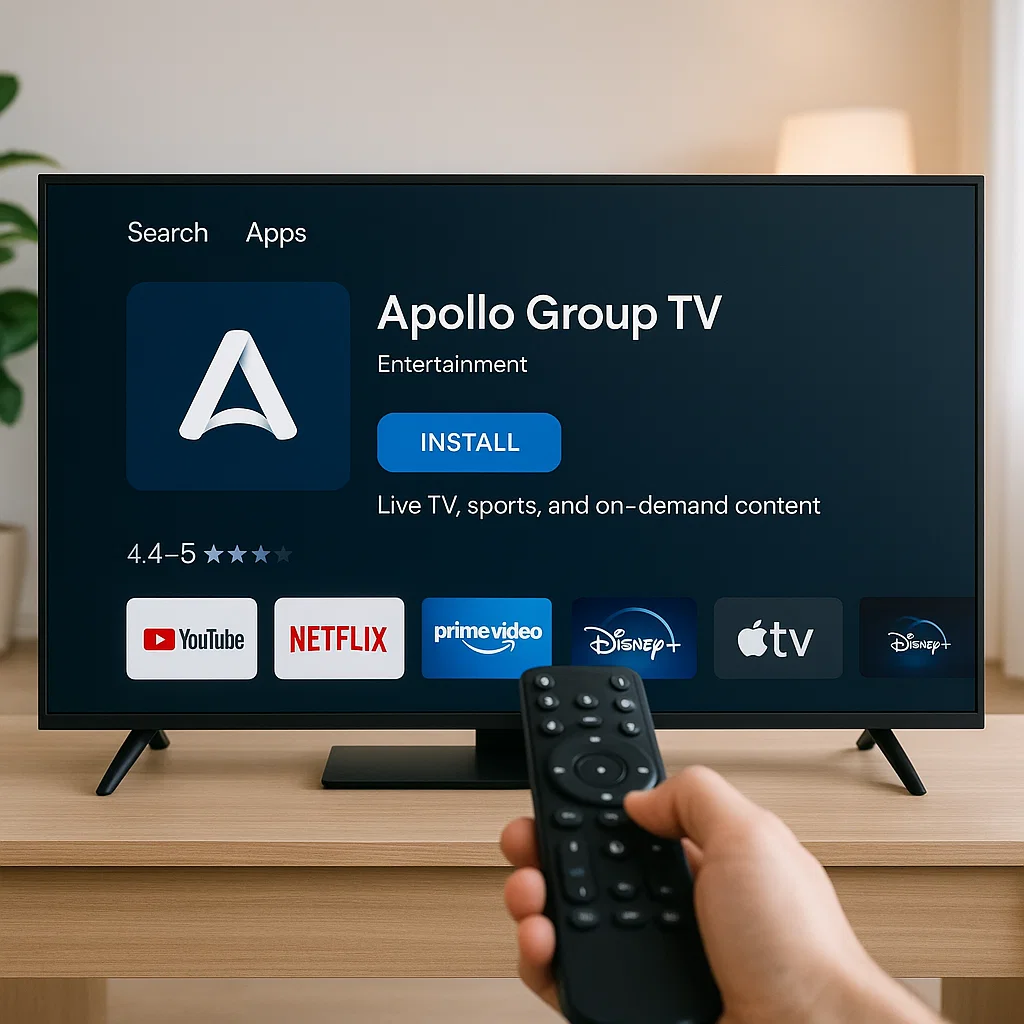
To install Apollo Group TV Smart TV apps, the method varies by TV brand. Android-based Smart TVs (Sony, Philips, TCL) allow direct APK installation after enabling unknown sources. Samsung Tizen and LG webOS TVs require alternative approaches: either using compatible IPTV player apps from their app stores with M3U playlist URLs, or connecting external streaming devices like Fire TV Stick or Android boxes. The installation process takes 10-15 minutes and provides access to thousands of live channels and on-demand content directly through your television.
Table of Contents
- Understanding Smart TV Platforms and Apollo Group TV Compatibility
- Pre-Installation Requirements and Preparation
- Install Apollo Group TV Smart TV Apps on Android TV
- Install Apollo Group TV on Samsung Smart TV (Tizen OS)
- Install Apollo Group TV on LG Smart TV (webOS)
- Install Apollo Group TV on Other Smart TV Brands
- Alternative Installation Method: External Streaming Devices
- Post-Installation Configuration and Setup
- Common Installation Mistakes to Avoid
- Troubleshooting Installation Issues
- Optimizing Apollo Group TV on Smart TVs
- Frequently Asked Questions
- Final Recommendations
1. Understanding Smart TV Platforms and Apollo Group TV Compatibility
Before attempting to install Apollo Group TV Smart TV apps, understanding your television’s operating system determines which installation method works for your device.
Smart TV Operating Systems Explained
Modern Smart TVs run various proprietary operating systems, each with different app installation capabilities:
Android TV: Found on Sony, Philips, TCL, Hisense, and Sharp models. This platform offers the most flexibility for IPTV app installation since it’s based on Google’s Android operating system. Android TV allows APK sideloading, making it the easiest platform for direct Apollo Group TV installation.
Samsung Tizen OS: Samsung’s proprietary system powers their Smart TV lineup. Tizen uses a closed ecosystem that restricts app installation to Samsung’s official store. Apollo Group TV isn’t available in the Tizen store, requiring workaround methods.
LG webOS: LG’s custom operating system similarly restricts installations to their official Content Store. Like Samsung, direct Apollo Group TV installation isn’t possible, necessitating alternative approaches.
Roku TV: TCL, Hisense, and other brands using Roku OS operate within Roku’s extremely restricted ecosystem. The platform doesn’t support APK installation or most third-party IPTV apps.
Amazon Fire TV Edition: Some TVs include built-in Fire TV OS, which functions identically to Fire TV Stick devices. These support APK sideloading similar to Android TV.
Direct vs. Indirect Installation Methods
Direct Installation: Android TV and Fire TV Edition televisions allow installing the Apollo Group TV APK directly on the television’s internal system. This provides the cleanest, most integrated experience.
Indirect Installation: Samsung, LG, and Roku TVs require using compatible IPTV player apps from official stores, or connecting external streaming devices. While less seamless, these methods still provide full Apollo Group TV functionality.
2. Pre-Installation Requirements and Preparation
Proper preparation ensures smooth installation regardless of your Smart TV platform.
Active Apollo Group TV Subscription
You need valid subscription credentials before beginning installation. Purchase subscriptions through Apollo Group TV’s official website. You’ll receive confirmation emails containing your username and password required during login.
Verify your subscription tier includes the number of concurrent streams needed for your household. Standard plans typically allow 2-3 simultaneous connections.
Stable Internet Connection
Minimum internet speeds of 25 Mbps support HD streaming. Test your connection before installation using speed test apps or websites. Speeds below this threshold cause constant buffering issues.
For optimal performance, connect your Smart TV via Ethernet cable directly to your router. Wired connections eliminate Wi-Fi interference and provide more consistent speeds than wireless connections.
Smart TV Specifications
Check your television’s specifications:
- Model number and year
- Operating system type and version
- Available storage space (need 2GB+ free)
- Firmware version (update to latest before installation)
Access this information through Settings > About or System Information menus on your TV.
Required Tools and Apps
Depending on your Smart TV platform, gather necessary tools:
For Android TV:
- File manager app (ES File Explorer, X-plore File Manager)
- Downloader app for fetching APK files
- USB flash drive (optional alternative method)
For Samsung/LG TVs:
- Compatible IPTV player app details (Smart IPTV, IPTV Smarters, SET IPTV)
- M3U playlist URL or Xtream Codes API credentials from Apollo Group TV
- External streaming device if preferred (Fire TV Stick, Android box)
Backup Current Settings
Before making system changes, document your current TV settings. Note network configurations, picture settings, and installed apps. This allows easy restoration if problems occur during installation.
3. Install Apollo Group TV Smart TV Apps on Android TV
Android TV platforms offer the most straightforward Apollo Group TV installation process.
Method 1: Direct APK Installation via Downloader
Enable Unknown Sources
- Open Settings from your Android TV home screen
- Navigate to Device Preferences > Security & Restrictions
- Select Unknown Sources
- Find “Downloader” in the list of apps
- Toggle the switch to ON
- Confirm the security warning by selecting OK
Install Downloader App
- Open Google Play Store on your Android TV
- Search for “Downloader” by AFTVnews
- Select the app and click Install
- Wait for installation to complete
- Open Downloader from your apps list
Download Apollo Group TV APK
- In Downloader’s URL field, enter the official Apollo Group TV download link (provided by your service)
- Select GO to begin downloading
- Wait for the APK file to download (typically 30-60 seconds)
- Downloader automatically prompts for installation
Install the Application
- Review the app permissions display
- Select Install to proceed
- Wait for installation to complete (10-30 seconds)
- Select Done or Open
- Apollo Group TV now appears in your apps list
Launch and Login
- Open Apollo Group TV from your apps section
- Enter your username in the first field
- Enter your password in the second field
- Select Login to authenticate
- Wait for the app to load channel lists and configuration
Method 2: USB Flash Drive Installation

Step 1: Prepare USB Drive
- Download Apollo Group TV APK on your computer from the official website
- Copy the APK file to a USB flash drive
- Safely eject the USB drive from your computer
Step 2: Enable Unknown Sources
Follow the same unknown sources process described in Method 1, but enable it for your file manager app instead of Downloader.
Step 3: Install from USB
- Connect the USB drive to your Android TV’s USB port
- Open a file manager app (install from Play Store if needed)
- Navigate to the USB storage location
- Find the Apollo Group TV APK file
- Select the file to begin installation
- Confirm installation prompts
- Launch the app and login with your credentials
4. Install Apollo Group TV on Samsung Smart TV (Tizen OS)
Samsung Smart TVs require alternative approaches since direct APK installation isn’t possible on Tizen OS.
Method 1: Using Compatible IPTV Player Apps
Install Smart IPTV or Similar App
- Press the Home button on your Samsung remote
- Navigate to the Apps section
- Search for “Smart IPTV” or “IPTV Smarters”
- Select the app and install it
- Launch the app after installation
Note: Some IPTV apps require one-time activation fees or subscriptions separate from Apollo Group TV.
Obtain M3U Playlist URL
- Contact Apollo Group TV support or check your account dashboard
- Request your M3U playlist URL or Xtream Codes API credentials
- Copy this information carefully—you’ll need it for configuration
Configure the IPTV Player
- Open your installed IPTV player app
- Navigate to Settings or Add Playlist
- Select “Add M3U URL” or similar option
- Paste your Apollo Group TV playlist URL
- Or enter Xtream Codes credentials if using that method:
- Server URL
- Username
- Password
- Save the configuration
- Wait for the app to load channel lists
Organize and Access Content
- Browse loaded channels organized by category
- Create favorites lists for frequently watched channels
- Access EPG (electronic program guide) if available
- Configure video quality and buffering settings
Method 2: External Streaming Device
Best Solution for Samsung TVs:
- Purchase an Amazon Fire TV Stick or Android TV box
- Connect the device to an HDMI port on your Samsung TV
- Follow Android-based installation instructions for that device
- Switch your TV input to the HDMI port with the streaming device
- Access Apollo Group TV through the external device
This method provides superior performance and easier updates compared to using IPTV player apps.
5. Install Apollo Group TV on LG Smart TV (webOS)
LG Smart TVs using webOS face similar restrictions as Samsung Tizen devices.
Using IPTV Player Apps on LG webOS
Access LG Content Store
- Press the Home button on your LG remote
- Open the LG Content Store
- Search for compatible IPTV apps:
- SS IPTV (most popular for LG)
- IPTV Smarters
- Smart IPTV
Install Chosen IPTV App
- Select your preferred IPTV player
- Click Install or Download
- Wait for installation to complete
- Launch the application
Add Apollo Group TV Playlist
- Open the IPTV player app
- Navigate to Settings or Playlist Management
- Select “Add External Playlist” or similar option
- Enter your Apollo Group TV M3U URL or Xtream Codes details
- Save the configuration
- Allow time for channel list loading
Optimize Settings
- Configure video quality based on your internet speed
- Adjust buffer size if experiencing playback issues
- Set up parental controls if needed
- Create custom channel favorites
Alternative: Screen Mirroring Method
- Install Apollo Group TV on your smartphone or tablet
- Enable screen mirroring on your LG TV (Settings > Connection > Screen Share)
- Connect your mobile device to the same Wi-Fi network
- Activate screen mirroring on your mobile device
- Open Apollo Group TV on your phone
- Content displays on your LG TV screen
This method works but drains mobile device batteries and ties up your phone while watching.
6. Install Apollo Group TV on Other Smart TV Brands
Roku TV (TCL, Hisense Roku Models)
Roku’s closed ecosystem prevents direct IPTV app installation. Your only option is connecting an external streaming device:
- Purchase Fire TV Stick or Android TV box
- Connect to available HDMI port
- Install Apollo Group TV on the external device
- Switch TV input to access Apollo Group TV
Vizio Smart TVs
Older Vizio models use proprietary systems with limited app support. Newer models may include built-in Chromecast:
Using Chromecast Capability:
- Install Apollo Group TV on your Android phone
- Ensure phone and TV connect to the same Wi-Fi
- Open Apollo Group TV on your phone
- Tap the Cast icon
- Select your Vizio TV
- Content streams to your television
Hisense Android TV Models
Hisense TVs running Android TV follow the same installation process outlined in Section 3 for Android TV devices.
7. Alternative Installation Method: External Streaming Devices
External devices often provide the best experience for install Apollo Group TV Smart TV apps on incompatible platforms.
Recommended External Devices
Amazon Fire TV Stick 4K ($50):
- Easy Apollo Group TV installation
- Affordable price point
- 4K streaming support
- Voice remote included
- Regular software updates
NVIDIA Shield TV ($150):
- Best performance for 4K streaming
- Superior processing power
- Gaming capabilities
- Advanced upscaling
- Long-term support
Xiaomi Mi Box S ($60):
- Good balance of price and performance
- Native Android TV experience
- Google Assistant support
- Compact design
Generic Android TV Boxes ($40-80):
- Budget-friendly options
- Variable quality—research specific models
- Adequate for HD streaming
- May lack long-term updates
Installation Process on External Devices
- Connect device to TV’s HDMI port
- Connect device to power
- Follow on-screen setup instructions
- Connect to your Wi-Fi network
- Install Apollo Group TV using methods from Section 3
- Configure settings and login
External devices provide identical Apollo Group TV functionality regardless of your Smart TV’s native operating system.
8. Post-Installation Configuration and Setup
After successfully installing Apollo Group TV Smart TV apps, optimize your setup for best performance.
Initial Settings Configuration
Video Quality:
- Set to Auto for adaptive streaming
- Or manually select based on internet speed:
- 25 Mbps: 720p
- 40 Mbps: 1080p
- 50+ Mbps: 4K
Buffer Settings:
- Increase buffer size if experiencing interruptions
- Standard: 5-10 seconds
- Slower connections: 15-30 seconds
Parental Controls:
- Enable PIN protection
- Set content rating restrictions
- Block specific channels if needed
EPG Configuration:
- Verify correct time zone
- Enable automatic EPG updates
- Set preferred EPG display format
Creating Favorites Lists
- Browse to frequently watched channels
- Long-press or select options menu
- Add to Favorites
- Organize favorites into custom categories
- Access favorites for quick navigation
Interface Customization
- Choose preferred theme (light/dark)
- Adjust text size for comfortable reading
- Reorder menu items by priority
- Configure startup screen preferences
9. Common Installation Mistakes to Avoid
Downloading from Untrusted Sources
Only download Apollo Group TV APK from official sources provided in your subscription confirmation. Third-party sites may distribute modified versions containing malware.
Skipping Firmware Updates
Always update your Smart TV firmware before installing IPTV apps. Outdated systems lack codec support and security patches necessary for optimal performance.
Ignoring Storage Space
Insufficient storage prevents installation or causes app crashes. Verify 2GB+ free space before beginning installation.
Wrong Playlist URLs
When using IPTV player apps, ensure you use correct M3U URLs or Xtream Codes credentials specific to Apollo Group TV. Generic URLs won’t provide access to Apollo Group TV content.
Poor Network Setup
Installing over weak Wi-Fi connections causes incomplete installations. Use wired connection during installation or ensure strong Wi-Fi signal.
10. Troubleshooting Installation Issues
App Won’t Install on Android TV
Solutions:
- Verify Unknown Sources enabled for installer app
- Check sufficient storage space available
- Restart Smart TV and retry installation
- Download APK again—file may have corrupted
- Update Android TV firmware
Can’t Find IPTV Apps on Samsung/LG Store
Solutions:
- Search using exact app names
- Check if apps available in your region
- Update Smart TV system software
- Consider alternative IPTV player apps
- Use external streaming device instead
Playlist Won’t Load
Solutions:
- Verify URL accuracy—no typos or extra spaces
- Check subscription status remains active
- Test internet connection speed and stability
- Contact Apollo Group TV support for correct credentials
- Try alternative IPTV player apps
App Crashes on Launch
Solutions:
- Clear app cache and data
- Uninstall and reinstall completely
- Verify Smart TV meets minimum requirements
- Close background apps consuming resources
- Factory reset TV as last resort (backup settings first)
11. Optimizing Apollo Group TV on Smart TVs
Network Optimization
- Use wired Ethernet whenever possible
- Position router near Smart TV for stronger Wi-Fi signal
- Enable QoS on router prioritizing streaming traffic
- Use 5GHz Wi-Fi band instead of 2.4GHz
Picture Settings
- Disable motion smoothing/soap opera effect
- Set picture mode to Cinema or Movie
- Adjust brightness appropriate for viewing environment
- Enable HDR for compatible 4K content
Performance Maintenance
- Restart Smart TV weekly
- Clear app cache monthly
- Monitor available storage space
- Update apps and firmware regularly
- Close unused background apps
12. Frequently Asked Questions
Can I install Apollo Group TV Smart TV apps on any Smart TV?
Not directly on all models. Android TV and Fire TV Edition televisions support direct APK installation. Samsung Tizen and LG webOS require using compatible IPTV player apps or external streaming devices. Roku TVs need external devices since they don’t support third-party IPTV apps.
Do I need technical knowledge to install Apollo Group TV on Smart TV?
Basic technical understanding helps, but detailed step-by-step instructions make installation accessible to most users. Android TV installation is simplest, taking 10-15 minutes. Samsung and LG require slightly more steps but remain manageable following proper guides.
Will installing Apollo Group TV void my Smart TV warranty?
Installing apps through official methods (Google Play Store, Samsung Store, LG Store) doesn’t void warranties. Sideloading APKs on Android TV is a standard feature and doesn’t void warranties. However, modifying system files or rooting devices may void warranties—avoid these unnecessary procedures.
Can I use my regular TV remote with Apollo Group TV?
Yes, Apollo Group TV supports standard Smart TV remote controls. Navigation uses directional buttons, OK/Select for choosing items, and back button for returning to previous screens. Voice remote features may work depending on your specific TV model.
How do I update Apollo Group TV on my Smart TV?
Android TV installations require manual updates—download the latest APK and install over existing version. IPTV player apps on Samsung/LG update through their respective app stores. External streaming devices follow the same update process as Android TV installations.
What’s the best method to install Apollo Group TV Smart TV apps?
For Android TV: Direct APK installation provides best experience. For Samsung/LG: External streaming devices (Fire TV Stick, Android box) offer superior performance over IPTV player apps. External devices provide easier updates and better functionality.
Do I need VPN for Apollo Group TV on Smart TV?
VPNs aren’t required but recommended for privacy and preventing ISP throttling. Install VPN apps from your Smart TV’s app store or configure VPN on your router to protect all devices. VPN adds encryption layer preventing ISP monitoring and targeted bandwidth restrictions.
13. Final Recommendations
Successfully installing Apollo Group TV Smart TV apps depends heavily on your television’s operating system. Android TV users enjoy straightforward installation with direct APK sideloading providing fully integrated experiences.
Samsung and LG Smart TV owners face more complexity due to closed ecosystems. While IPTV player apps provide functional solutions, external streaming devices deliver superior performance, easier maintenance, and better long-term value.
The investment in a $50-150 streaming device makes sense for incompatible Smart TVs. These devices provide dedicated streaming capabilities superior to most built-in Smart TV systems, support multiple IPTV services, and receive regular updates extending their useful life.
Regardless of installation method, proper network configuration proves crucial. Wired Ethernet connections dramatically improve streaming reliability compared to Wi-Fi. If wireless is necessary, ensure strong signal strength and use 5GHz bands for optimal performance.
Post-installation optimization through settings adjustment, regular maintenance, and proper network setup ensures smooth long-term operation. Taking time to configure favorites, parental controls, and video quality settings enhances daily usability significantly.
The IPTV landscape continues evolving with new apps, updated interfaces, and expanding content libraries. Stay informed about Apollo Group TV updates and emerging installation methods to maintain optimal performance as technology progresses.